Firewall Operation Guide
Firewall Configuration Procedure #
This guide provides operational procedures for adding, editing, and deleting
firewall
rules for your VPS/server from the client portal, and for configuring default policies (Input/Output Policy) and log collection settings as needed.
Permission requests are required for outbound communications in certain cases. If you need to use SMTP, SSH, or other services externally, please open a permission request ticket here.
Overview #
Preparation #
- You must be logged into the client portal
- You must be able to select the target service (VPS/server)
- You must be aware of the communication requirements you want to allow (e.g., HTTPS 443, SSH 22, etc.) and the source IP addresses (fixed global IP, etc.) if necessary
Open the Firewall Screen #
- Open the target VPS/server from Services in the left menu.
- In the server details screen menu, expand Network and click Firewall.
How to Read the Rules List #
The Rules tab displays IN/OUT rules for each interface (e.g., net0) in a list.
Type #
IN (inbound) / OUT (outbound)
Action #
ACCEPT (allow) / DROP (deny)
Source / Port #
Source IP / Source port (specify as needed)
Destination / Port #
Destination IP / Destination port (typically port specification is primary)
Protocol / Macro #
TCP / UDP / ICMP, etc., or Macro (predefined set)
Log level #
Log level per rule
Delete a Rule #
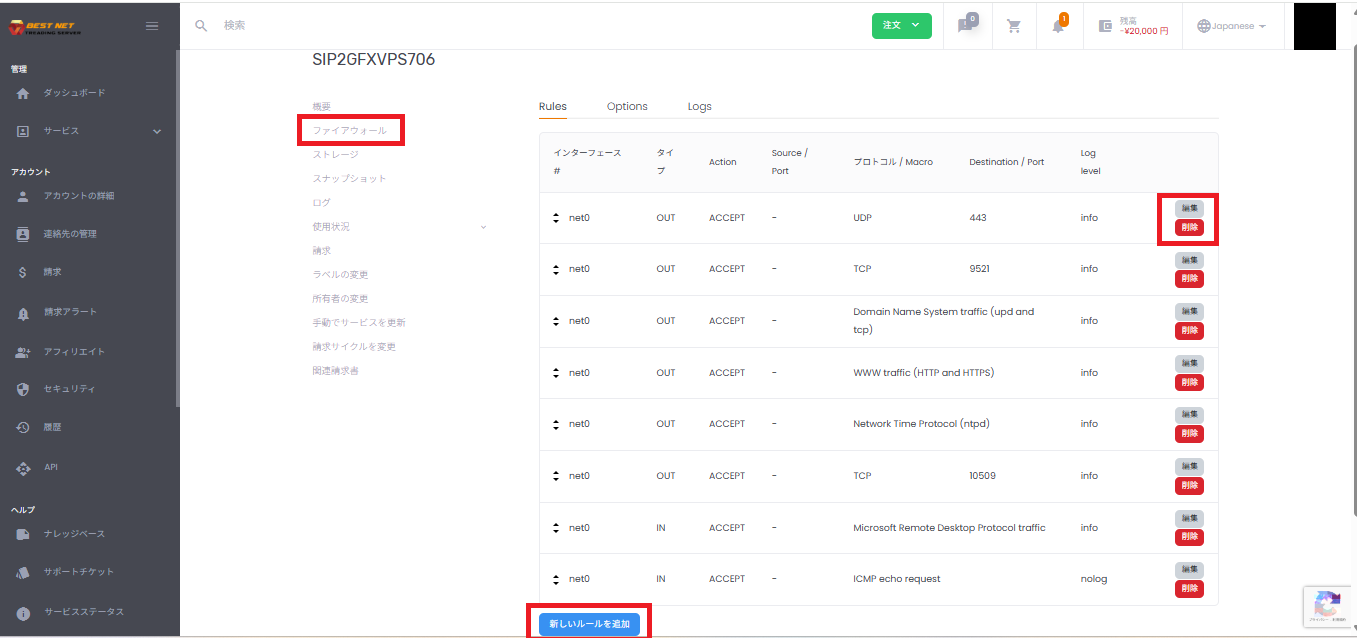
- In the Rules tab, click Delete for the rule row you want to delete.
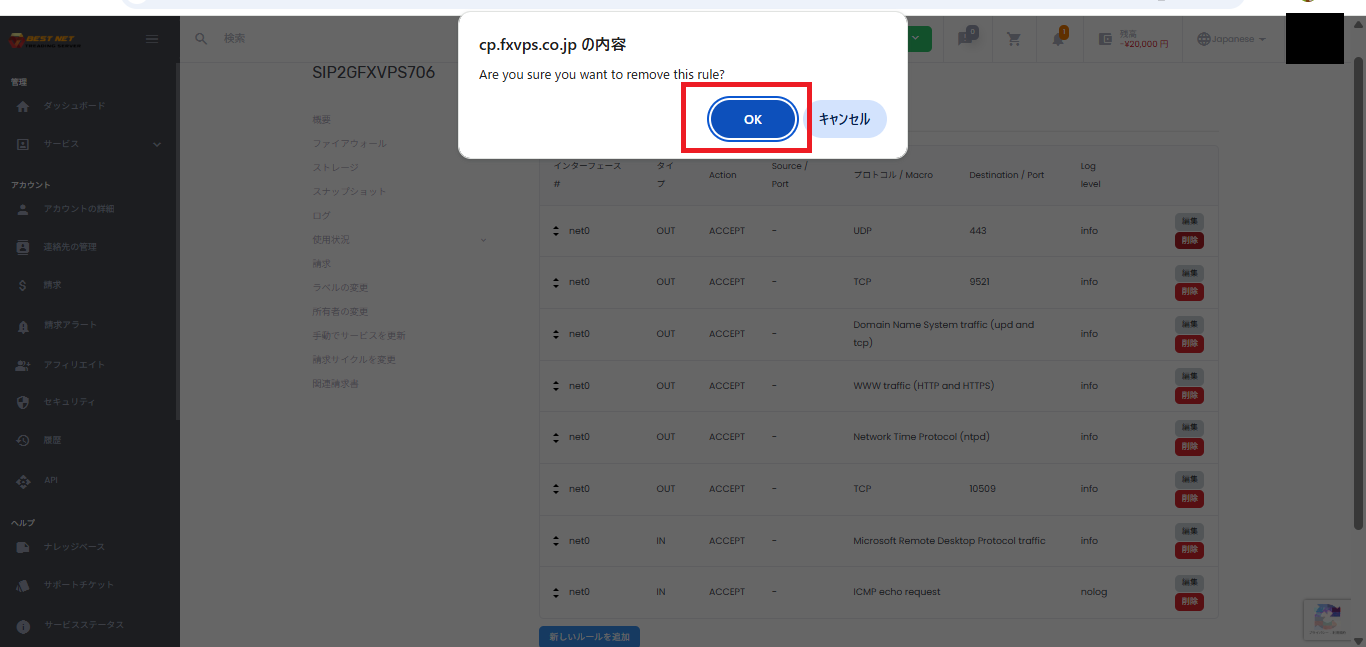
- A confirmation dialog will appear; click OK if there are no issues.
The rule may not disappear immediately after deletion, and you may see a notification like “Pending deletion” in the upper right. Wait a moment for the change to take effect and then refresh the screen.
Add a Rule #
- In the Rules tab, click Add New Rule.
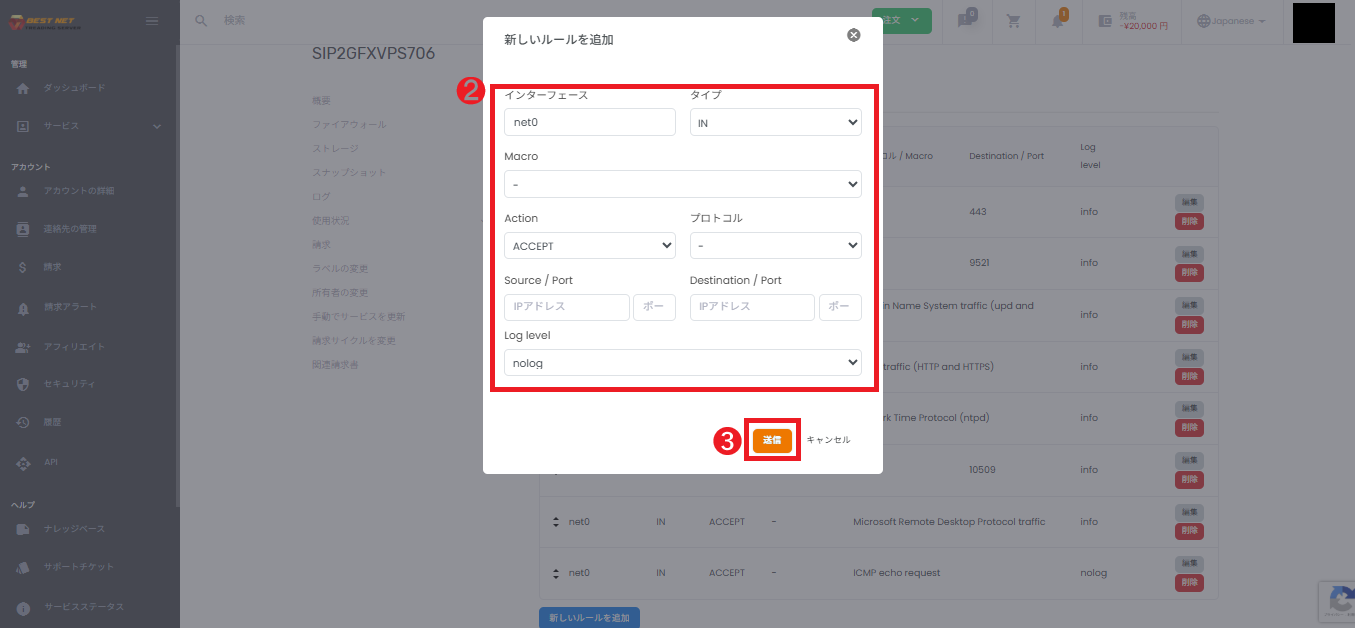
- In the “Add New Rule” screen (modal), enter the required information.
- After entering the information, click Submit.
Input Fields on the Addition Screen #
Interface #
Usually net0 (select the target if there are multiple depending on the environment)
Type #
IN (inbound) / OUT (outbound)
Macro #
Select if you want to use a predefined template (select “-” if not needed)
Action #
ACCEPT (allow) / DROP (deny)
Protocol #
TCP / UDP / ICMP, etc. (be careful when using Macro)
Source / Port #
Source IP / Source port (specify only when needed)
Destination / Port #
Destination IP / Destination port (typically specify destination port)
Log level #
nolog / info / notice, etc.
Addition Example: Allow SSH (TCP 22) and Restrict Source IP #
Fully opening SSH makes it an easy target for attacks. If you have a static IP, we recommend
specifying the Source / Port (source IP)
in your operations.
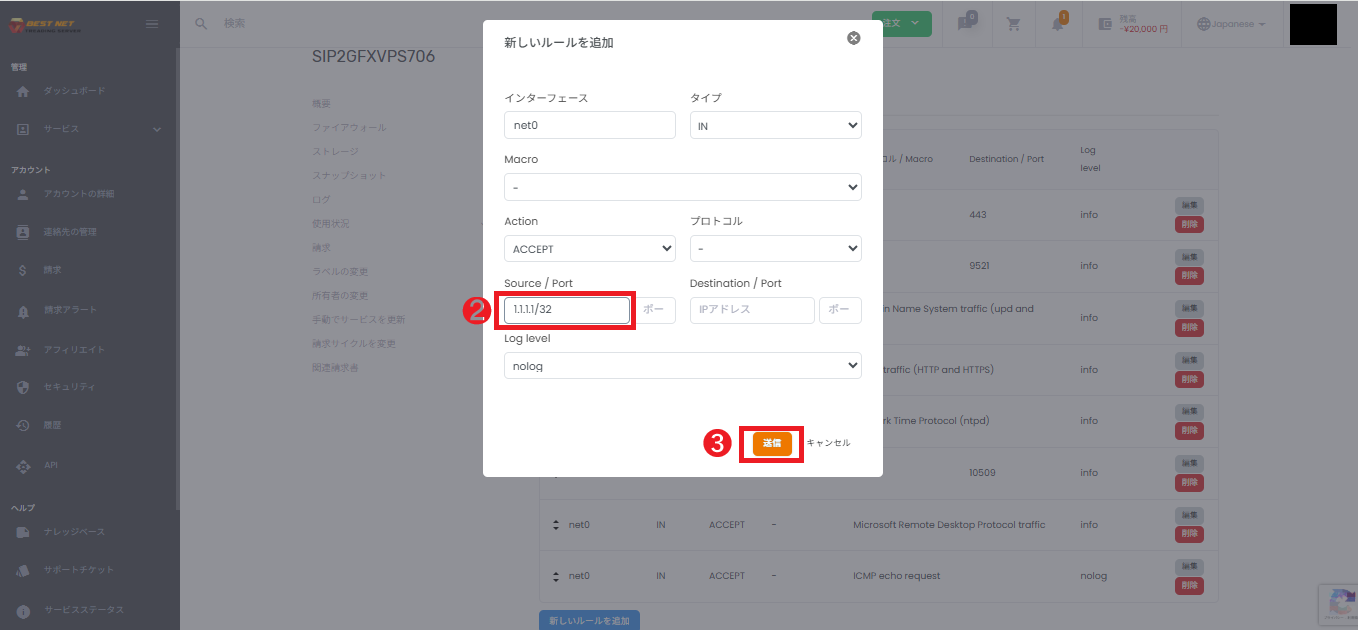
- Edit the SSH rule in Rules (or add a new one).
- Enter the source IP to allow in Source / Port (e.g.,
1.1.1.1/32). - Click Submit.
IP Address Input Format #
You can enter the following formats in Source / Port (source IP) or Destination / Port (destination IP) depending on your operations.
203.0.113.10 / 203.0.113.10/32192.168.1.0/24192.168.30.10-192.168.30.20192.168.1.0/24,192.168.2.0/24192.168.1.0/24,192.168.2.0/24).When Editing a Rule #
- Click Edit for the target rule in the Rules tab.
- Change the necessary items and click Submit.
If you have multiple rules, we recommend taking a screenshot of the current settings before making changes to avoid unintended communication blocking.
Options Set Default Policy #
The Options tab allows you to configure the handling of communications that do not match any rules (Input/Output Policy) and other settings.
Input Policy #
Default for inbound (e.g., DROP)
Output Policy #
Default for outbound (e.g., ACCEPT)
Log Level (IN/OUT) #
Log level by direction (behavior may vary by environment)
- Open the Options tab.
- Change Input Policy / Output Policy as needed.
- Click Save Changes.
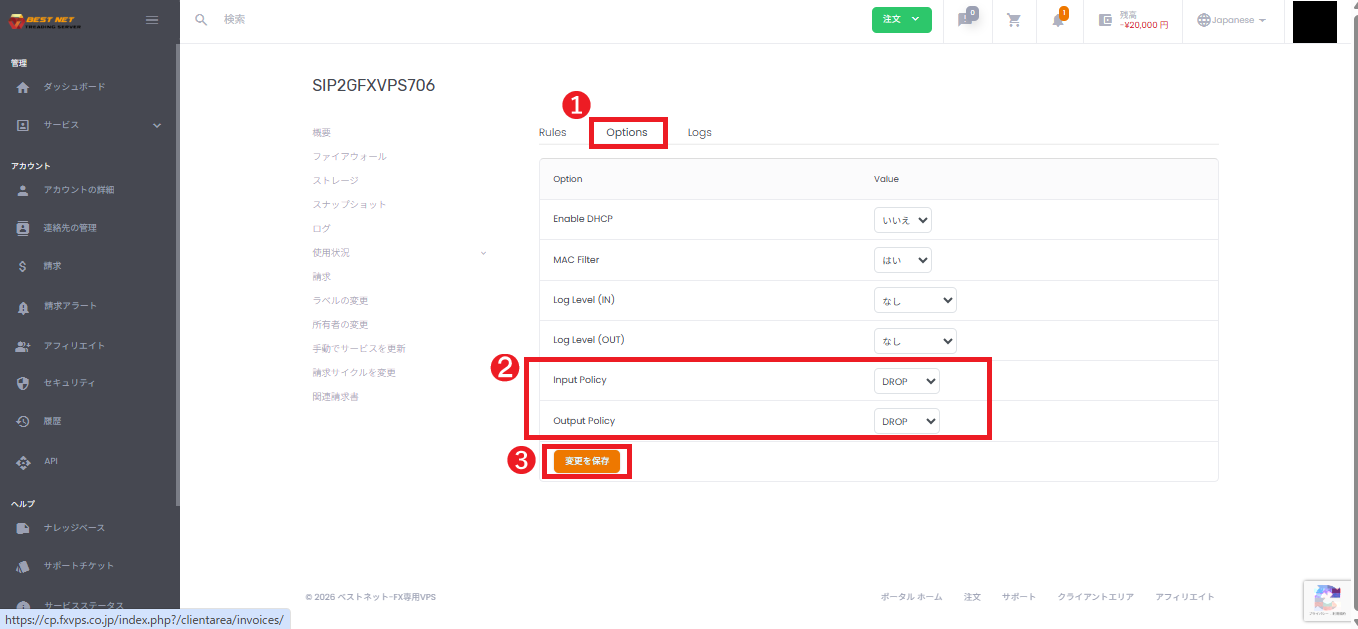
Before setting Input Policy to DROP, first prepare
ACCEPT rules for required inbound communications
(e.g., SSH / HTTPS, etc.).
Logs View and Download Logs #
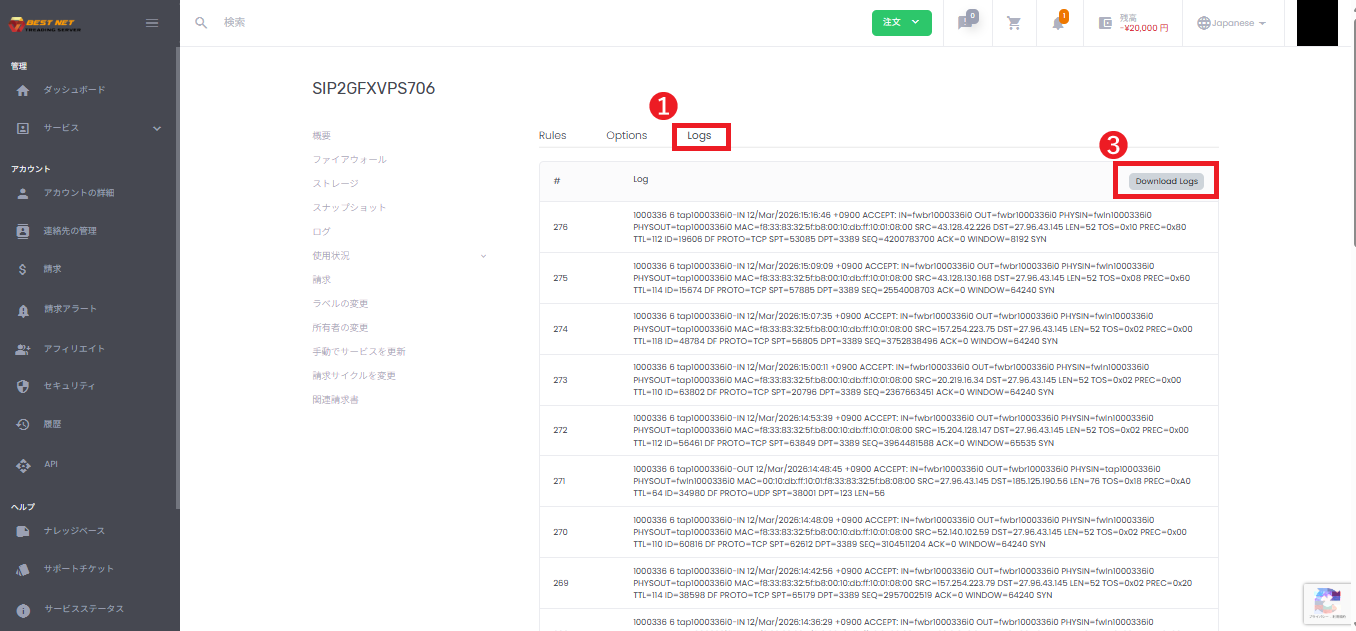
- Open the Logs tab.
- If logs are not displayed, review the rule’s Log level or Options log settings.
- If necessary, download logs from Download Logs.
Common Errors and Solutions #
Getting an error when specifying protocol with Macro selected #
Some Macros have the protocol fixed internally, so specifying an additional protocol may cause an error
(e.g., protocol already define in macro).
- Solution: When using Macro, set the protocol to “-“, or set Macro to “-” and then specify the protocol.
Verification Points if Changes Are Not Applied #
- Check if the upper right notification shows “Pending creation,” “Pending deletion,” etc. (changes may be pending)
- After adding/editing Rules, verify the display is updated by refreshing the screen
- If Input Policy is set to DROP, confirm that ACCEPT rules for required communications exist
- If logs are not appearing: Verify that the rule’s Log level / Options Log Level setting is enabled
- Confirm you are not using an unauthorized protocol / port number
Supplementary Information: Security Operations Recommendations #
- For administrative ports (e.g., SSH 22), limit the source IP as much as possible.
- Do not allow ports that do not need to be public (principle of least privilege)
- Perform connectivity verification before and after changes (confirm required ports are open)





