Overview #
The client portal includes a “Manually Renew Service” feature that allows you to issue a service renewal invoice (renewal invoice) at any time in advance.
When you perform this operation, the next billing date for the target service is updated to “today,” and a renewal invoice is issued.
Point: This feature can be used when you want to move up the renewal timing.
Prerequisites #
- You must be logged in to the client portal
- You must own the service to be renewed
- You must have the authority to issue and pay renewal invoices (this varies depending on your contract and permission settings)
Operating Procedure #
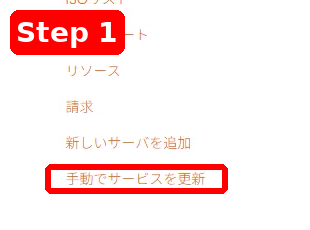
Step 1: Open “Manually Renew Service” on the Service Screen #
- Open the Service screen in the client portal.
- Click “Manually Renew Service” in the Service menu.
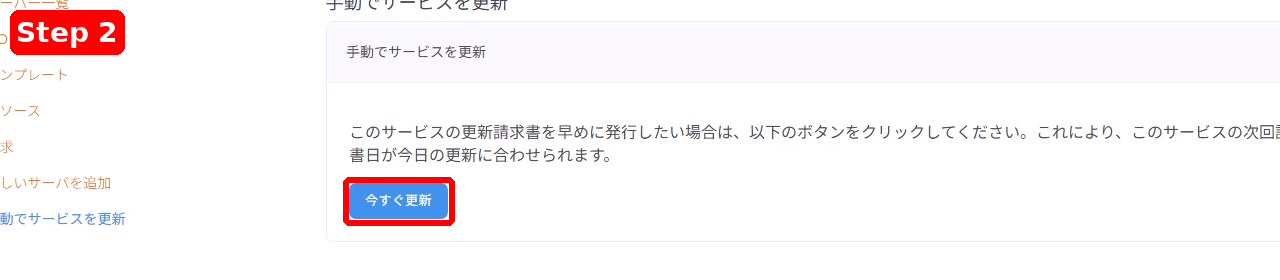
Step 2: Click “Renew Now” #
- The “Manually Renew Service” page is displayed.
- Click the “Renew Now” button on the page.
Step 3: Click “OK” in the Confirmation Dialog #
- When a confirmation dialog appears, review the contents.
- If everything is correct, click “OK” (or click “Cancel” if you want to cancel).

Step 4: Check the Issued Invoice and Pay if Necessary #
- When the renewal invoice is issued, you will be redirected to the Invoice page.
- In the top right of the screen, “A new invoice has been issued” will be displayed.
- Review the contents, and if you want to settle immediately, click “Pay Now!”

Important Notes #
- Screen displays (invoice number, amount, button display, etc.) may differ depending on your contract details, settings, and language.
- If you accidentally execute an operation or have any questions about the billing content, please open a ticket.





