Overview #
Instructions for adding “Account Credit (Funds)” in the client portal that can be used for future orders and invoice payments.
Preparation #
- You are logged into the client portal
- You have decided the amount you want to add
Operating Instructions #
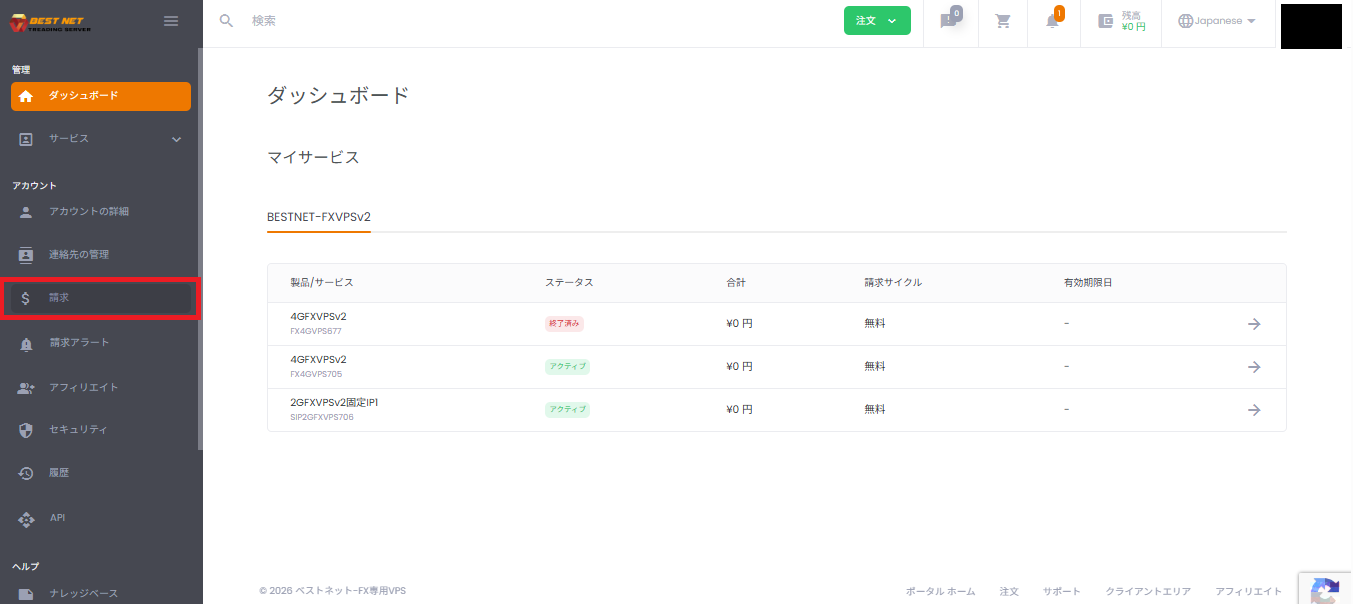
Step 1: Open “Billing” from the left menu #
- Click “Billing” from the left menu in the client portal.
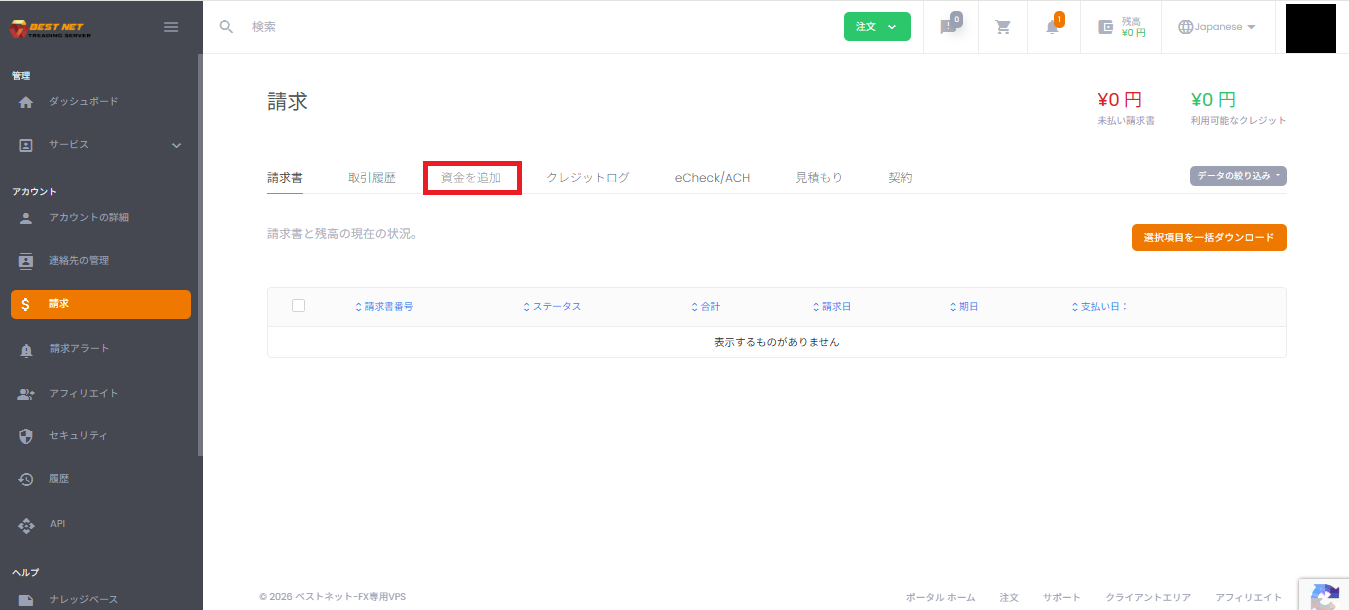
Step 2: Open the “Add Funds” tab #
- Click “Add Funds” from the tabs at the top of the Billing screen.
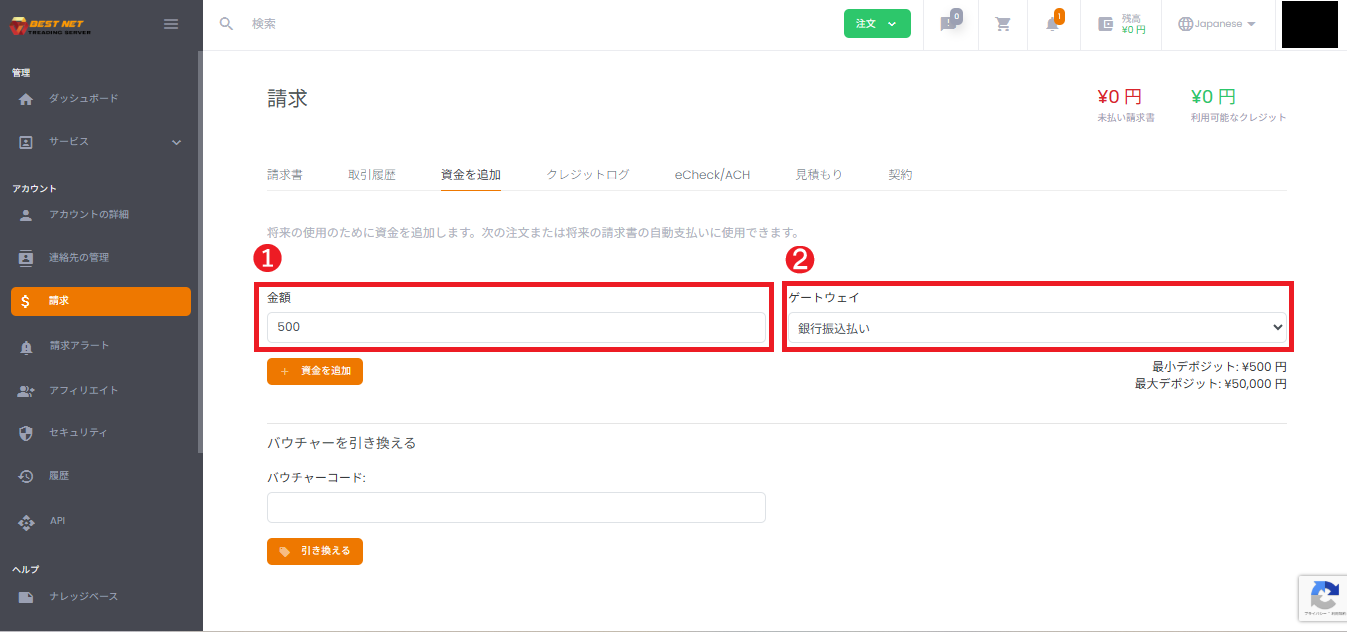
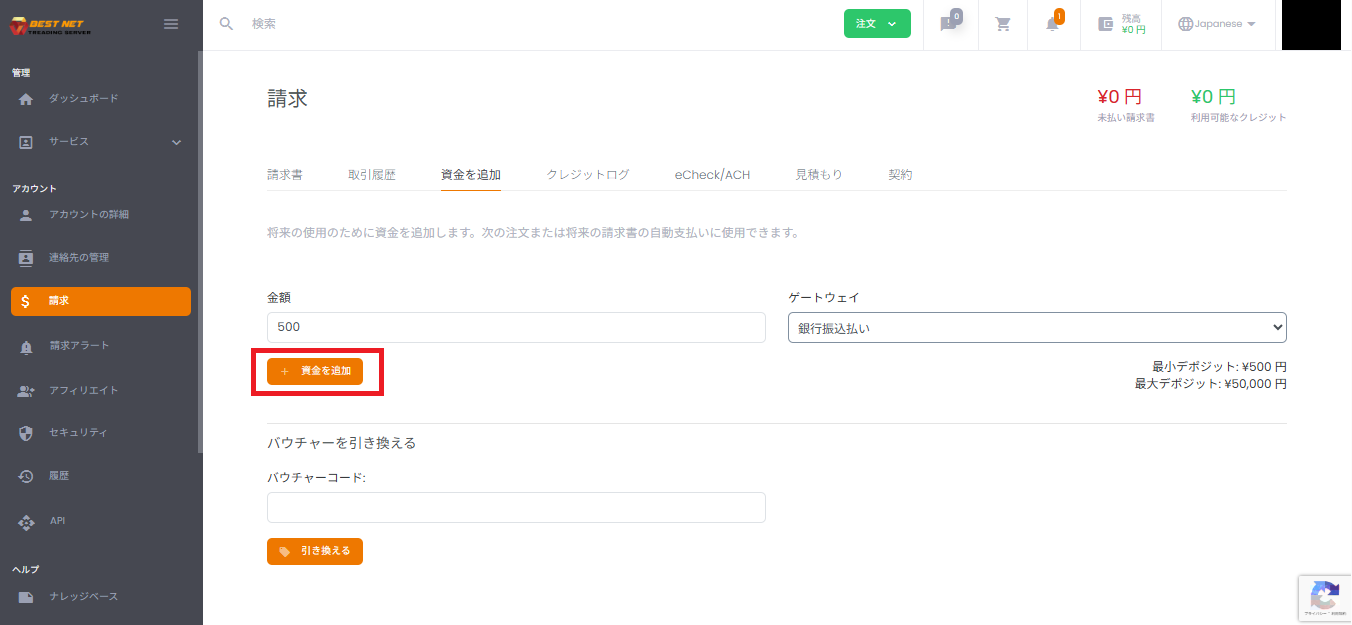
Step 3: Set the amount and payment method (gateway) #
- Enter the amount you want to add in “Amount”.
- Select a “Gateway” (payment method). For example: Bank transfer, PayPal, Credit card payment, etc.
Important: Deposited account credit is in principle not subject to refunds for cash withdrawals. Please check this page for detailed handling policies (Account Credit Handling Policy).
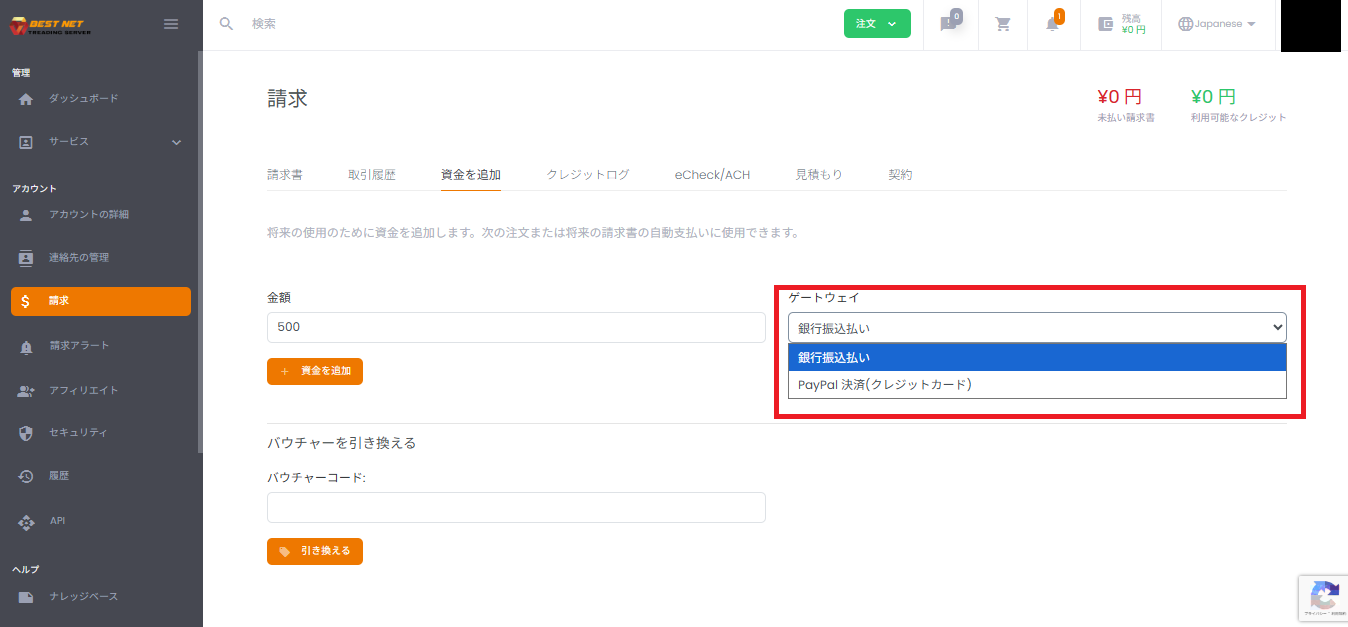
(Optional) Review and select payment method options #
When you open the gateway dropdown menu, a list of available payment methods will be displayed.
Step 4: Click “+ Add Funds” to create an invoice #
- Confirm the entered information and click “+ Add Funds”.
- An invoice (Invoice) will be automatically created.
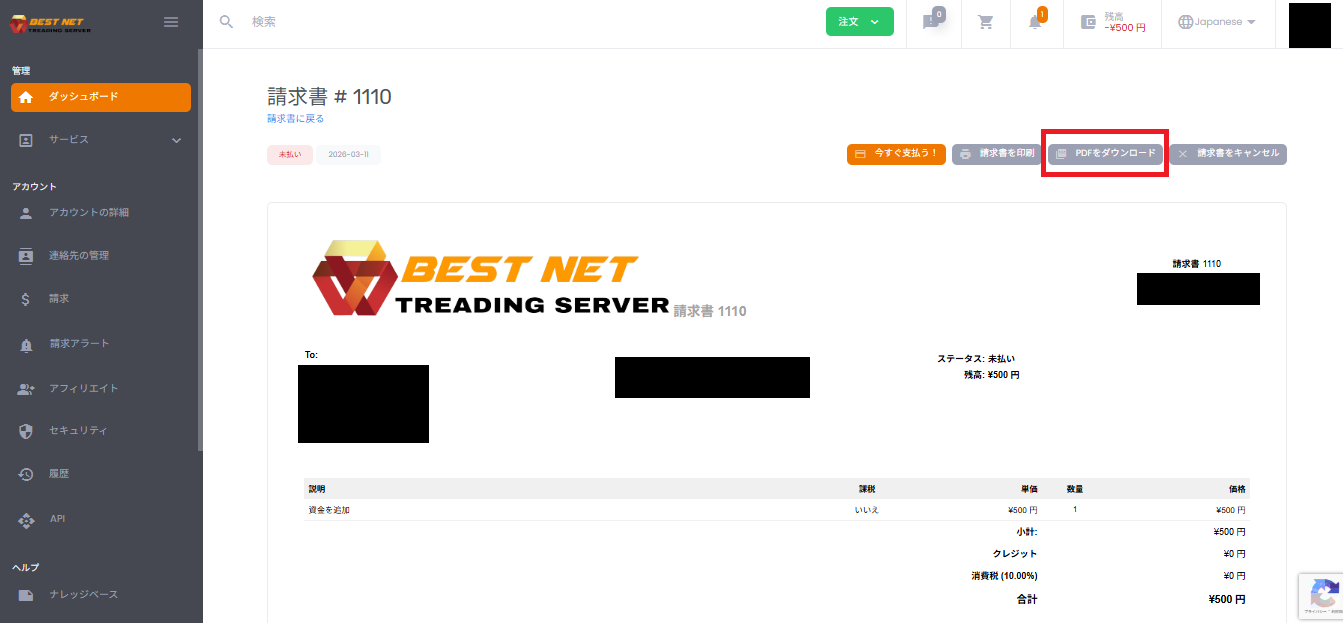
Step 5: Proceed with payment from the created invoice / Download PDF #
- On the created invoice screen, click “Pay Now!” to proceed with payment (the displayed content will vary depending on the selected gateway).
- You can obtain the invoice PDF by clicking “Download PDF” as needed.
Completion Confirmation (Checking Credit Balance) #
- When payment is complete, it will be reflected in “Available Credit” (balance display) at the top of the client portal.
- If it takes time to be reflected, please wait a moment and then refresh the page.
Additional Notes and Precautions #
- Deposited account credit is in principle not subject to refunds for cash withdrawals. For details, please see the Account Credit Handling Policy.
- The “Redeem Voucher” field is only used if you have a coupon/voucher code.
- Depending on the payment method, you may be redirected to another screen or additional authentication (e.g., 3D Secure) may be required.
Troubleshooting #
Credit is not reflected #
- If the invoice remains “Unpaid”: It is possible that payment has not been completed. Please check the payment status from the invoice screen.
- If it should be paid but is not reflected: Please wait and refresh the page. If the issue persists, contact us through a support ticket.





