Billing / Invoices
This article summarizes the basic operations for invoices in the client portal (viewing, payment, and PDF saving/printing), as well as the timing of invoice issuance and the concept of due dates.
※ Screen display and menu names may vary depending on your service plan and permissions.
1. Viewing and Paying Invoices #
In the client portal, you can view invoices, make payments, and save or print PDFs all in one place. Invoices are automatically generated at times such as service renewals (billing cycle updates) or plan changes. Please make payment by the due date.
View
You can check the invoice status, due date, amount, and details.
Pay
You can proceed directly to payment from unpaid invoices.
Save / Print
PDF download and printing may be available.
1-1. Viewing Invoices #
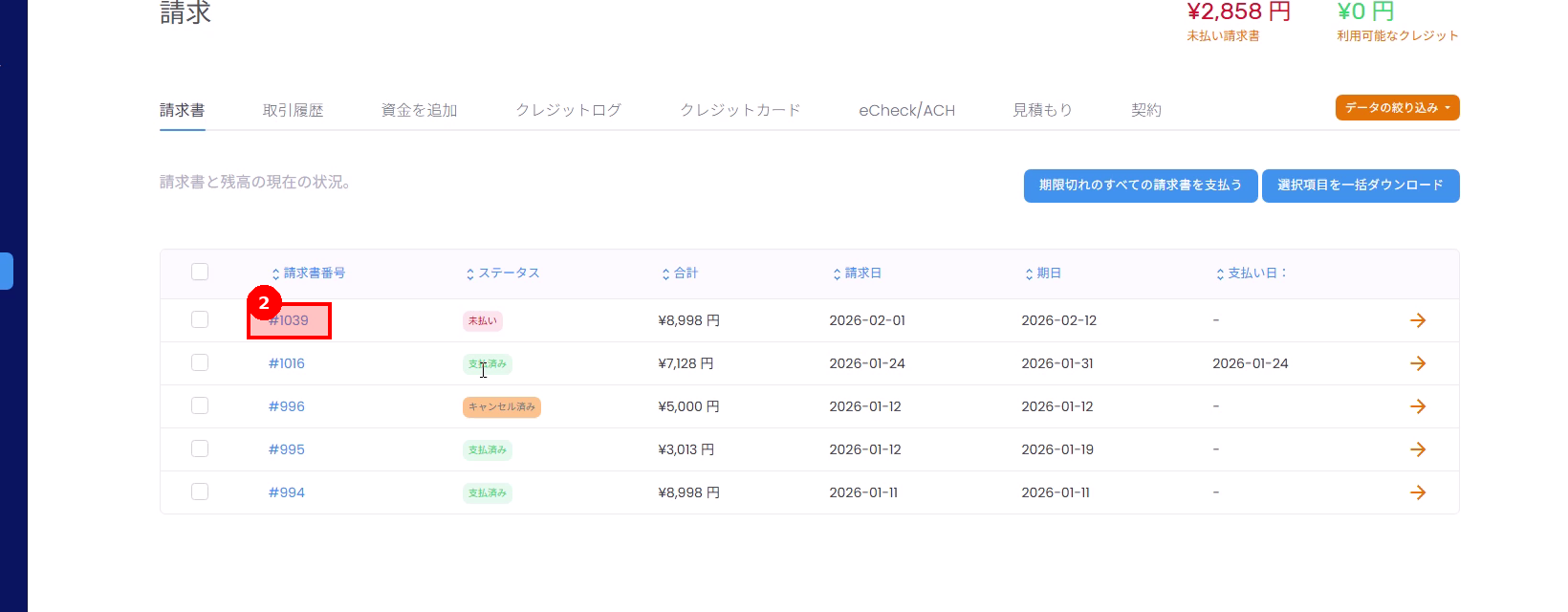
Invoices are managed with statuses such as Unpaid or Paid. When you open a specific invoice, you can view the due date, billing amount, and details (target services, period, options, etc.). During renewal months or months in which plan changes occur, the details may include more items than usual.
- Open “Billing” → “Invoices” from the menu.
- Select the target invoice from the list.
- Confirm the status (Unpaid / Paid), due date, amount, and breakdown.
1-2. Paying Invoices #
Open an unpaid invoice and proceed to payment by selecting “Pay Now”. The payment method varies depending on your contract (credit card, PayPal, bank transfer, etc.). Once payment is completed, the invoice status will be updated to Paid.
If the status does not change after payment, the transaction may be taking time to process. Please wait and then refresh the page.
- Select “Pay Now” on the target invoice screen.
- Select your payment method and follow the instructions to complete the payment.
- After payment, confirm that the invoice status shows “Paid”.

1-3. Downloading Invoice PDFs / Receipts #
Invoices can be saved as PDFs for internal reconciliation and record-keeping. If buttons such as “PDF”, “Download”, or “Print” are displayed, you can download or print from there.
※ The availability and handling of receipts (same as invoice / separate display) may vary depending on your payment method and settings.
- Open the invoice screen.
- Save or print from buttons such as “PDF”, “Download”, or “Print”.


1-4. Invoice Issuance Timing and Due Dates #
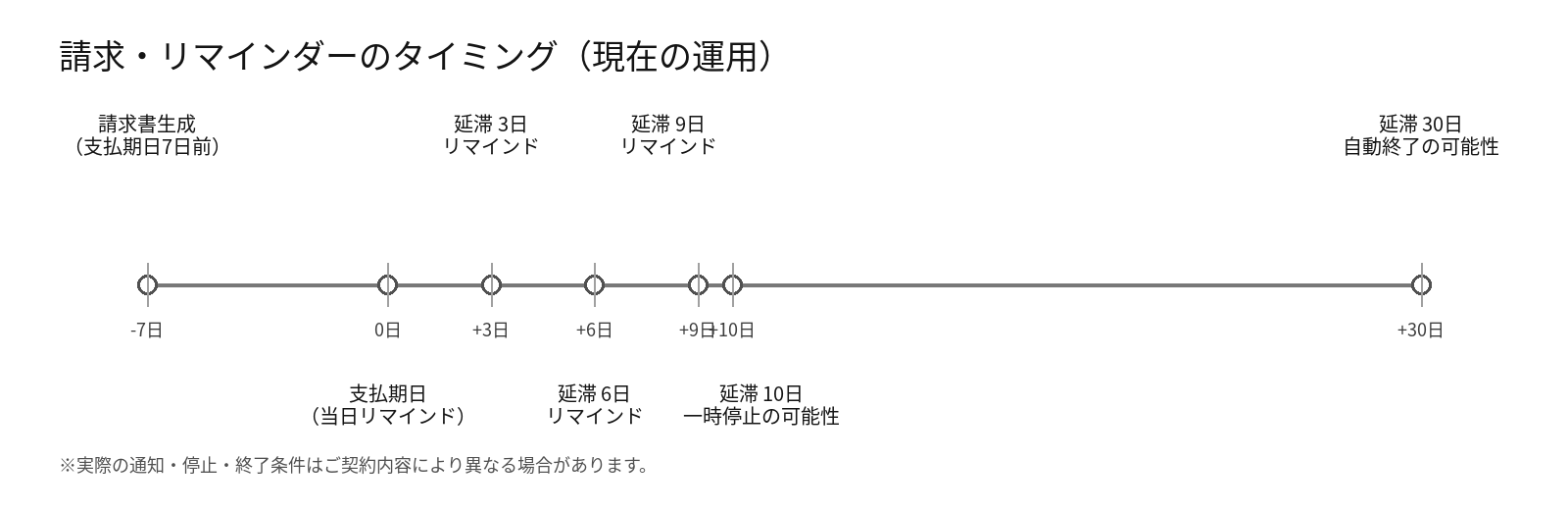
We issue invoices and send reminder notifications in stages to prevent payment oversights while ensuring unpaid balances do not remain outstanding for extended periods.
The due date is the payment deadline. Please make your payment by the due date. If non-payment continues, your service may be subject to suspension or automatic termination.
-
7 days before
The invoice is automatically generated 7 days before the due date.
-
On the due date
A reminder may be sent on the due date.
-
3 / 6 / 9 days after
After the due date passes, overdue reminders are sent 3 days / 6 days / 9 days after the due date.
-
10 days after
If 10 days have passed since the due date, your service may be suspended. After payment is completed, the suspension is typically lifted automatically.
-
30 days after
If 30 days have passed since the due date, your service may be automatically terminated.
※ Actual suspension/termination conditions may vary depending on your contract.
※ For payment methods that take time to process, such as bank transfers, please allow adequate time before the due date.
2. Frequently Asked Questions #
2-1. I did not receive an invoice email #
- Check your spam or junk folder.
- Log in to the portal and check the “Invoices” list to confirm if invoices have been issued (if there are any unpaid amounts).
- Add
@fxvps.co.jpto your email whitelist.
2-2. I made a payment but it still shows as unpaid #
- Payment processing may take time. Please wait a few minutes to several tens of minutes and then refresh the page.
- If the issue persists, please contact us via ticket with your transaction ID.
2-3. My service has been suspended #
- If there are any unpaid invoices, open the target invoice and check the due date and status, then complete your payment.
- After payment is completed, the suspension may be lifted automatically. If it is not lifted, please contact us via ticket.





