FX Dedicated VPS / Kubuntu OS
This page provides instructions on how to apply update patches to your operating system.
1. Purpose and Overview of This Manual #
This guide provides operating instructions for applying update patches to your operating system.
2. Revision History #
| Version | Created Date | Update Details |
|---|---|---|
| 1.0 | 2024/1/11 | Initial version created |
4. Prerequisites #
- Your device must be connected to the internet
- Your network environment must be able to establish HTTPS connections to external servers
- One of the following web browsers must be available on your device: Chrome, Firefox, or Microsoft Edge
- You must be logged in to your VPS
5. Applying Updates #
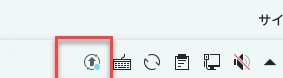
When updates are available, an update indicator will appear in the lower right corner of the VPS taskbar as shown in the image below.
5.1 Open the update list and click “Update All” #
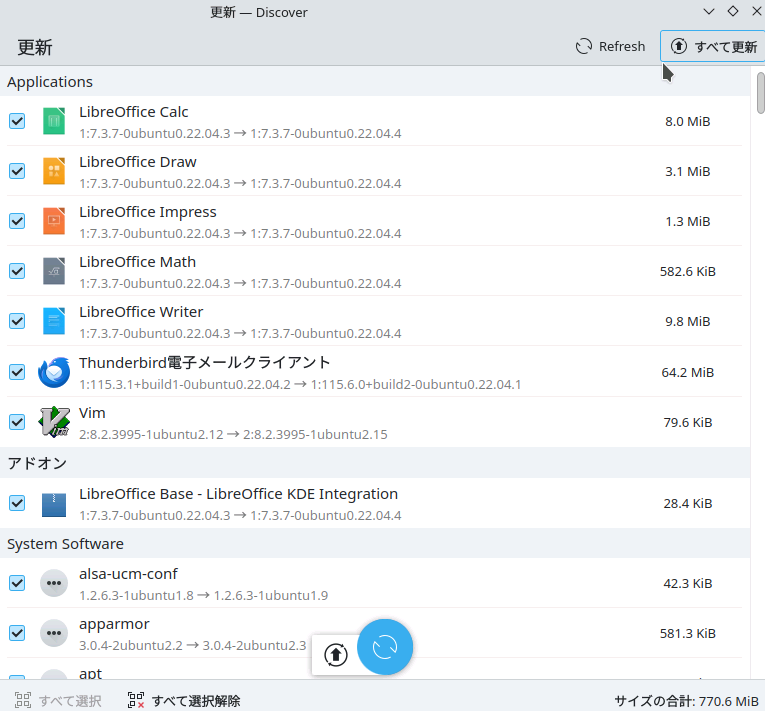
Clicking the update indicator will display the update component list as shown below.
Click “Update All” in the upper right corner of the screen.
If a password is requested
Enter the root password available in our client portal or the password provided in your account information email.
5.2 Complete when “Up to Date” is displayed #
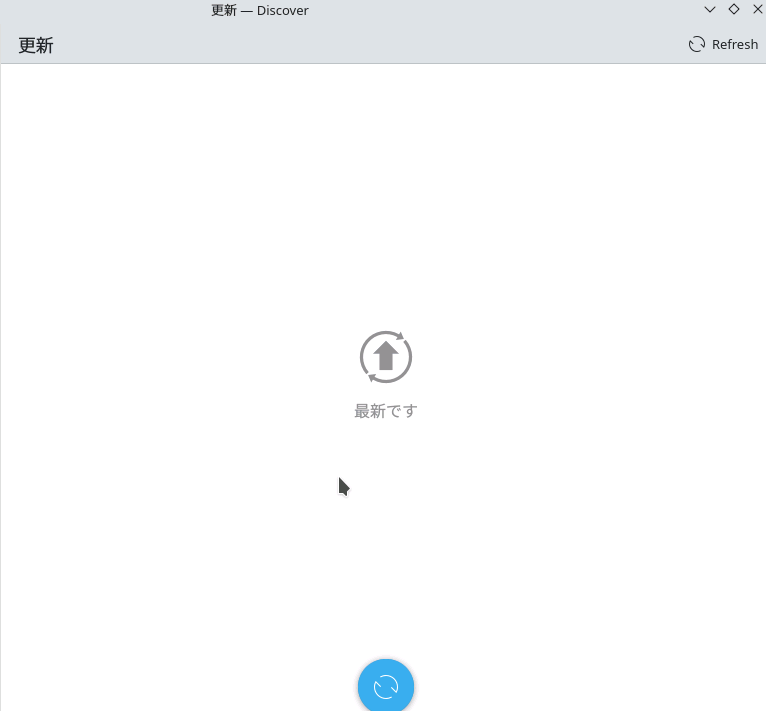
When the update is complete, “Up to Date” will be displayed as shown in the image below.