OptiMax Boost Ticket Application Guide #
This guide explains how to add a Boost Ticket from EA DevBox,
and how to extend an existing Boost to a different period.
The screen examples show an extension case from a 7-day Boost to a 30-day Boost,
but the basic flow is the same for 24-hour / 7-day / 30-day options.
Please confirm first #
Boost Ticket is not a standalone product.
You must first contract EA DevBox, and then
add or extend Boost Tickets from the client portal.
What you can do with this guide #
Add your first Boost from DevBox #
When the base environment is not sufficient, you can add L / XL / XXL Boosts.
Extend from 24-hour to 7-day / 30-day #
Start with a short-term option and move to a longer ticket as needed.
Switch from 7-day to 30-day #
Once continued use is apparent, switching to the 30-day version makes operations clearer.
Application procedure #
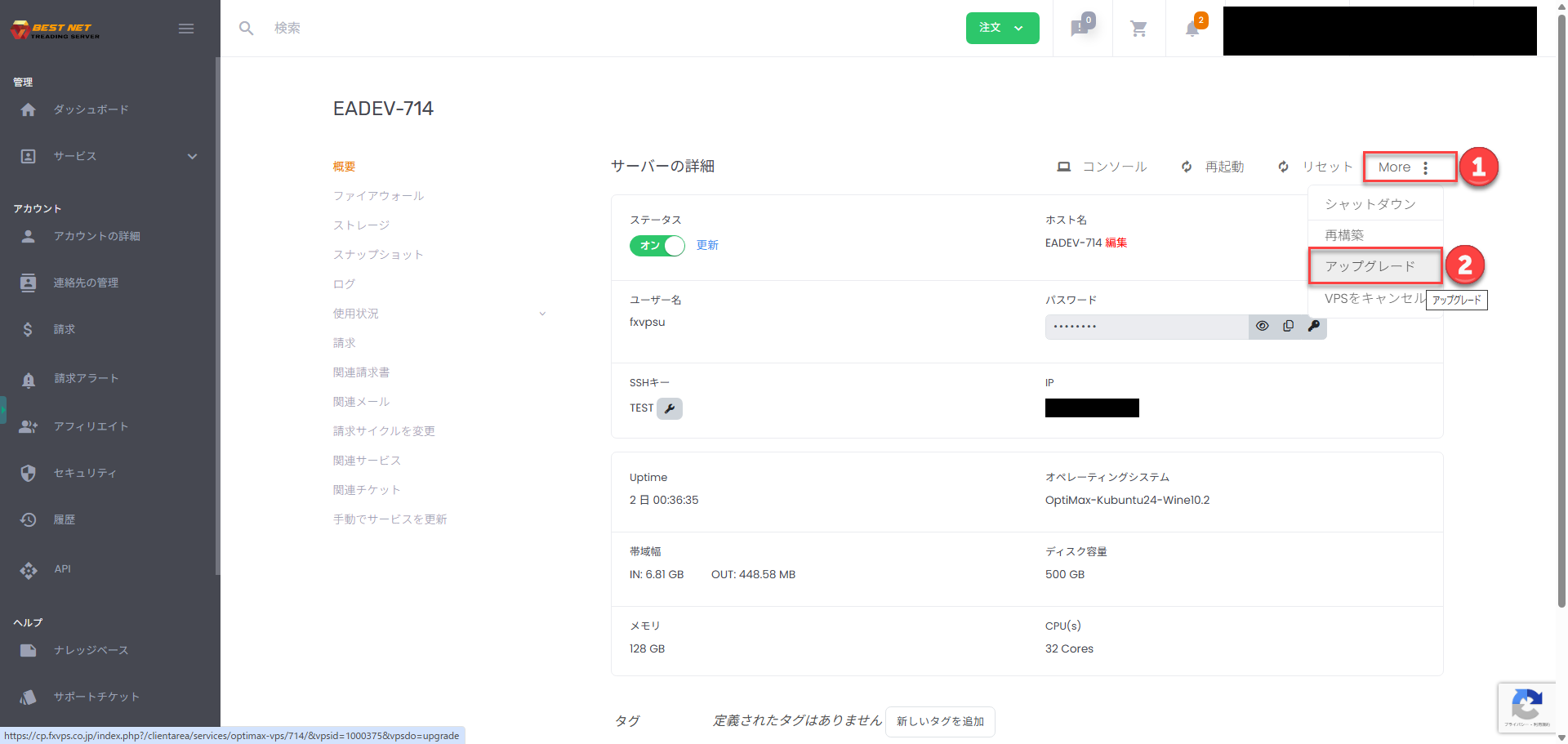
Open the target OptiMax server #
Log in to the client portal and open the management screen for the target EA DevBox or
currently active Boost server.
Select your desired Boost Ticket #
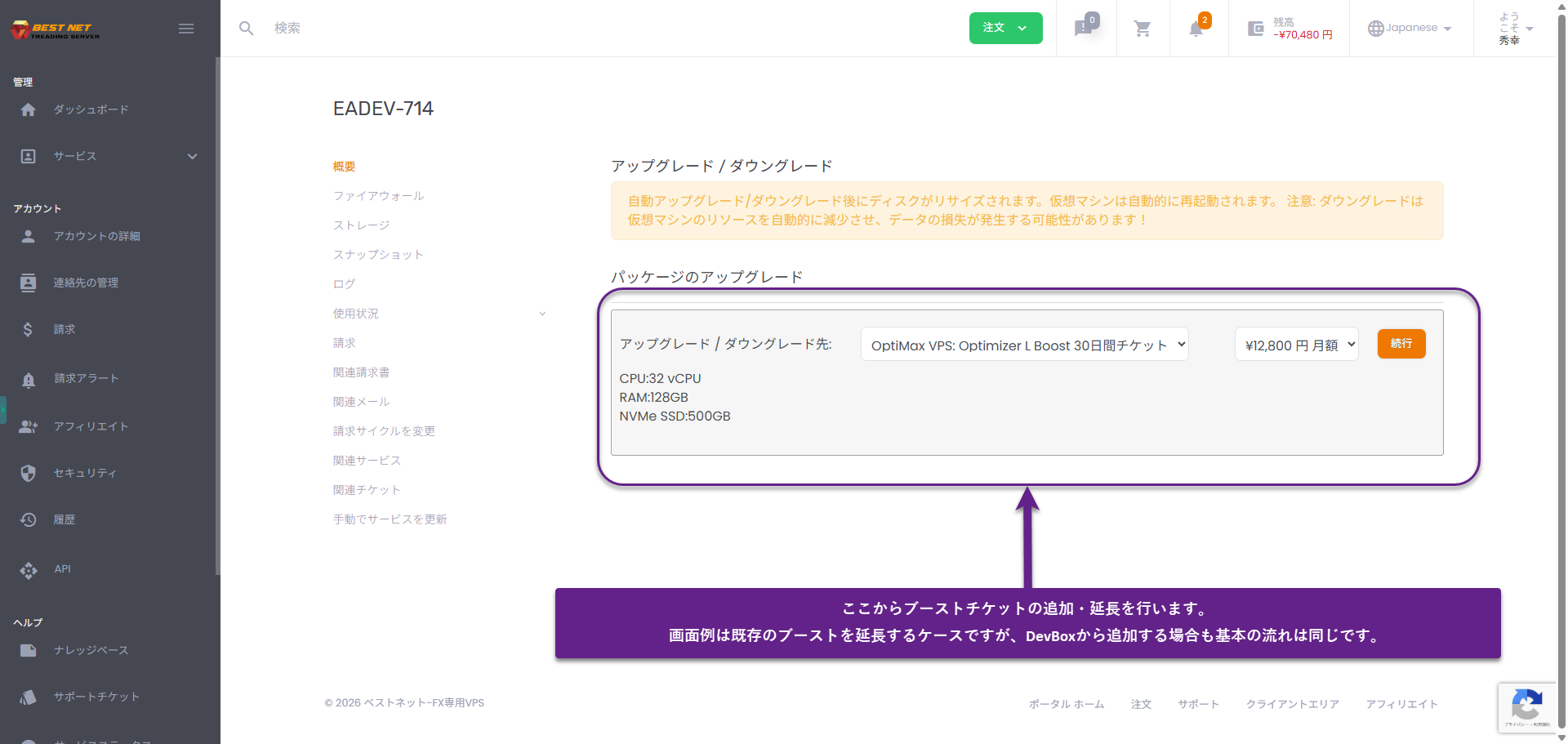
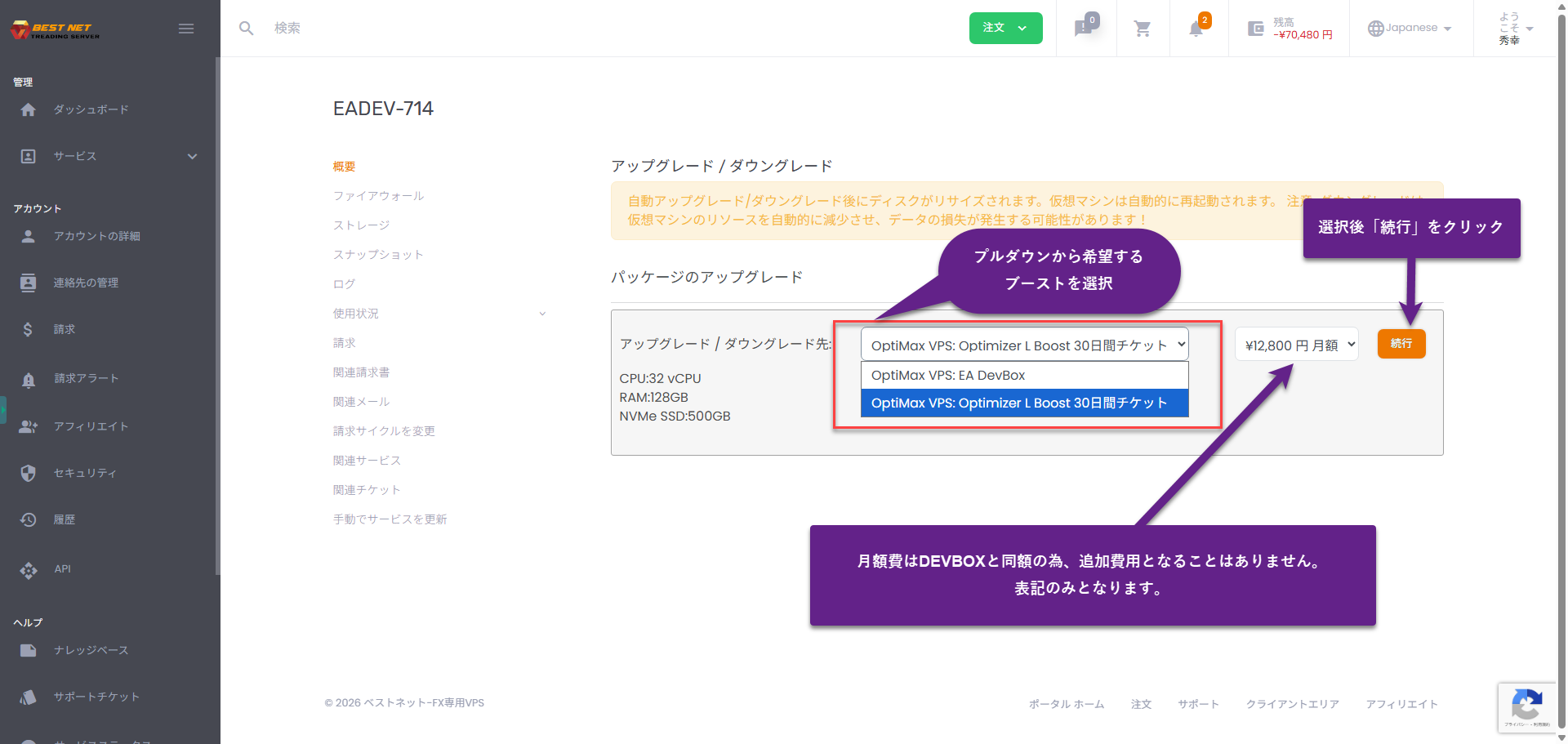
On the “Upgrade / Downgrade” screen,
select your desired Boost from 24-hour / 7-day / 30-day,
and click Continue.
Confirm order details and submit #
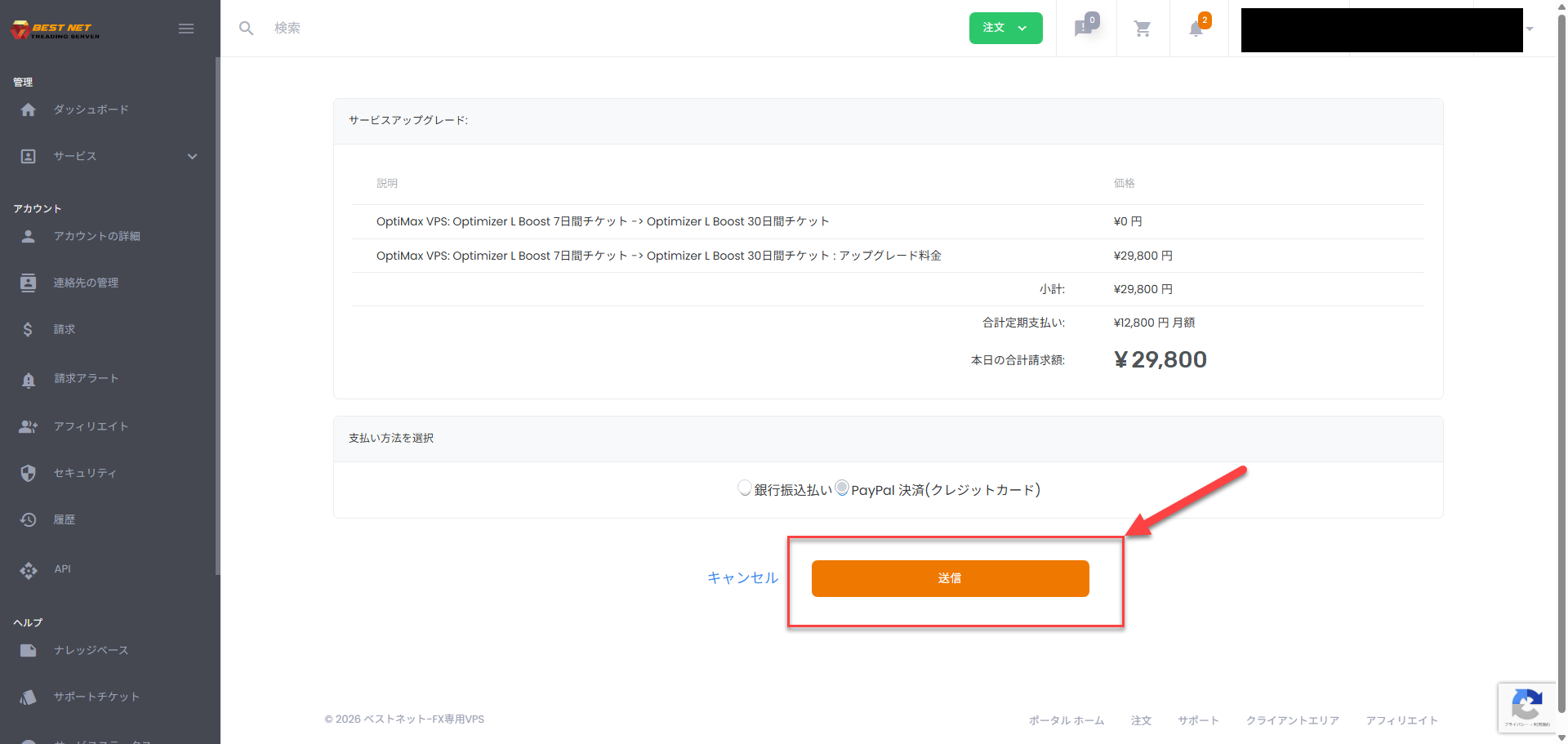
Confirm the displayed information, select your payment method, and click Submit.
The screen example shows extension from a 7-day Boost to a 30-day Boost.
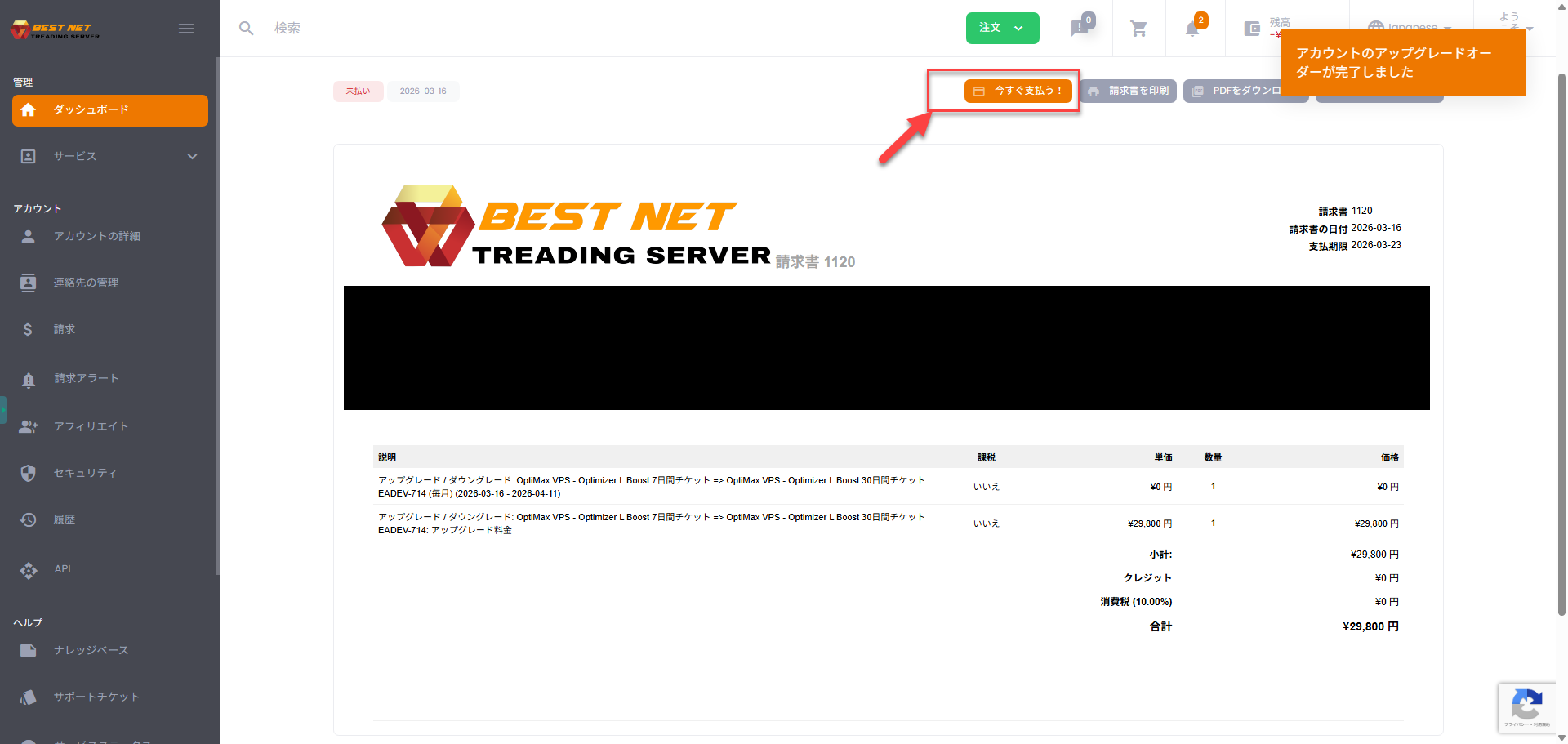
Proceed to payment from the issued invoice #
After submitting the order, an invoice is issued. On the invoice page,
click Pay Now! to proceed to payment.
Confirm payment method and complete payment #
In the payment window, confirm your payment method and complete the payment.
Bank transfer and various credit card payment options will be displayed.
What happens after application? #
- After payment is completed, the Boost Ticket is automatically applied.
- After the period ends, the server is restarted and automatically reverts to the standard configuration (such as EA DevBox).
- Data, settings, and development environment are preserved as-is.
Supplementary notes #
Extension between equivalent specs does not cause a server restart.
For example, when extending from a 24-hour Boost to 7-day / 30-day Boost of the same grade,
you can switch without interrupting your work.
Frequently asked questions #
Can I apply for a Boost Ticket alone?
No. You must first contract EA DevBox. Boost is designed to be added after EA DevBox contract.
Which should I choose: 24-hour / 7-day / 30-day?
If you want to try first, 24-hour is suitable. For validation over several days, 7-day is appropriate. If continued use is evident, 30-day is the best fit.
What happens after the Boost period ends?
After the period ends, it automatically reverts to the standard configuration. Since data and settings are preserved, your development environment can continue as-is.





