Overview #
This procedure explains how to change the UI font size from the System Settings (KDE System Settings) in Kubuntu 24 (KDE Plasma).
In the screen recording, we change from the default 10pt to 14pt. Please read the size as appropriate for your needs.
Target Environment #
- Kubuntu 24.x (KDE Plasma / KDE System Settings)
- Japanese UI (for English UI, refer to the notation in parentheses)
Procedure #
1. Launch System Settings #
- Click the System Settings icon in the panel at the bottom left of the screen.
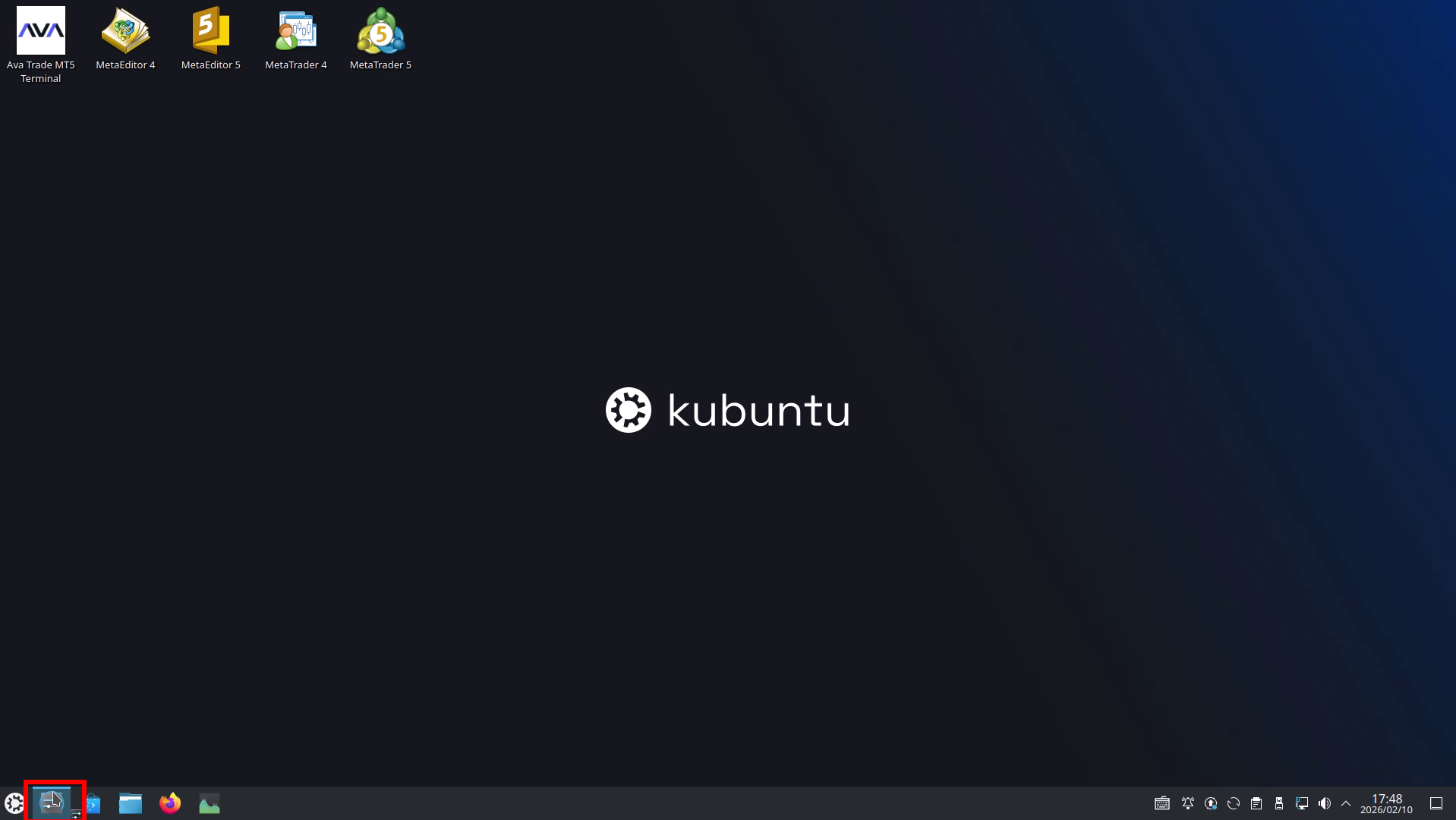
Click the “System Settings” icon (red frame) in the panel.
2. Open Appearance → Fonts #
- Select Appearance from the left menu.
- Click Fonts from the center menu.
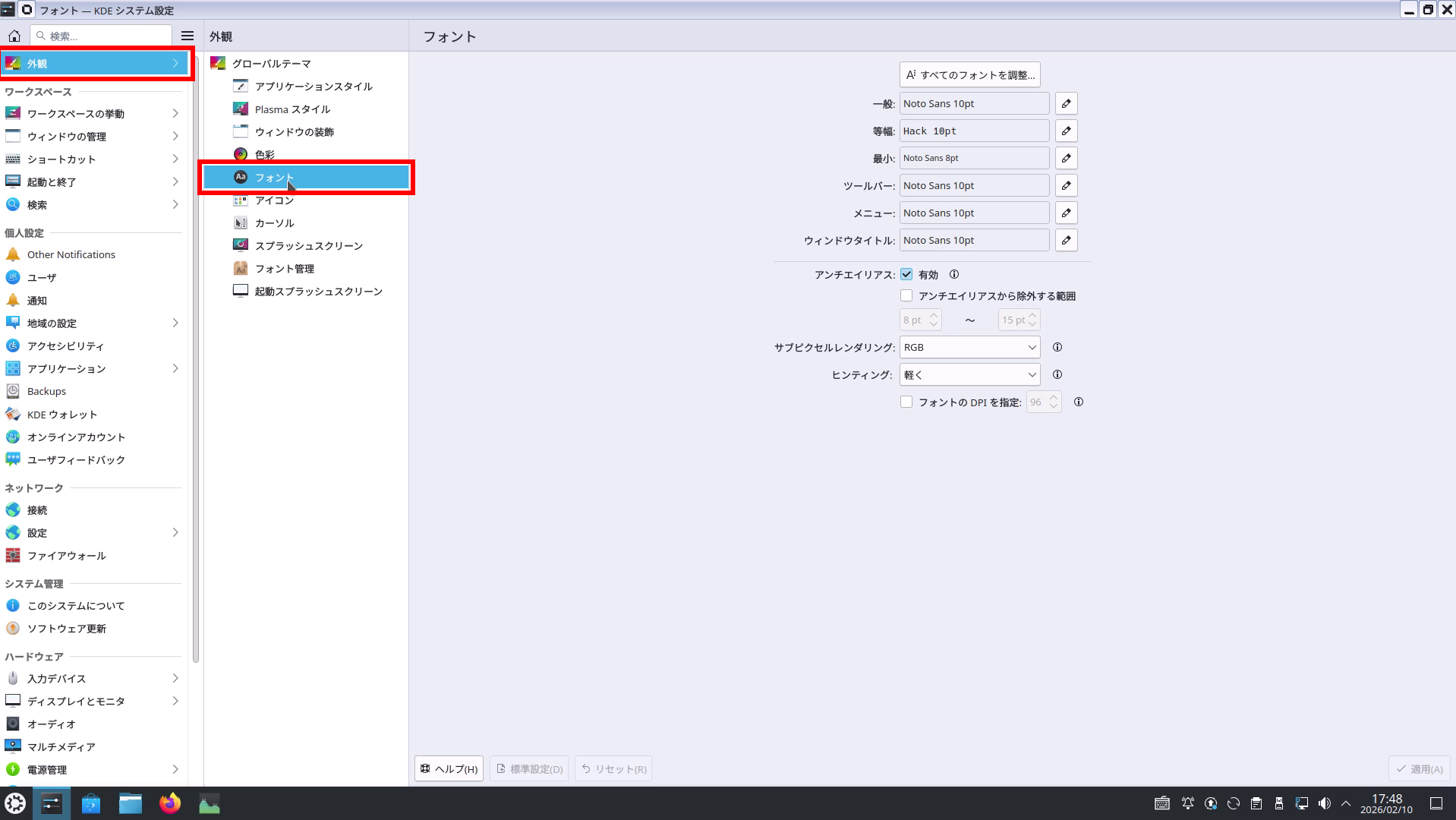
Open “Appearance” in the left menu → “Fonts” (red frame) in the center menu.
3. Click “Adjust All Fonts…” #
- Click Adjust All Fonts… at the upper right of the Fonts settings screen.
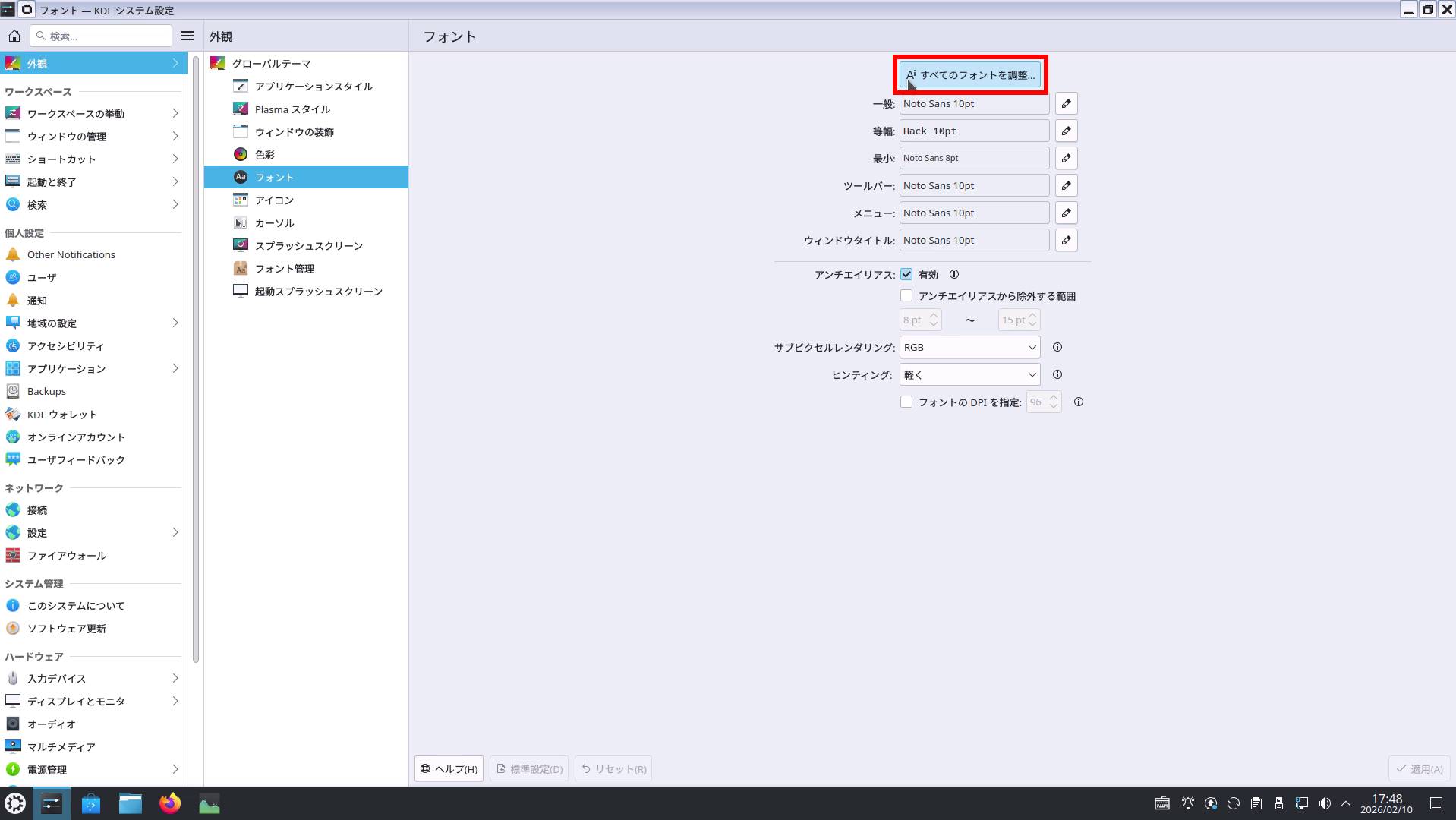
Click “Adjust All Fonts…” (red frame).
4. Select the font size and click OK #
- In the displayed “Select Font” dialog, select the desired size from Size (example: 14).
- Click OK to confirm.
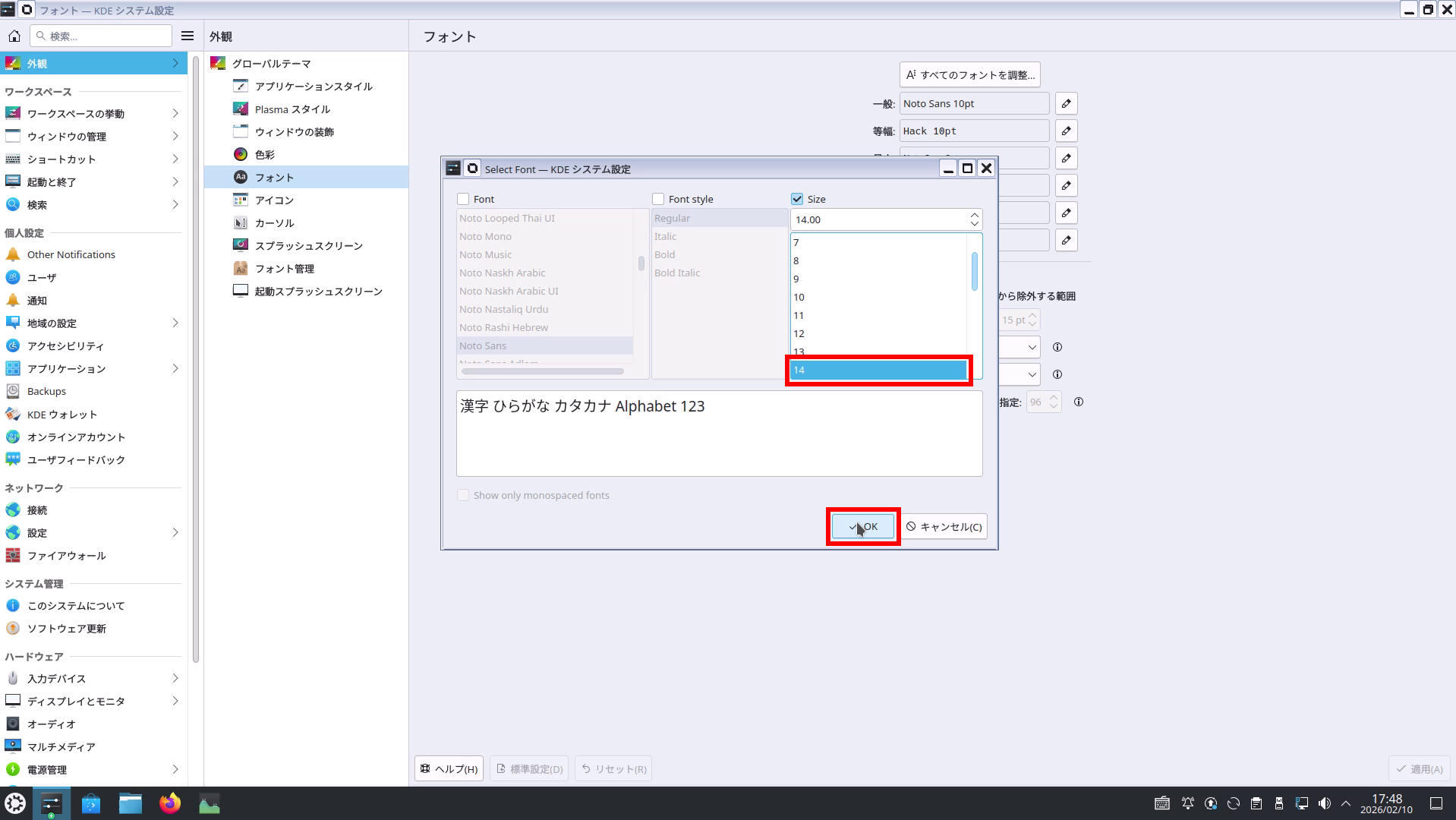
Example: Select size “14” (red frame) and confirm with OK (red frame).
5. Click “Apply” to reflect the changes #
- Click Apply at the bottom right.
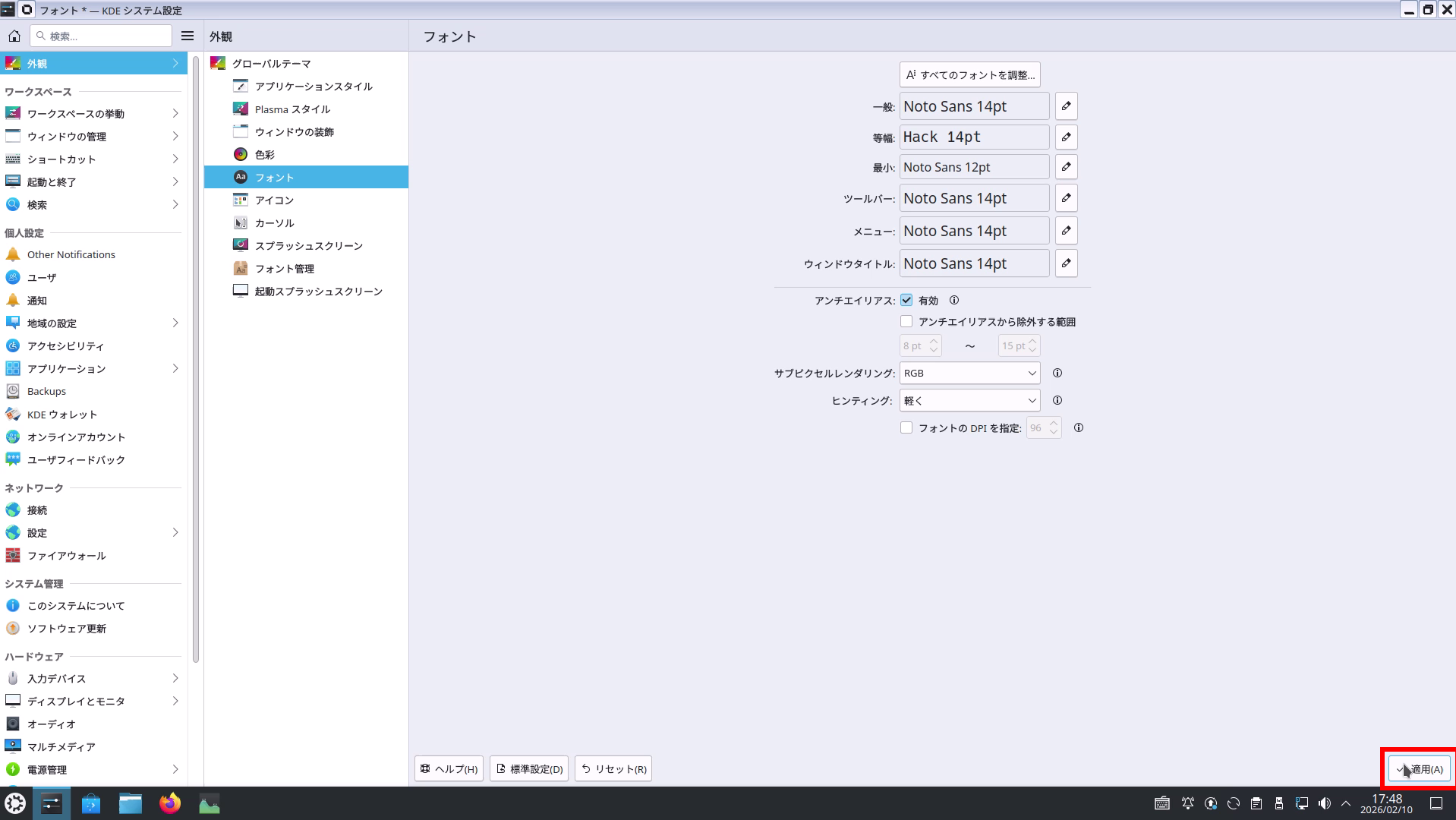
Click “Apply” (red frame) to reflect the settings.
6. Verify that the size has changed #
- Verify that the font list (General, Monospace, Toolbar, Menu, etc.) is now set to the specified size.
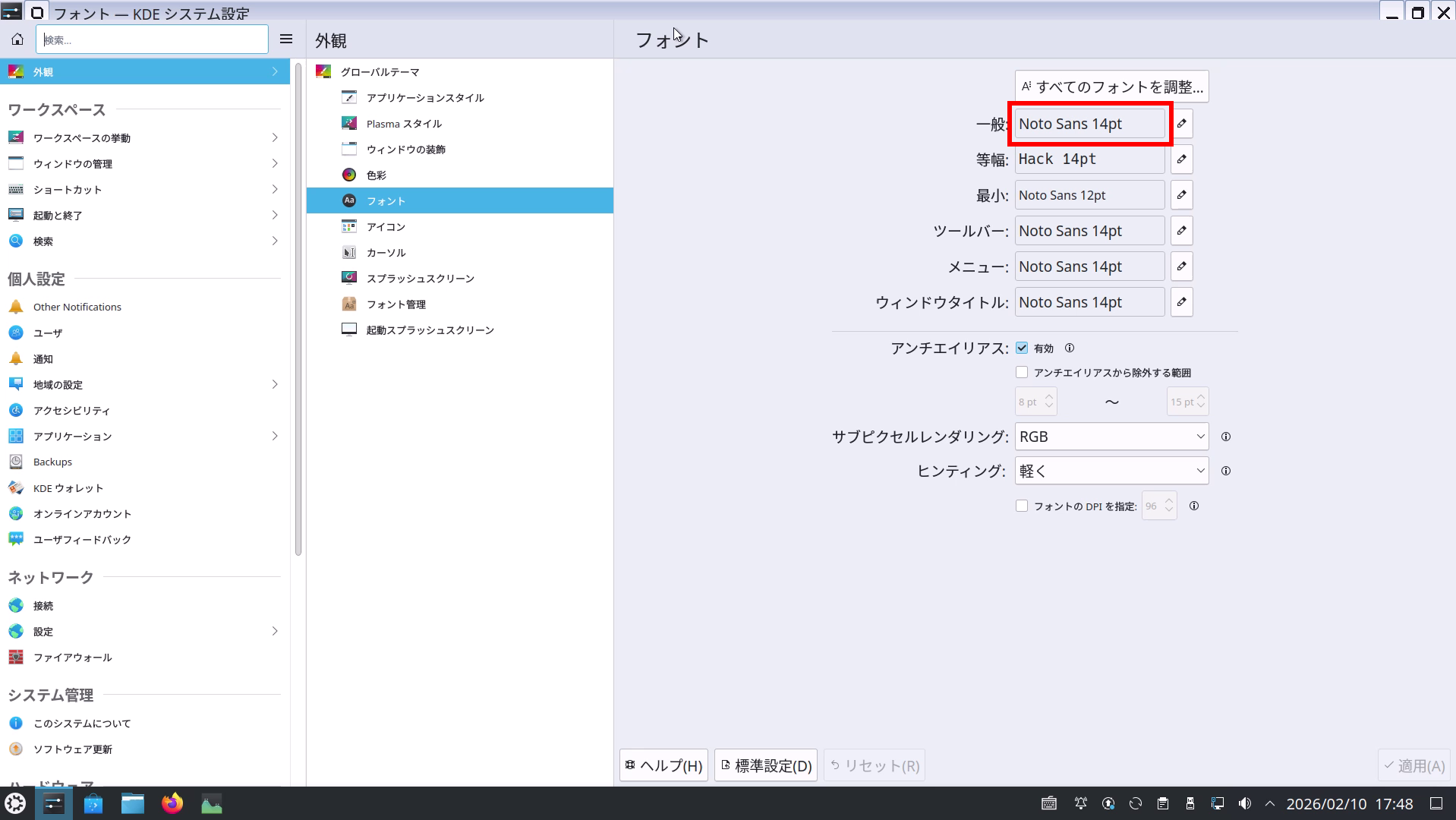
Example: Confirm that “General” is now set to 14pt (red frame).
Note: If you want to adjust font sizes individually #
Instead of “Adjust All Fonts…”, you can individually change fonts and sizes from the
pencil icon on the right side of each item (General / Monospace / Minimum / Toolbar / Menu / Window Title).
This is useful, for example, if you want to make only “Minimum” smaller.
How to revert changes #
- To revert to defaults: Use Defaults at the bottom of the screen.
- To cancel changes in progress: Use Reset (reverts unapplied changes).
Troubleshooting #
- Text doesn’t change in some applications only: Restarting the application may reflect the change. It may also be affected by theme or scaling settings.
- I want to enlarge not just the text but the entire UI: Consider also using the “Displays and Monitors” → “Scale” setting (this is a separate setting from fonts).





