FX VPS / Kubuntu OS
This page provides instructions for launching multiple instances of MT4 from the same broker.
1. Purpose and Overview of This Manual #
The purpose is to enable launching multiple instances of MT4 from the same broker.
2. Revision History #
| Version | Creation Date | Update Details |
|---|---|---|
| 1.0 | 2024/1 | Initial creation |
4. Prerequisites #
- Your device is connected to the internet
- Your network environment can establish HTTPS connections to external services
- One of the following web browsers is available on your device: Chrome, Firefox, or Microsoft Edge
- Remote desktop connection has been completed
5. Copying the Installed Broker MT4 #
If you have installed a broker’s MT4 and want to launch multiple instances of it, please follow the steps below.
We recommend importing the entire MetaTrader folder from your environment and placing it on the desktop.
Important
If you run the installation again using the .exe file, the existing MT4 may be overwritten.
6. Copying and Pasting the MT Folder #
This manual demonstrates using XM’s MT4 as an example. When MT4 is installed, the MT4 folder is located in the following path:
Home/.wine/drive_c/Program Files (x86)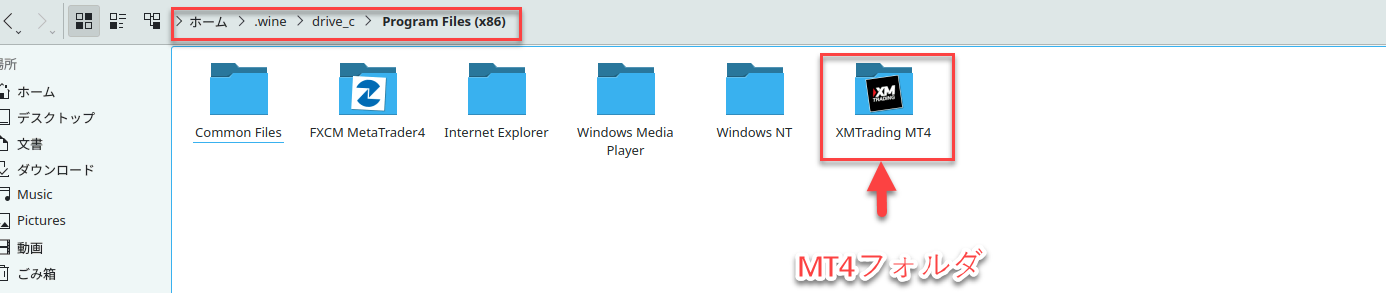
6.1 Copy the target folder #
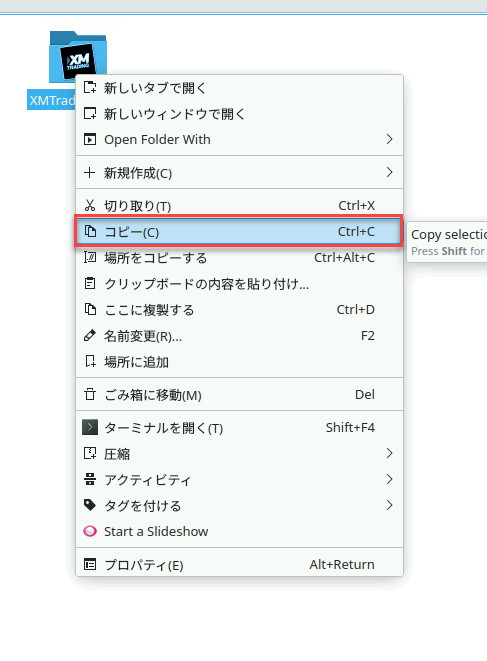
Right-click on the target folder you want to copy, and click “Copy”.
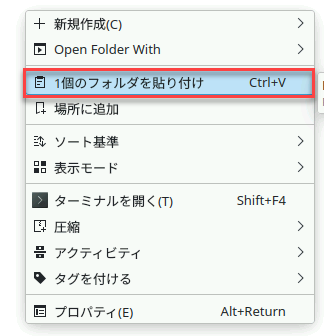
6.3 Rename the folder #
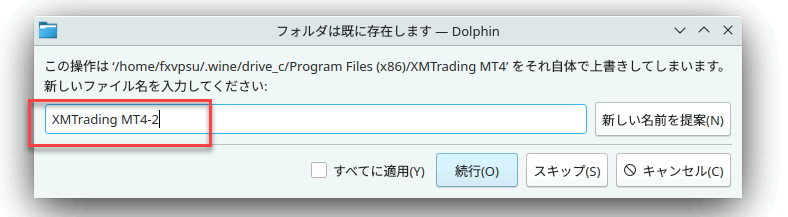
Change the name to an arbitrary name to avoid duplication. In the example below, “-2” is added at the end.
6.4 Launch terminal.exe #
Open the pasted folder and double-click “terminal.exe” to run it.
This will allow you to launch multiple instances of MT4 from the same broker.






