FX VPS / Kubuntu OS
This page provides instructions on how to transfer your MT4 or MT5 folder from your Windows PC to the VPS and launch it.
1. Purpose and Overview of This Manual #
The purpose of this procedure is to transfer your MT4 or MT5 from your Windows PC to our VPS as a complete folder and launch it.
2. Revision History #
| Version | Creation Date | Update Details |
|---|---|---|
| 1.0 | 2024/3 | Initial creation |
4. Prerequisites #
- Your device has internet connectivity
- Your network environment can establish HTTPS connections to external servers
- One of the following web browsers is available on your device: Chrome, Firefox, or Microsoft Edge
5. Uploading MT4/MT5 Folder from Windows PC #
Step 1 Verify the MT4/MT5 Folder on Your Windows PC #
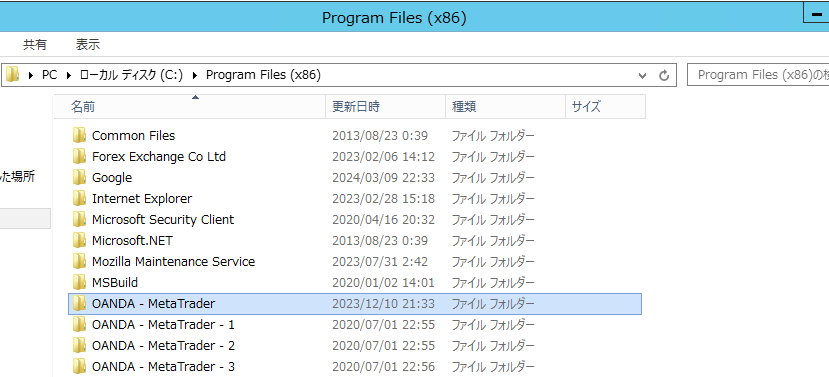
Upload the MT4/MT5 folder you wish to transfer to the VPS to a cloud storage service such as Google Drive. This manual uses Google Drive as an example.
First, locate the MT4/MT5 folder stored on your Windows PC. The image below shows an example using an MT4 folder from OANDA.
Step 2 Upload to Cloud Storage #
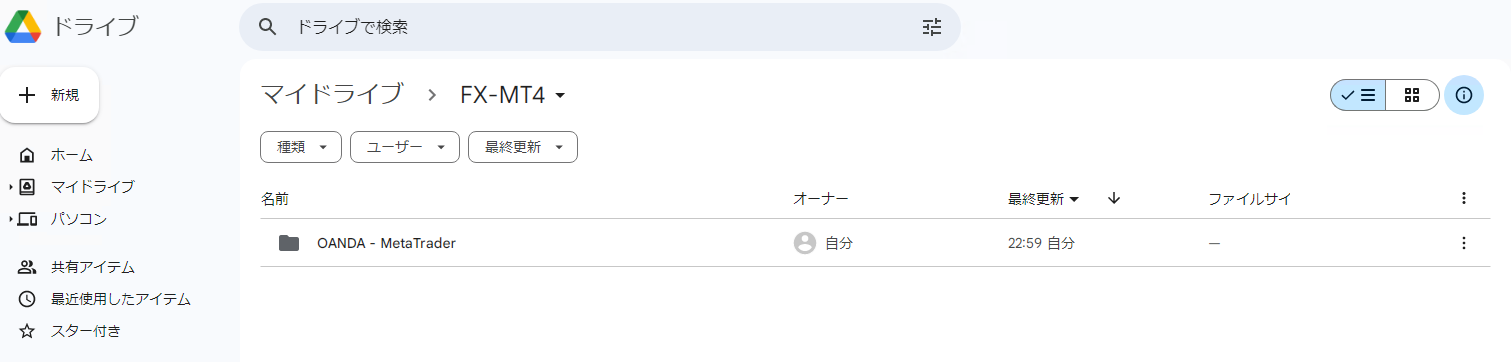
Upload the MT4/MT5 folder you have located to a cloud storage service such as Google Drive.
This procedure shows an example of uploading an MT4 folder from OANDA. The same workflow applies to MT5 as well.
6. Downloading the Uploaded MT4/MT5 #
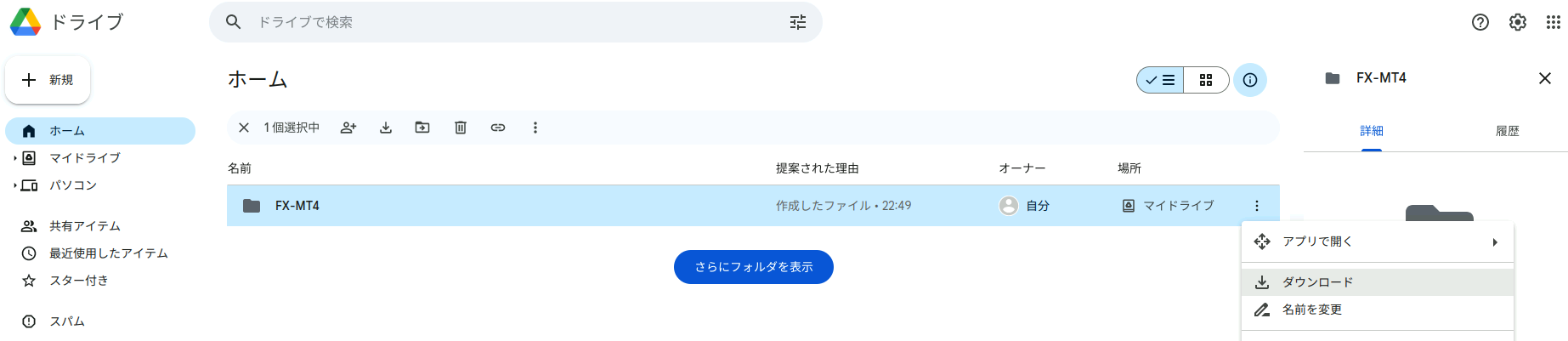
Step 3 Log In to Cloud Storage on the VPS and Download #
Log in to the cloud storage service using the web browser on your VPS. In this manual, we log in to Google Drive and download the MT4 folder that was uploaded in the previous step.
7. Extracting the Downloaded Folder #
Step 4 Extract in the Downloads Folder #
Once the download is complete, extract the downloaded folder. Downloaded files are normally stored in the Downloads folder.
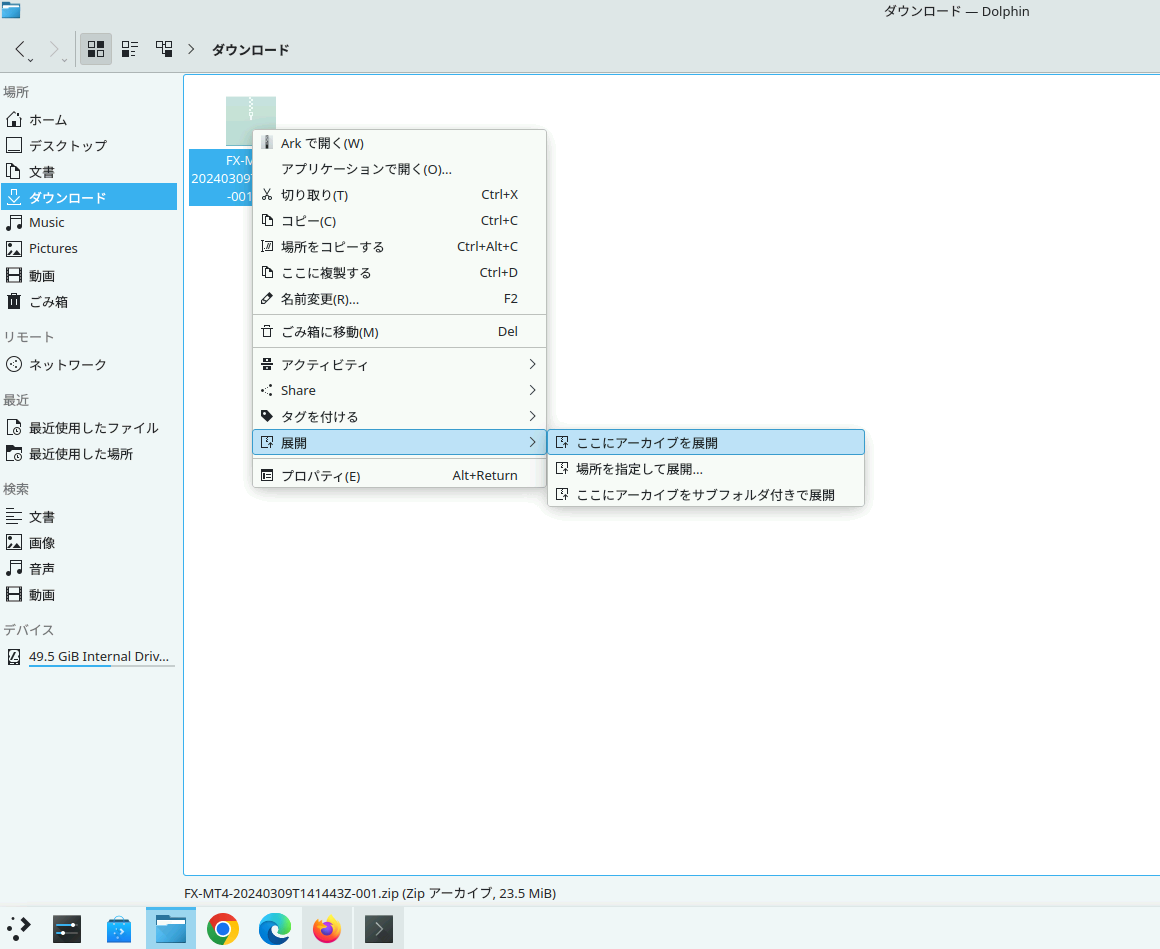
Right-click on the file you wish to extract and click Extract. In the example image, we select Extract Archive Here, but if you prefer to extract to a different location, click Extract to… instead.
8. Running terminal.exe to Launch MT4/MT5 #
Step 5 Verify the Extracted Folder #
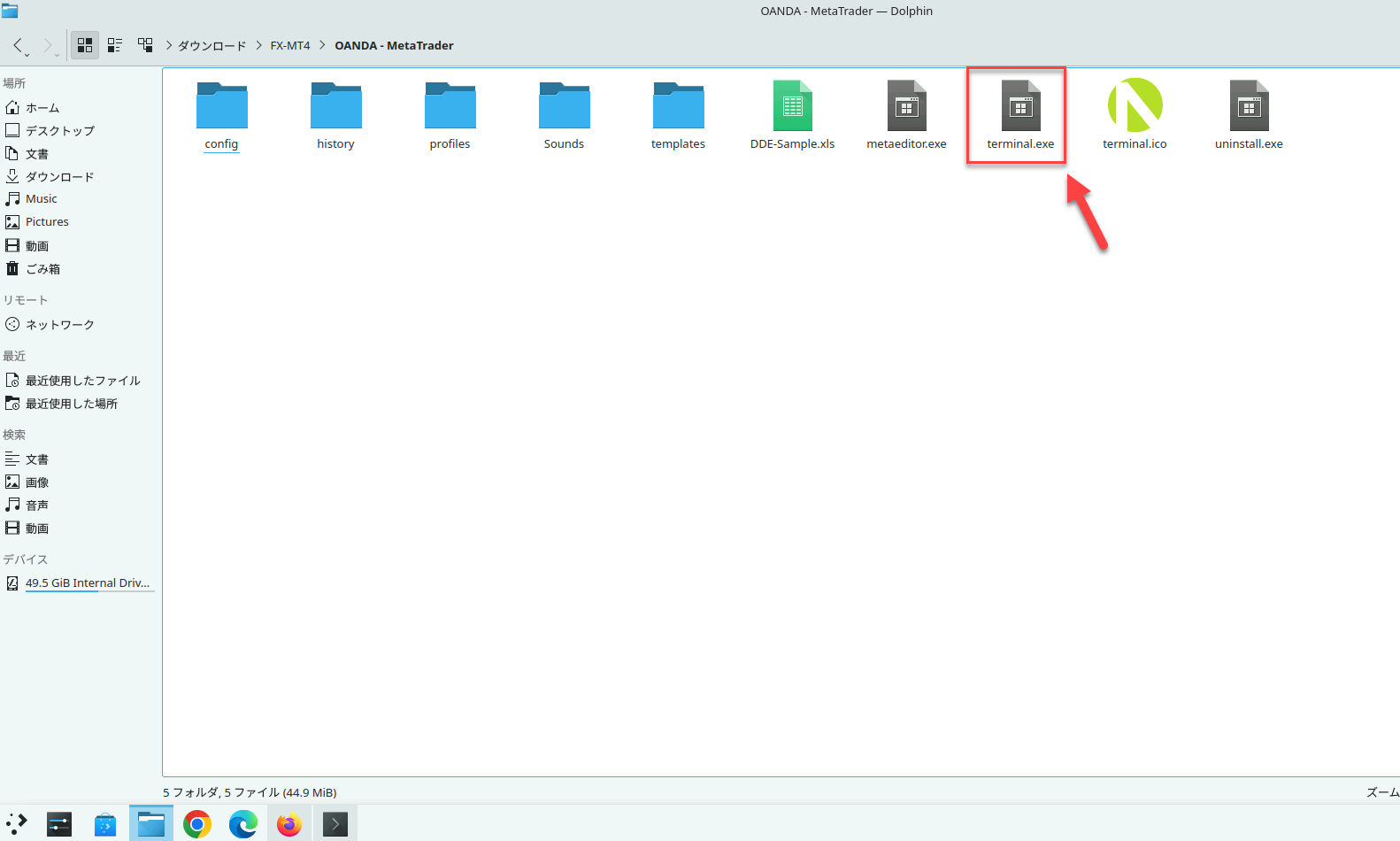
The MT4/MT5 folder uploaded from your Windows PC will be extracted to the designated location.
Step 6 Double-click terminal.exe to Launch #
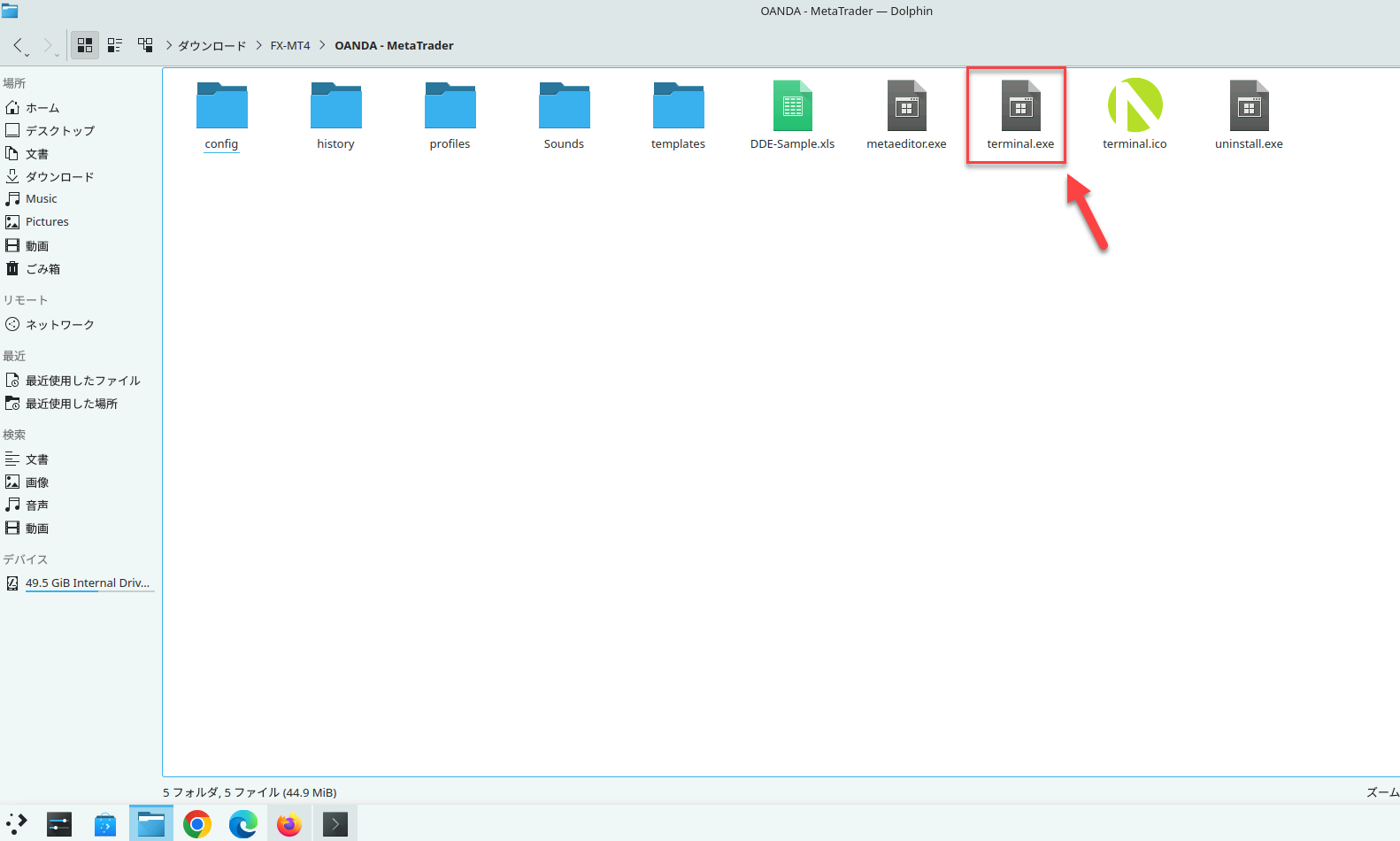
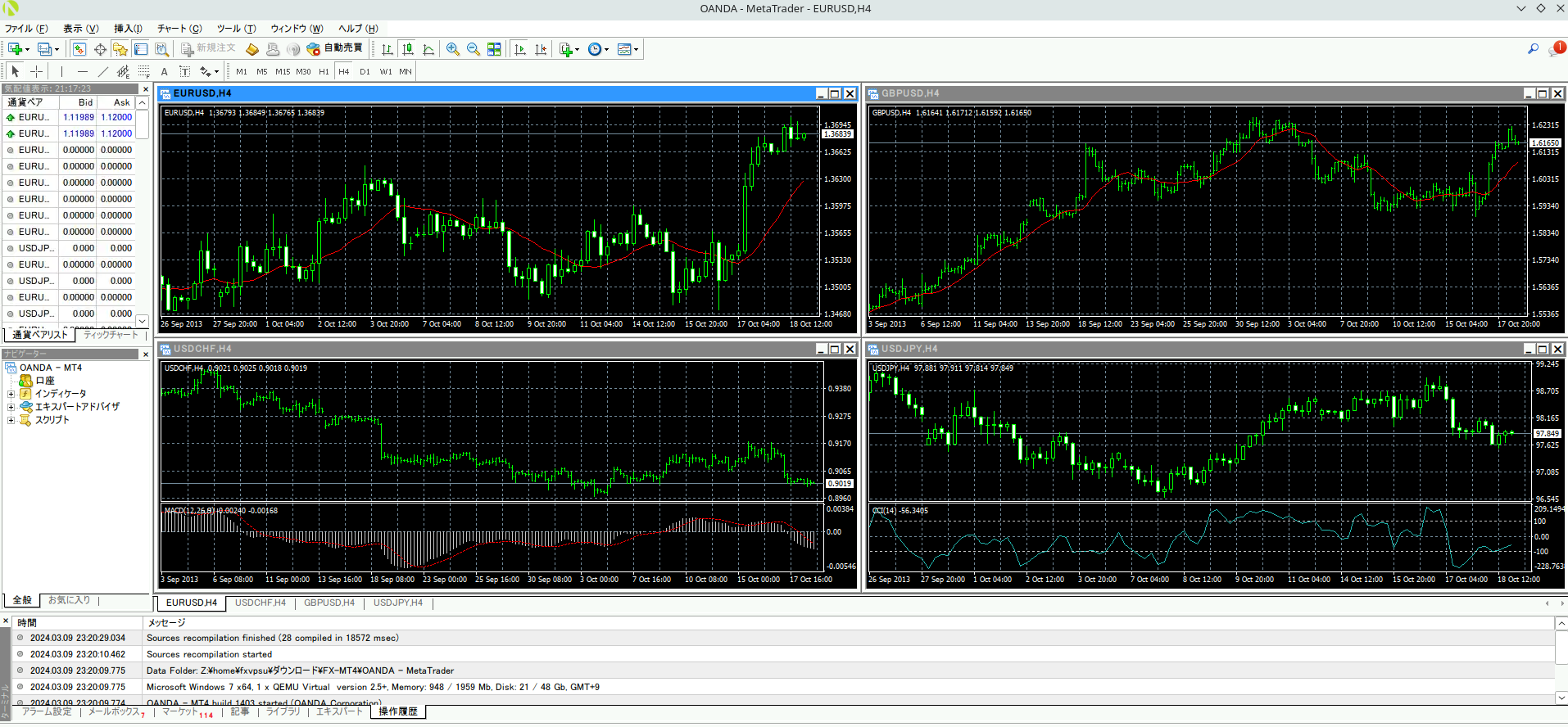
Double-clicking terminal.exe located in the folder will launch MT4/MT5.
9. Adding EAs #
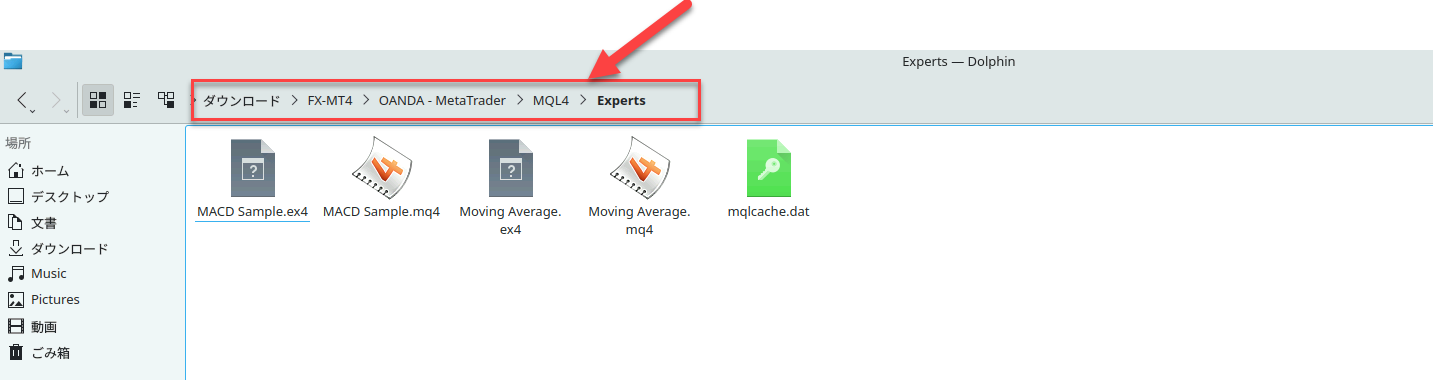
To add Expert Advisors (EAs), navigate to the following path from within the folder containing the terminal.exe mentioned in the previous step.
MQL4 → Experts
Below is a reference image.