FX-dedicated VPS / Client Portal
This page provides instructions on how to reset the password for your VPS instance from the client portal.
1. Purpose and Overview of This Guide #
The purpose of this guide is to reset the password for your VPS from the client portal.
2. Revision History #
| Version | Created Date | Update Details |
|---|---|---|
| 1.0 | 2024/3 | Initial version created |
4. Prerequisites #
- Your device must be connected to the internet
- Your network environment must be able to establish external HTTPS connections
- Your device must have one of the following web browsers available: Chrome, Firefox, or Microsoft Edge
- You must be able to log in to our client portal
5. Open the Server Details Screen #
Step 1 Open the details screen for the target instance #
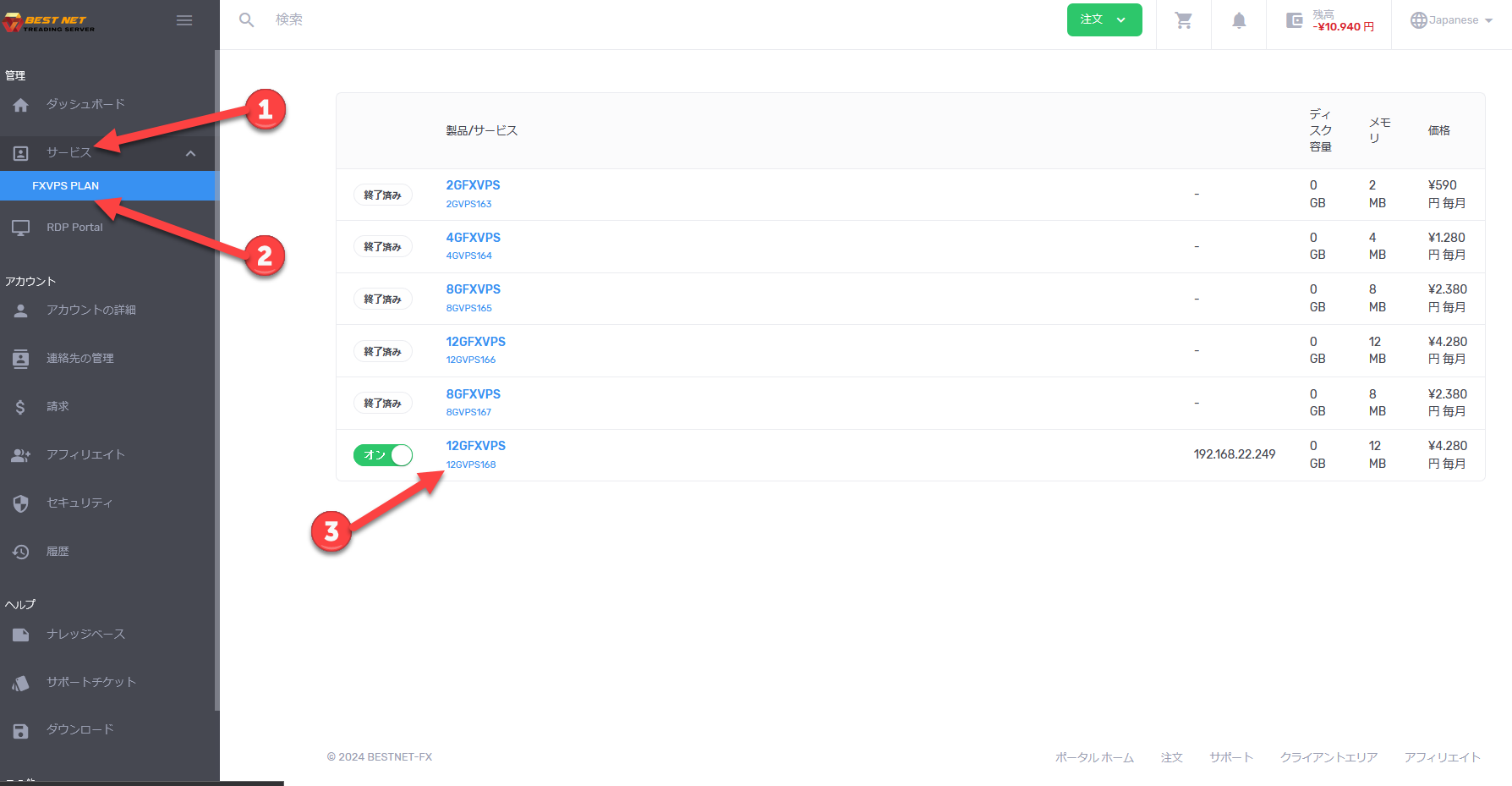
- After logging in to the client portal, click “Services” on the left side of the screen.
- Click the relevant service, and a list of VPS instances in use will be displayed.
- Click the instance you want to manage to open the server details screen.
6. Click “Root Password Reset” #
Step 2 Execute the password reset #
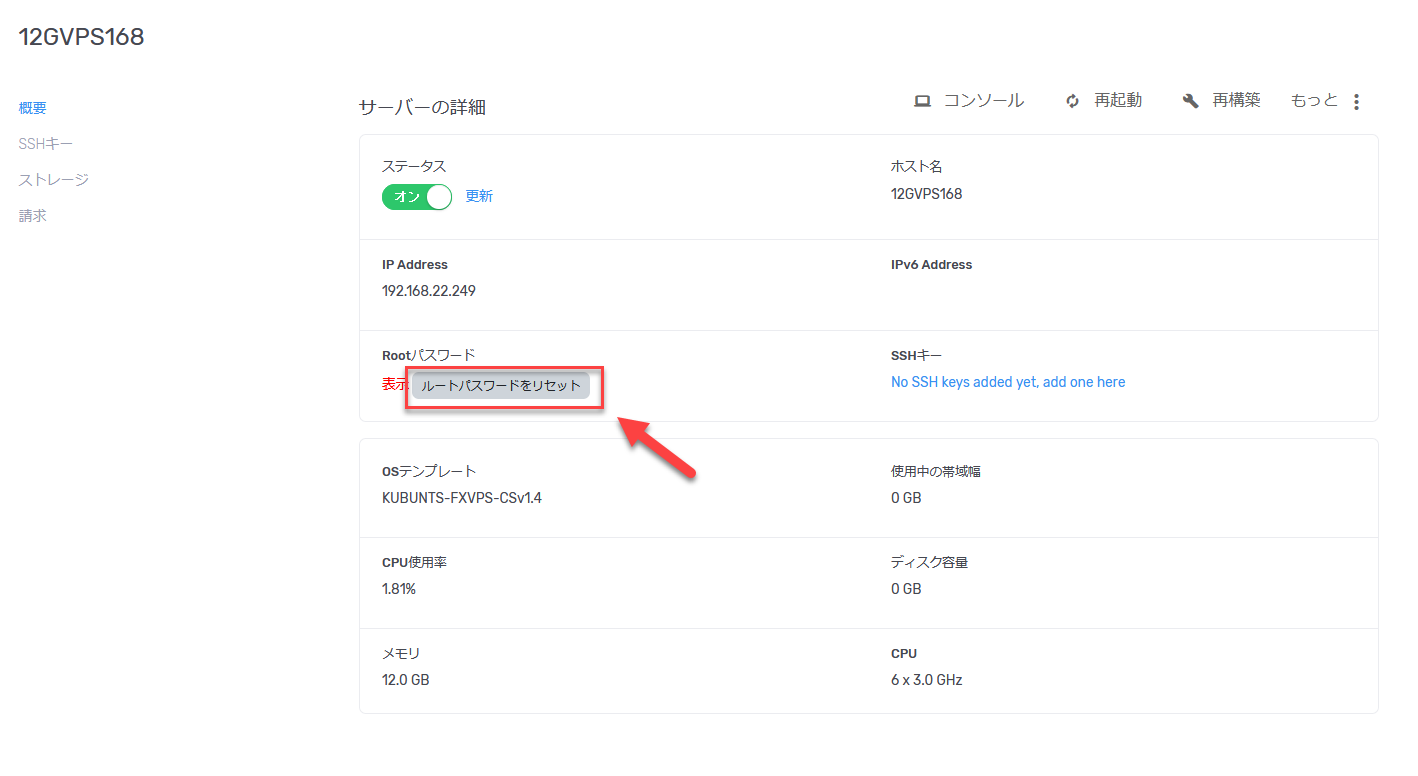
Clicking the “Root Password Reset” button will display a confirmation popup for the password reset.
Verify the contents, and if everything looks correct, click “OK”. Your VPS password will then be reset.
Caution
When you execute a password reset, the VPS will restart. If you have any running applications or active sessions, please save and verify them beforehand.