Fixed IP Plan / Firewall Configuration
This page provides instructions on how to view, add, and delete firewall rules on a VPS with a fixed IP plan.
Firewall configuration changes should only be made after understanding the fundamentals of network protocols and ports.
Implementing settings without understanding them may create security vulnerabilities, allowing malicious third parties to use your VPS as a stepping stone, which could result in liability for damages.
Please ensure you understand the above and operate responsibly.
1. Purpose and Overview of This Manual #
Instructions for viewing and modifying VPS firewall settings from your local device.
2. Revision History #
| Version | Created | Update Details |
|---|---|---|
| 1.0 | 2024/10 | Initial version |
4. Prerequisites #
- Your local device must be connected to the Internet
- You must have a fixed IP plan
- You must be able to log in to our client portal
5. Opening the Server Details Screen #
Step 1 Open the target instance details screen #
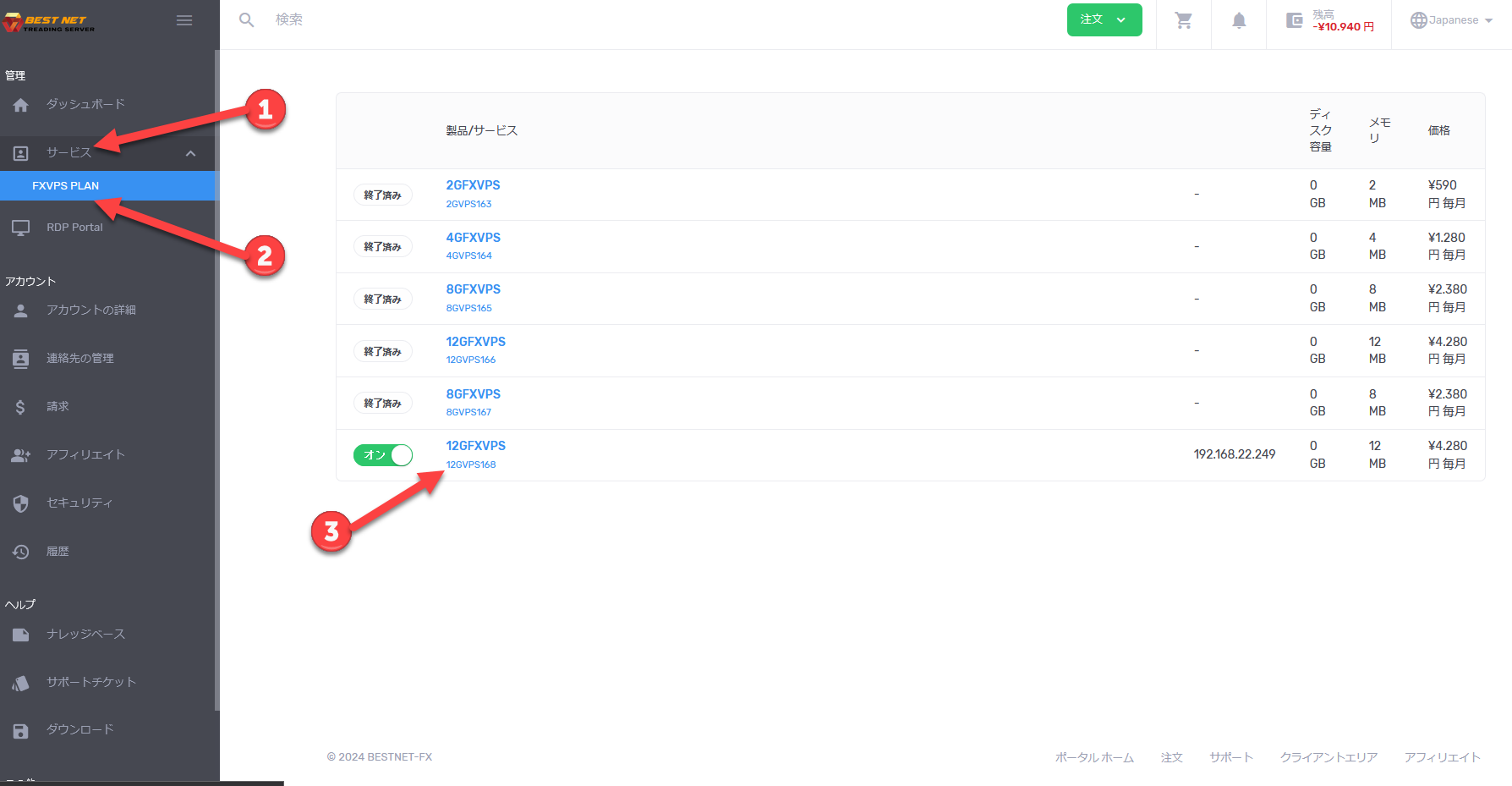
- After logging into the client portal, click Services on the left side of the screen.
- Click the relevant service to display a list of VPS instances currently in use.
- Click the instance you want to operate to open the server details screen.
6. Viewing and Adding Firewall Rules #
Step 2 View existing rules #
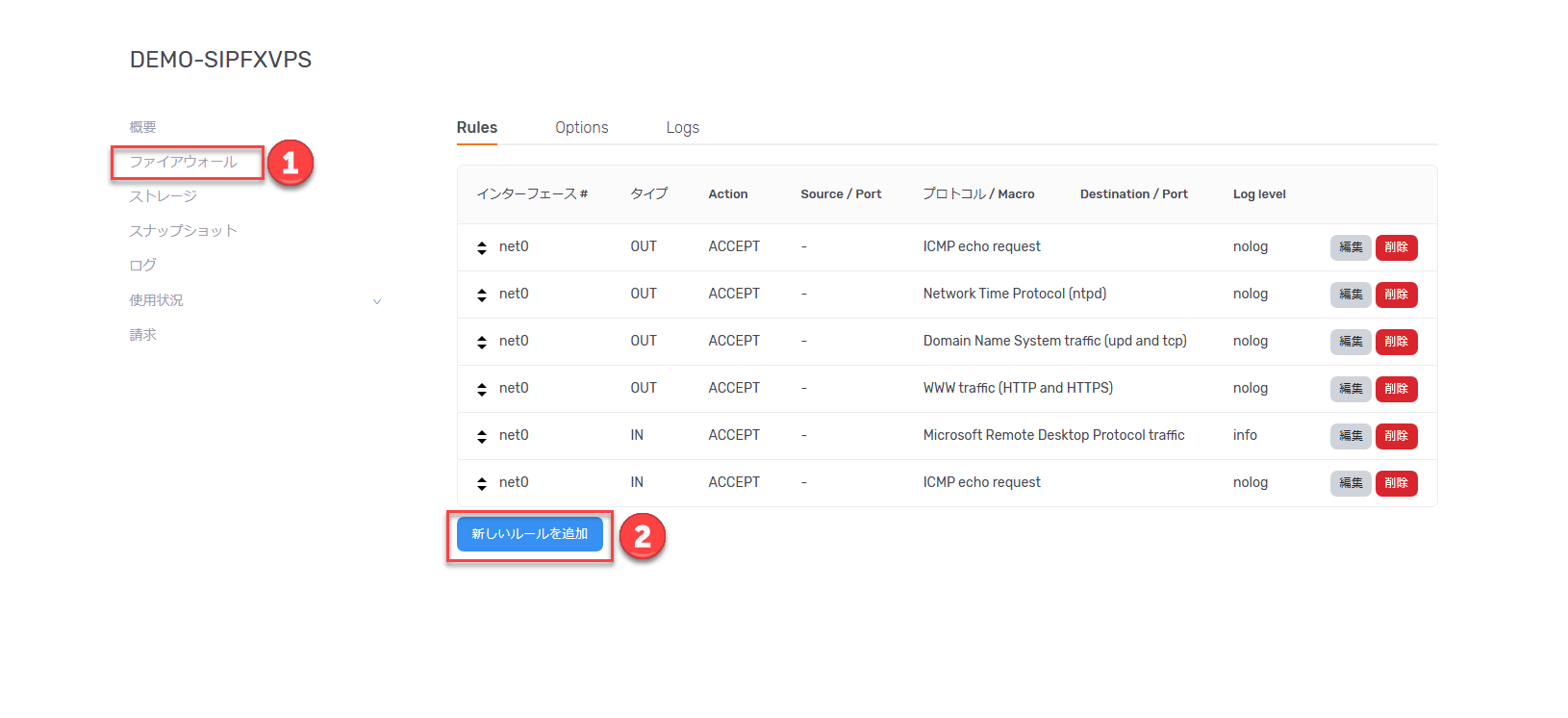
On the server overview screen, click Firewall in the left menu.
By default, the following rules are configured.
All packets not explicitly permitted are dropped.
1. Outbound #
Allow ping
2. Outbound #
Allow NTP connections
3. Outbound #
Allow DNS connections
4. Outbound #
Allow HTTP / HTTPS connections
5. Inbound #
Allow Remote Desktop connections
6. Inbound #
Allow ping
To add a new rule, click Add New Rule.
7. Adding a Rule #
Step 3 Create a new rule #
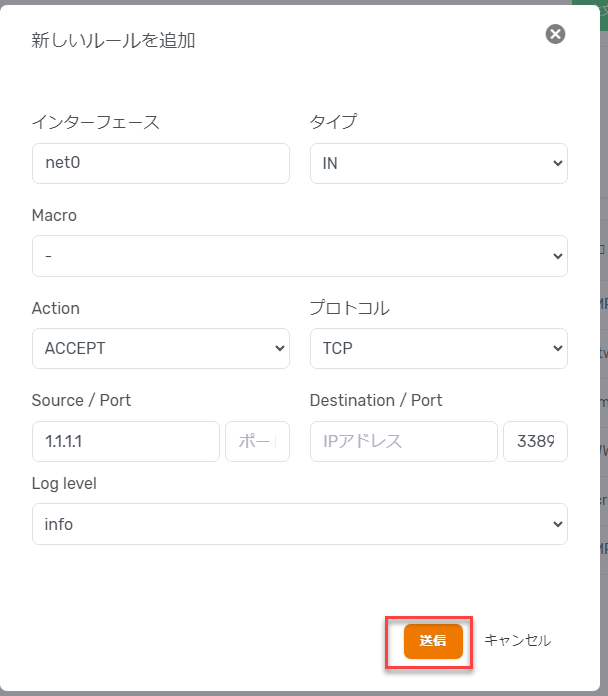
As a reference example, the following shows a configuration that allows Remote Desktop connections only from a specific IP address (1.1.1.1) used at home.
1. Interface #
Select the interface to which the rule should apply.
2. Type #
Select inbound (IN) or outbound (OUT).
3. Action #
Choose to allow (ACCEPT), drop (DROP), or reject (REJECT).
4. Protocol #
Select the network protocol to be used.
5. Source / Port #
Restrict the source IP address and port number making the inbound request.
6. Destination / Port #
Restrict the destination IP address and port number of the request.
7. LogLevel #
Output logs related to the rule at a specified level.
After configuration, click the Submit button to apply the rule.
Use this example as a reference to configure your rules. If you have any questions, open a support ticket.
8. Deleting a Rule #
Step 4 Delete unnecessary existing rules #
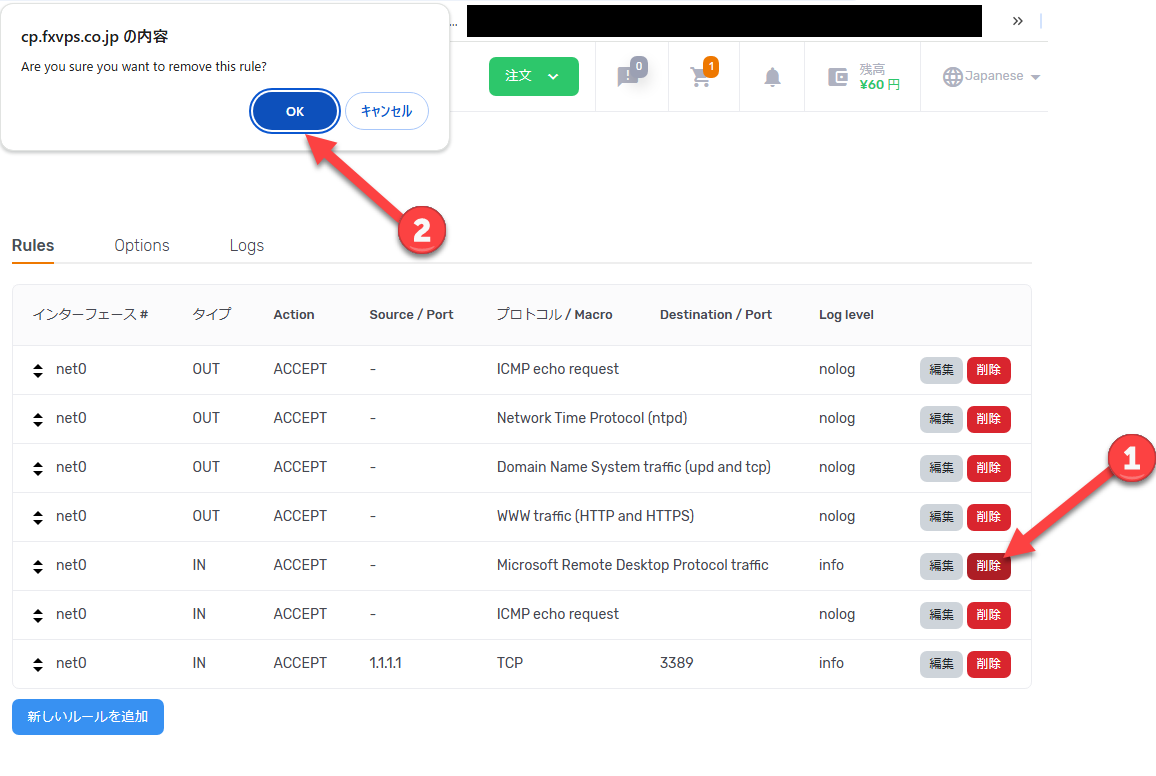
If you have configured a rule in section 7 that restricts the source IP address, you may need to delete the existing rule that allows RDP requests from all IP addresses as needed.
- Click the Delete button at the right end of the target rule row.
- A final confirmation will appear; if everything is correct, click OK.
Deleting rules in the wrong order may prevent Remote Desktop connections. Ensure the connection restriction rule has been properly added before deleting the existing rule.