MetaTrader Support Tools Guide
How to Use MetaTrader Reset and Diagnostics #
We have compiled a guide on how to use MetaTrader Diagnostics and MetaTrader Reset, which are included standard on the OS template, along with actual screen examples. Both can be launched from the app menu.
What You’ll Learn in This Article #
- The difference between Diagnostics and Reset
- How to launch from the app menu
- How to read the Diagnostics screen
- Important notes when running Reset
- Troubleshooting and CLI execution examples
Important Things to Remember First
Diagnostics is for checking status. It basically does not change settings.
Reset is for recovery. It closes the running MetaTrader, so please verify your saved work before using it.
Differences Between the Two Tools #
MetaTrader Diagnostics #
A tool used for checking status and coordinating with support.
- Wine version verification
- DISPLAY / X11 session verification
- Prefix information confirmation
- Font substitution status confirmation
Use this when you want to report an issue or show support your current status.
MetaTrader Reset #
A recovery tool for when it’s slow, frozen, or unresponsive.
- Reset Wine (MetaTrader)
- Re-initialize wineserver
- Close running MT
- Can be tried before OS restart
Use this when it’s slow, frozen, or you want to restart.
Prerequisites Before Use #
These two tools are designed to be used on a GUI session. Operate them with the desktop displayed, whether via VNC, XRDP, console, or otherwise.
If you cannot find the items in the app menu, please check the Troubleshooting section later in this article.
Common Launch Method #
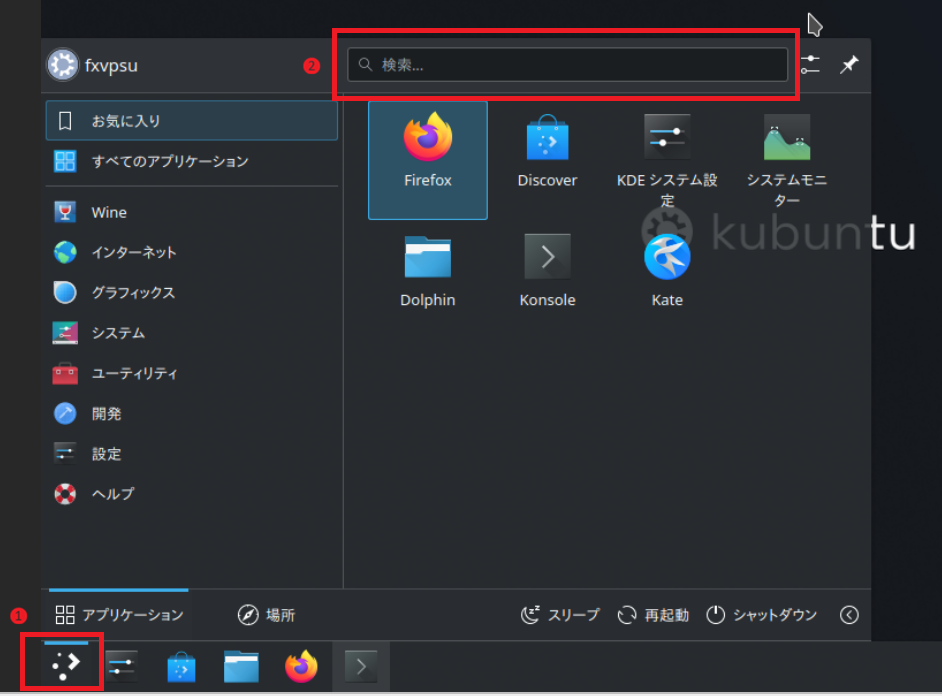
First, open the app menu in the bottom left, and use the search box to find the tool name.
The search term meta is sufficient.
How to Use MetaTrader Diagnostics #
Step 1. Open Diagnostics #
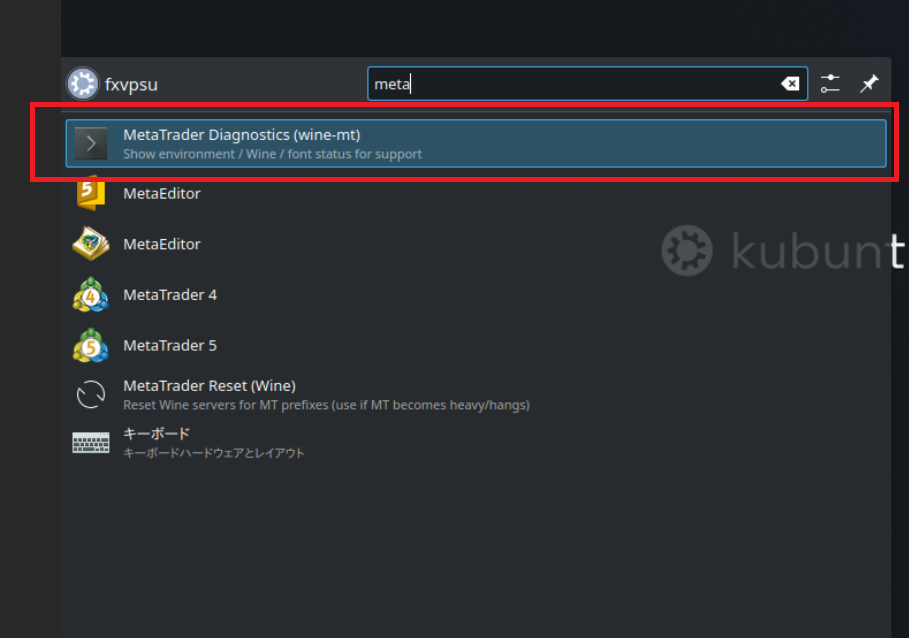
Type meta in the app menu search box and select
MetaTrader Diagnostics (wine-mt).
- It is fine if MetaTrader 4 / 5 or MetaEditor appear in search results
- The target item is Diagnostics
Step 2. Verify the Displayed Information #
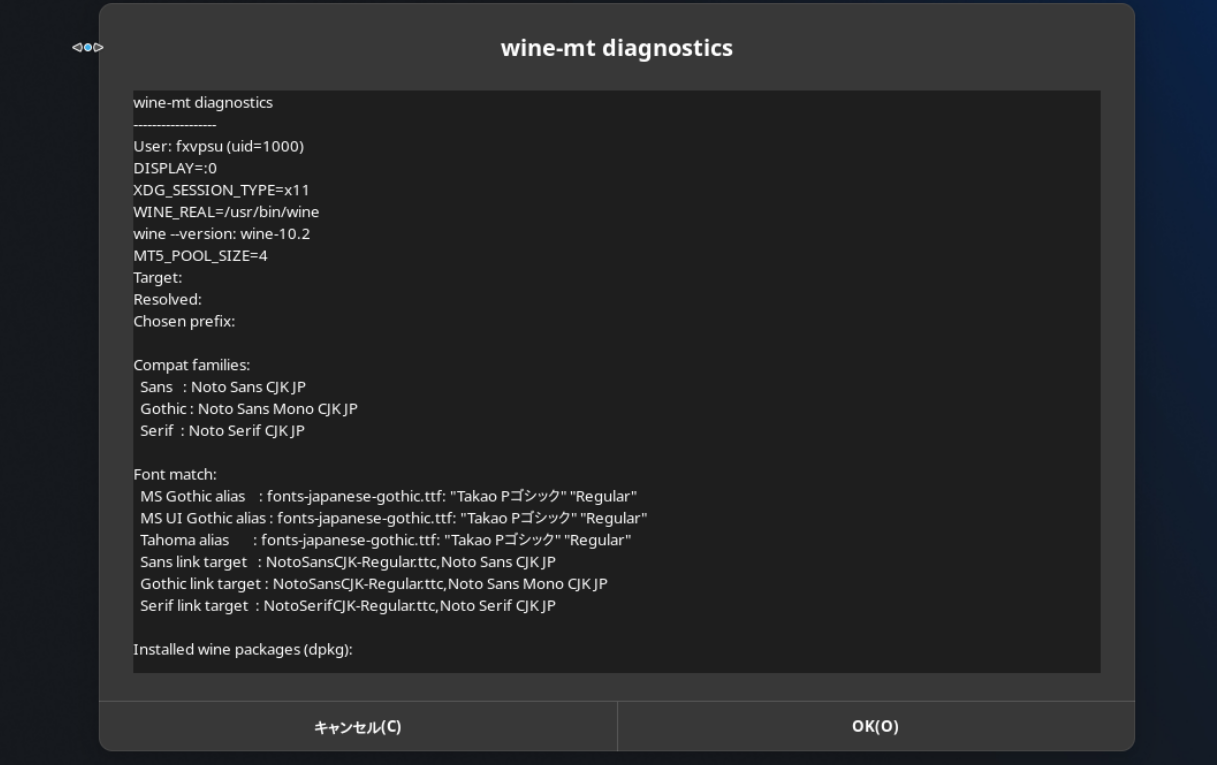
When you open Diagnostics, the current environment information is displayed. If support requests verification, please share this screen’s contents or a screenshot.
- Wine version: Current Wine version
- DISPLAY / XDG_SESSION_TYPE: X11 session verification
- Chosen prefix: Prefix information in use
- Font match: Font substitution status
Diagnostics is a safe and easy-to-try verification method to start with. Use it when you want to communicate status to support or check your current environment.
How to Use MetaTrader Reset #
Step 1. Open Reset #
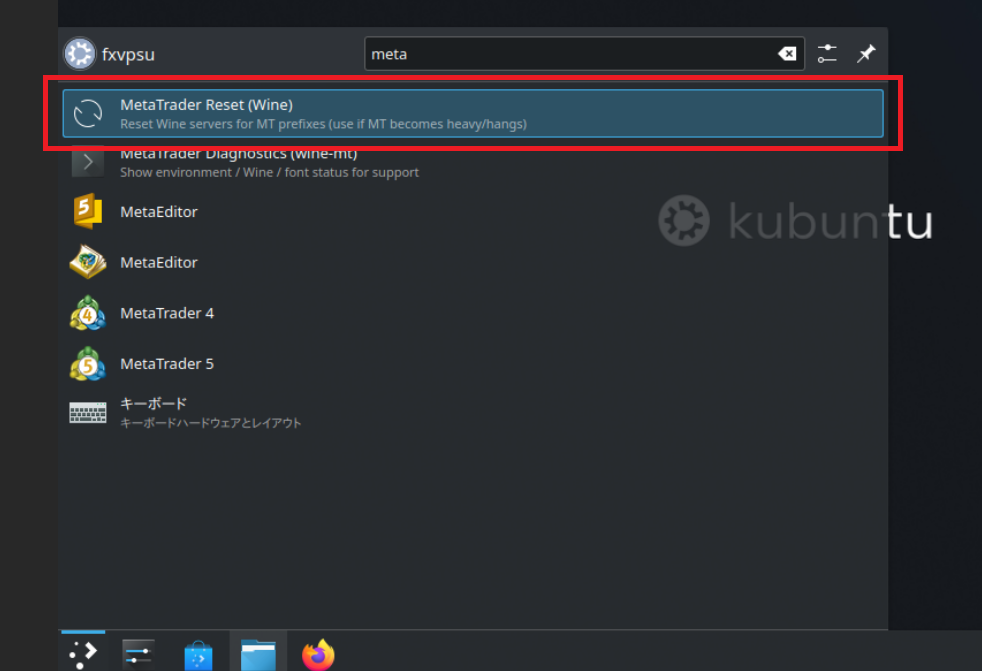
Similarly, type meta in the app menu search box and select
MetaTrader Reset (Wine).
- Use this when MetaTrader is slow, frozen, or when you want to restart
- This is a recovery option you can try before an OS restart
Step 2. Verify the Completion Dialog #
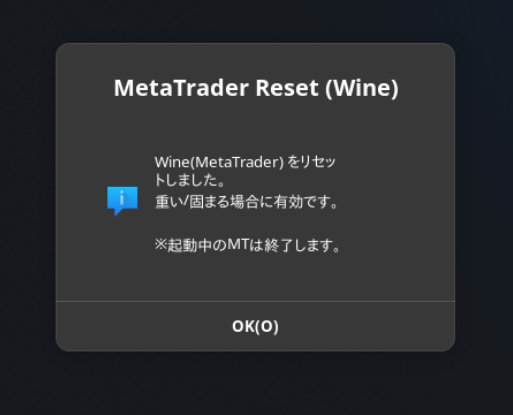
After Reset executes, a completion dialog is displayed. As shown on the screen, any running MT is closed.
- Please verify there is no unsaved work first
- After completion, restart MetaTrader
- If still not improved, obtain Diagnostics and share with support
After closing the dialog, restart MetaTrader.
Important Notes When Running Reset
Reset is for recovery, and running it will close any running MetaTrader. Be careful if you are in the middle of position management or saving work.
Running from the Command Line #
When Something Goes Wrong #
Diagnostics / Reset not found in app menu
First, run the following with user privileges. In some cases, logging out and back in afterwards will improve things.
kbuildsycoca6 2>/dev/null || true
kbuildsycoca5 2>/dev/null || true
Diagnostics screen won’t open
Operate on a GUI session. GUI may not open if only SSH is available.
echo "DISPLAY=$DISPLAY"
echo "XDG_SESSION_TYPE=$XDG_SESSION_TYPE"
As a reference, if DISPLAY is not empty and XDG_SESSION_TYPE=x11, it is normal.
Reset doesn’t improve things
Restart MetaTrader once, and if still not improved, contact support with the Diagnostics results.
Consider restarting the VM if necessary.
Information Helpful When Contacting Support #
Minimum Helpful Information #
- Date and time of occurrence (JST)
- What you were doing when it occurred
- MetaTrader type (MT4 / MT5)
- Screenshot of the Diagnostics screen
- Whether the issue persists after Reset
Example Contact Message #
MT5 became slow, so I ran MetaTrader Reset, but it did not improve.
The occurrence time was 2026-03-16 10:15 JST.
I am attaching the Diagnostics screen.





