FX Dedicated VPS / Client Portal
This page provides instructions for reinitializing (reinstalling) your VPS instance from within the client portal.
1. Purpose and Overview of This Manual #
The purpose of this manual is to provide instructions for reinitializing (reinstalling) your VPS from the client portal.
2. Revision History #
| Version | Created | Update Details |
|---|---|---|
| 1.0 | 2024/3 | Initial version |
4. Prerequisites #
- Your device must be connected to the Internet
- Your network environment must be able to establish HTTPS connections to external servers
- One of the following web browsers must be available on your device: Chrome, Firefox, or Microsoft Edge
- You must be able to log in to our client portal
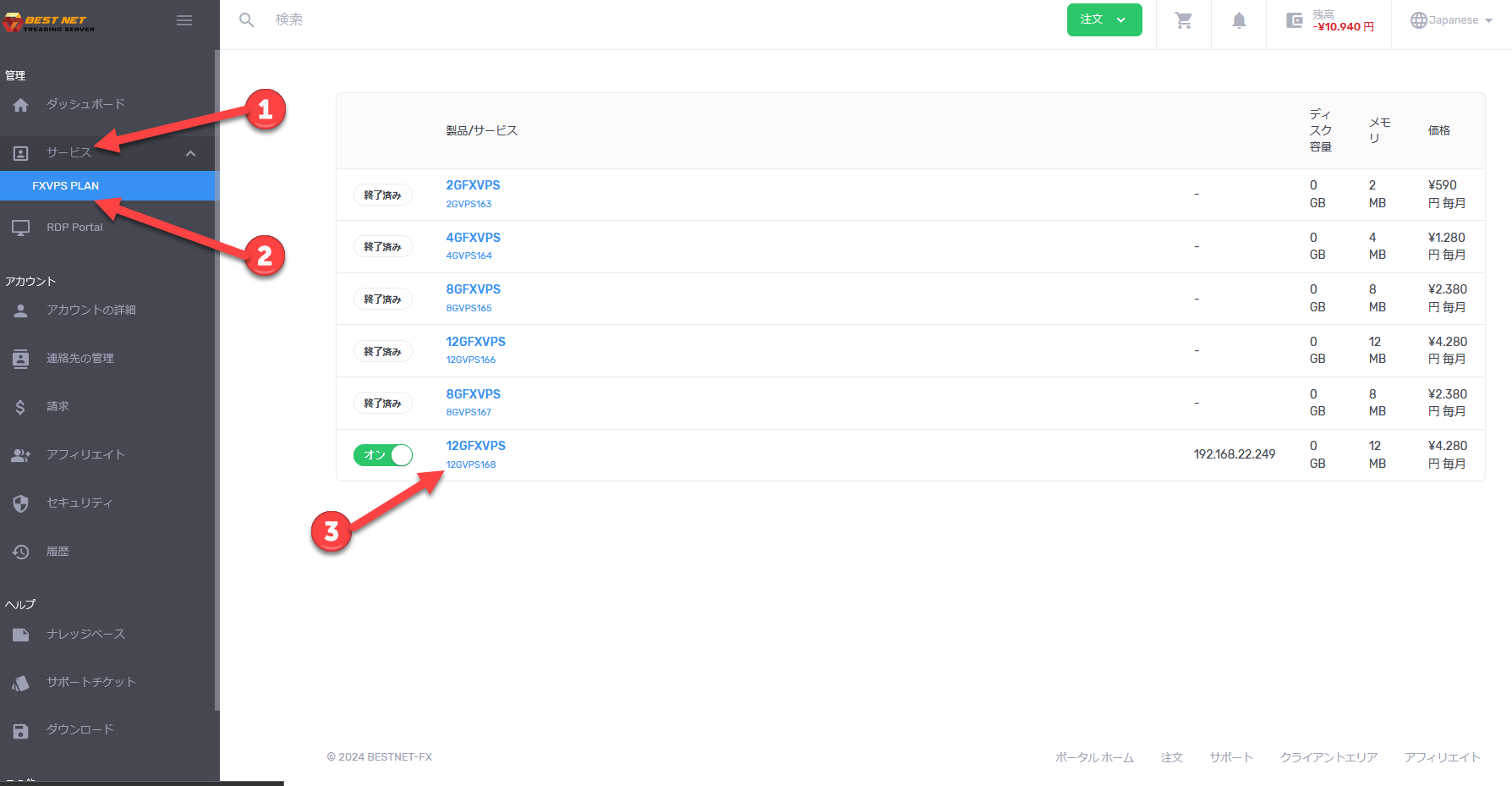
5. Open the Server Details Screen #
Step 1 Open the details screen for the target instance #
- After logging in to the client portal, click “Services” on the left side of the screen.
- Click the relevant service to display a list of your VPS instances in use.
- Click the instance you wish to operate on to open the server details screen.
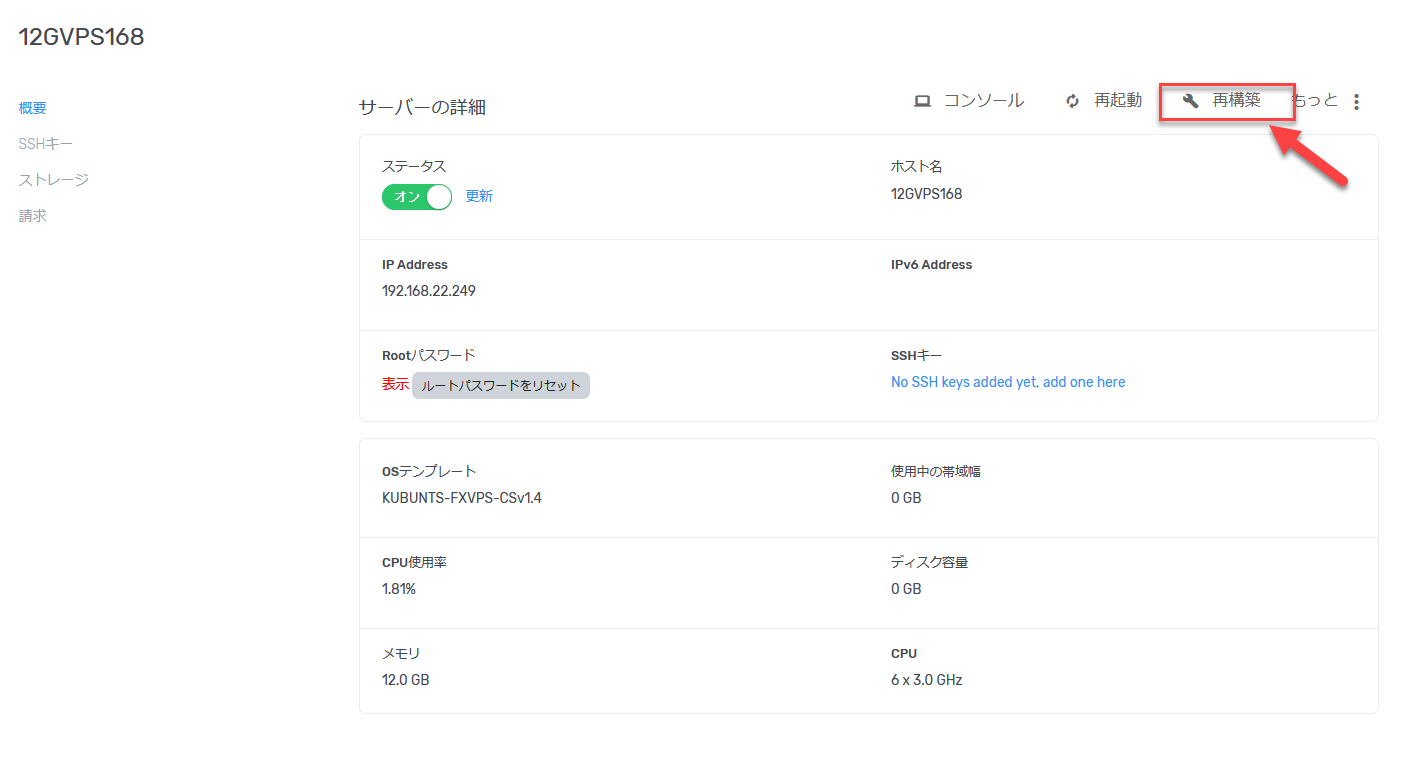
6. Click “Rebuild” #
Step 2 Open the rebuild menu #
On the server details screen, click the “Rebuild” button.
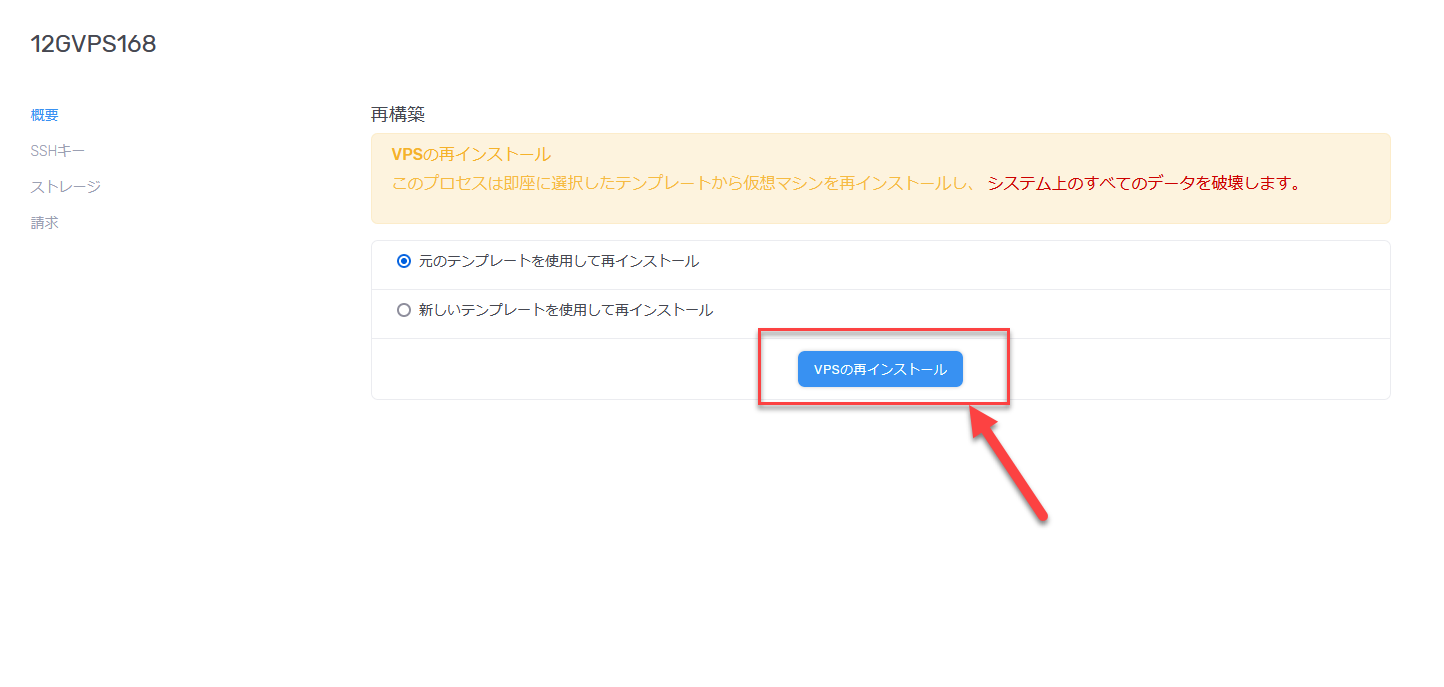
7. VPS Reinstallation #
Step 3 Execute reinstallation using the original template #
By default, the radio button is set to “Reinstall using the original template”.
To rebuild with the latest OS template, select “Reinstall using the new template”, select the latest version from the OS template list displayed in the dropdown menu, then click the “VPS Reinstall” button.
Please note
This operation reinitializes (reinstalls) your VPS. Before executing, please confirm that the required content and target of operation are correct.
Estimated time required
The reinstallation process typically completes within 5 minutes.