FX Dedicated VPS / Client Portal
This page provides instructions on how to cancel your VPS instance from the client portal.
1. Purpose and Overview of This Manual #
The purpose of this manual is to guide you through the process of canceling (terminating) your VPS from the client portal.
2. Revision History #
| Version | Created Date | Update Details |
|---|---|---|
| 1.0 | 2024/3 | Initial version created |
4. Prerequisites #
- Your device must have an active Internet connection
- Your network environment must be able to establish HTTPS connections to external servers
- One of the following web browsers must be available on your device: Chrome, Firefox, or Microsoft Edge
- You must be able to log in to our client portal
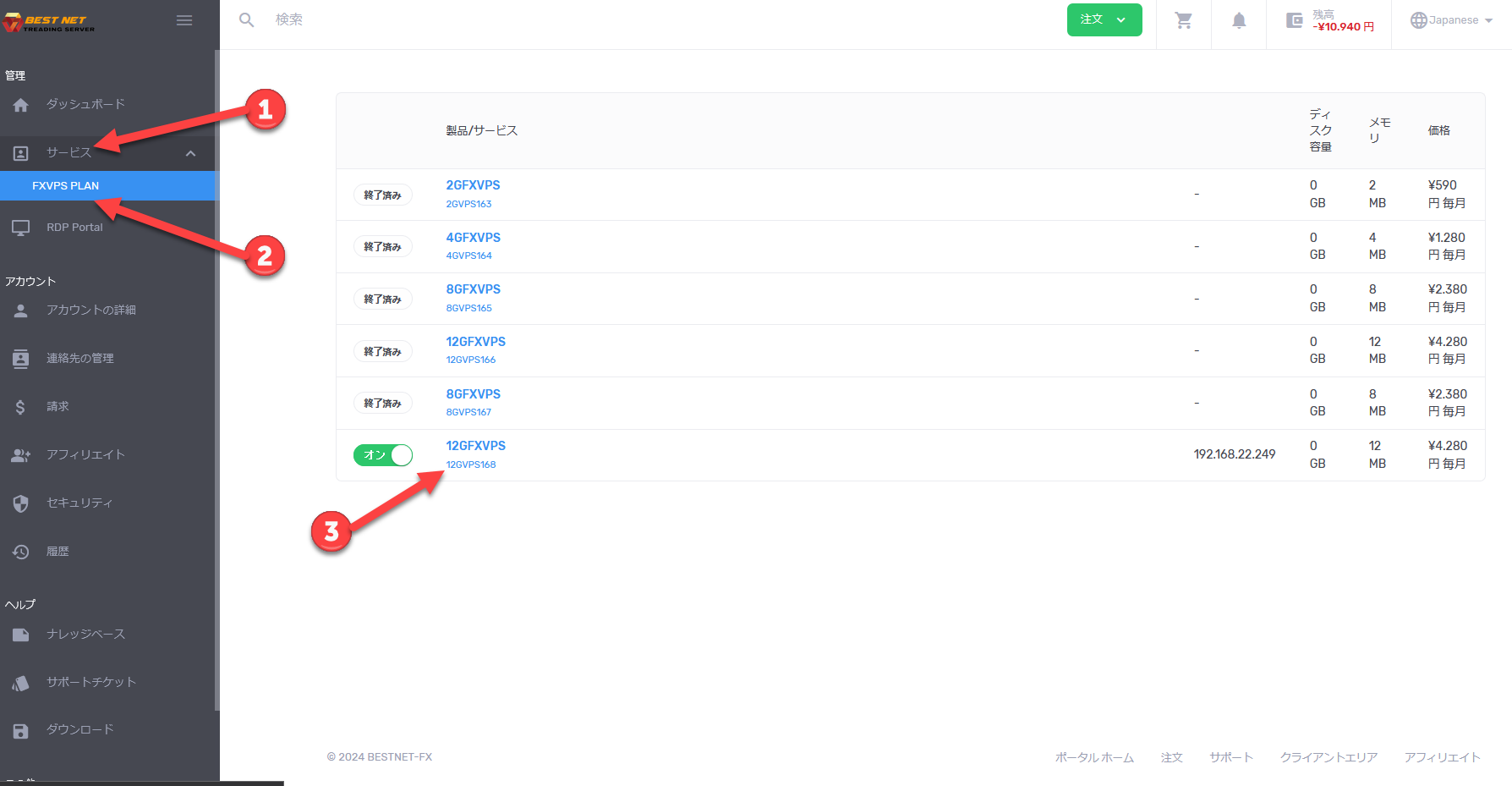
5. Open the Server Details Screen #
Step 1 Open the details screen for the target instance #
- After logging into the client portal, click “Services” on the left side of the screen.
- Click on the relevant service to display the list of VPS instances currently in use.
- Click on the instance you want to manage to open the server details screen.
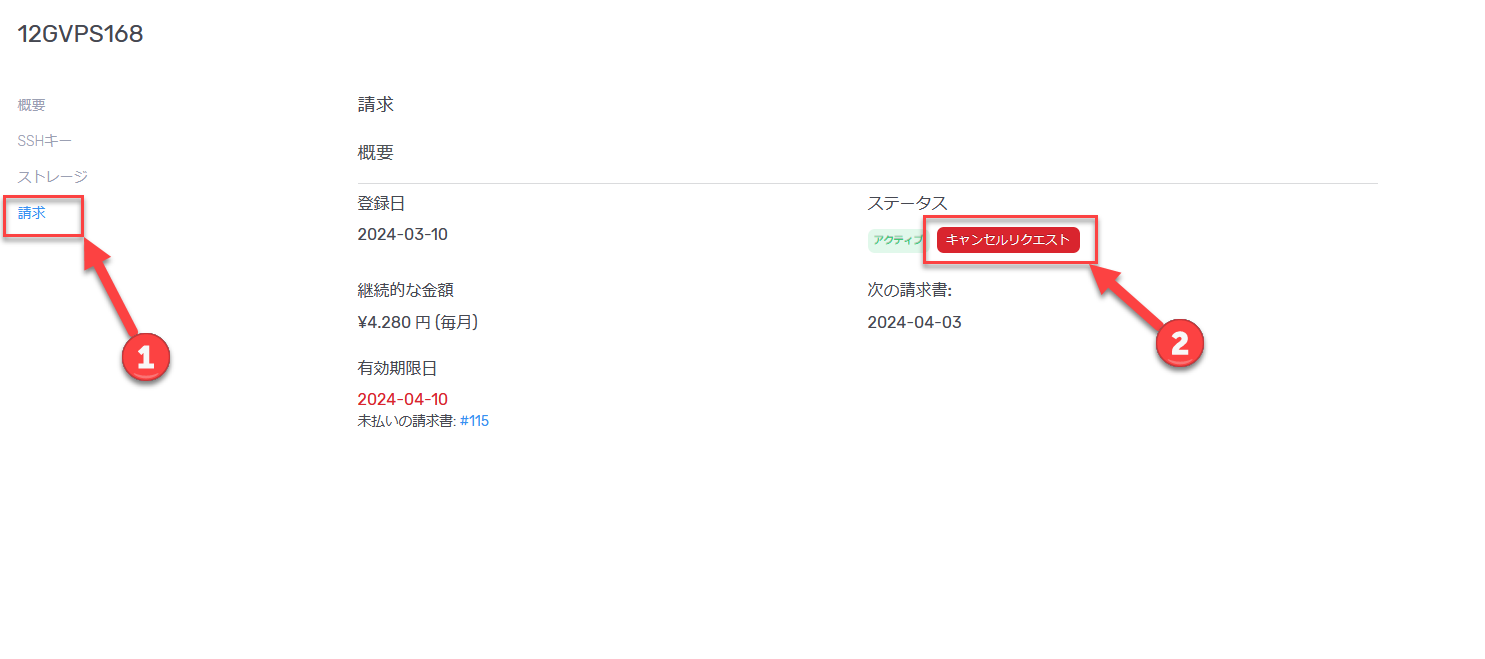
6. Click on Cancel Request #
Step 2 Open Cancel Request from the Billing menu #
- Click “Billing”.
- Click “Cancel Request”.
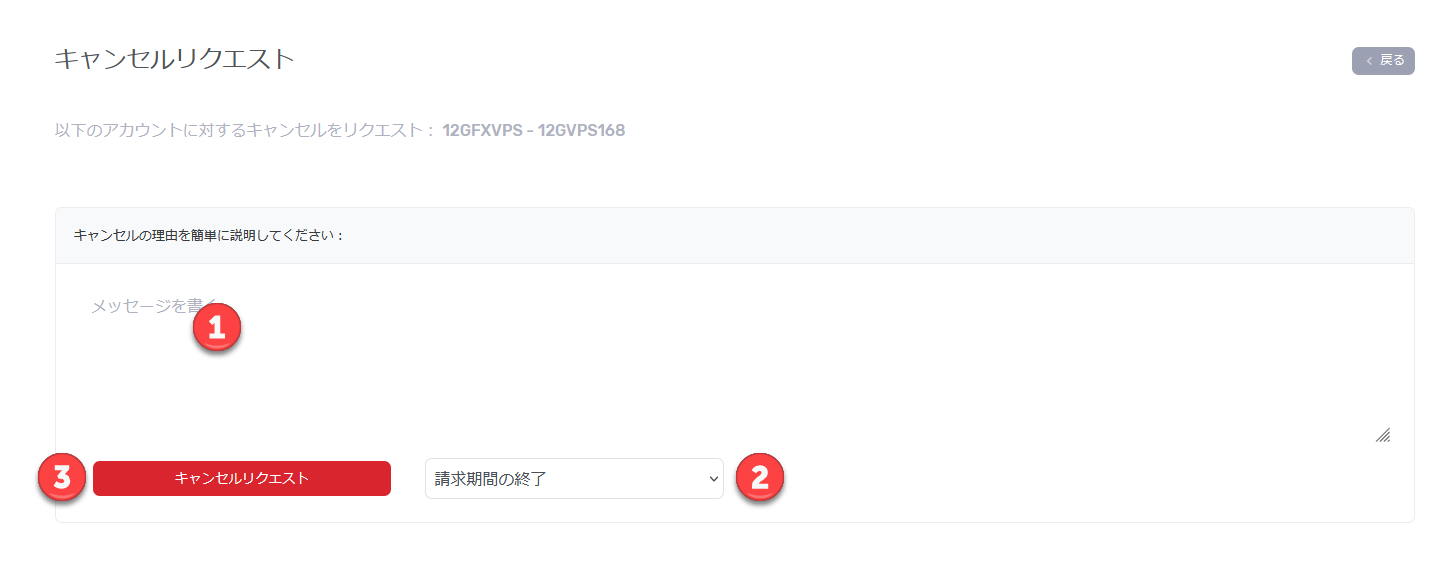
7. Select Cancellation Reason and Cancellation Type #
Step 3 Enter cancellation details and submit the request #
Please briefly enter your cancellation reason. At the same time, select the cancellation type.
The timing of VPS instance deletion varies depending on the cancellation type selected. Please confirm the details before making your selection.
End of Billing Period #
The cancellation takes effect at the end of the contract period, and the VPS instance will be deleted on the expiration date.
Immediate #
Cancel immediately and delete the VPS instance.
Finally, click the “Cancel Request” button to complete the process.