Plan with Fixed IP / Remote Desktop
This page provides instructions on how to connect to your VPS via remote desktop from your device (Windows PC or Mac).
1. Purpose and Overview of This Manual #
Instructions for connecting to your VPS via remote desktop from your device (Windows PC or Mac).
2. Revision History #
| Version | Date Created | Update Details |
|---|---|---|
| 1.0 | 2024/10 | Initial creation |
4. Prerequisites #
- Your device must be able to connect to the internet
- Port 3389 outbound connections must be permitted in your network environment
- You must be able to log in to our client portal
- Mac users should adapt these instructions as appropriate for your system
For remote desktop connection, you will need the VPS’s global IP address, login username, and login password.
5. Open the Server Details Screen #
Step 1 Open the target instance details screen #
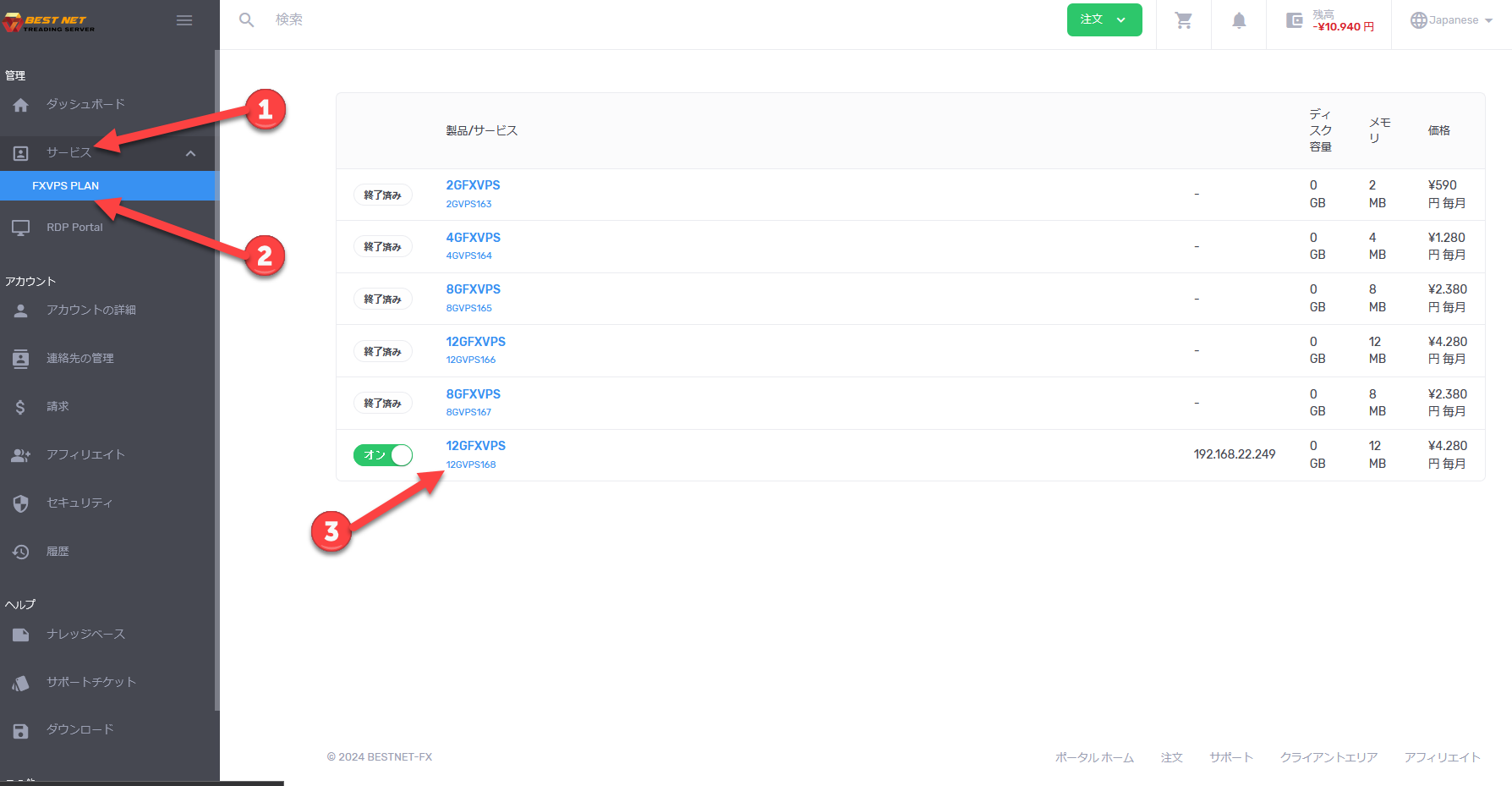
- After logging in to the client portal, click “Services” on the left side of the screen.
- Click the relevant service to display a list of VPS instances you are currently using.
- Click the instance you wish to operate on to open the server details screen.
6. Verify VPS Information #
Step 2 Confirm information needed for connection #
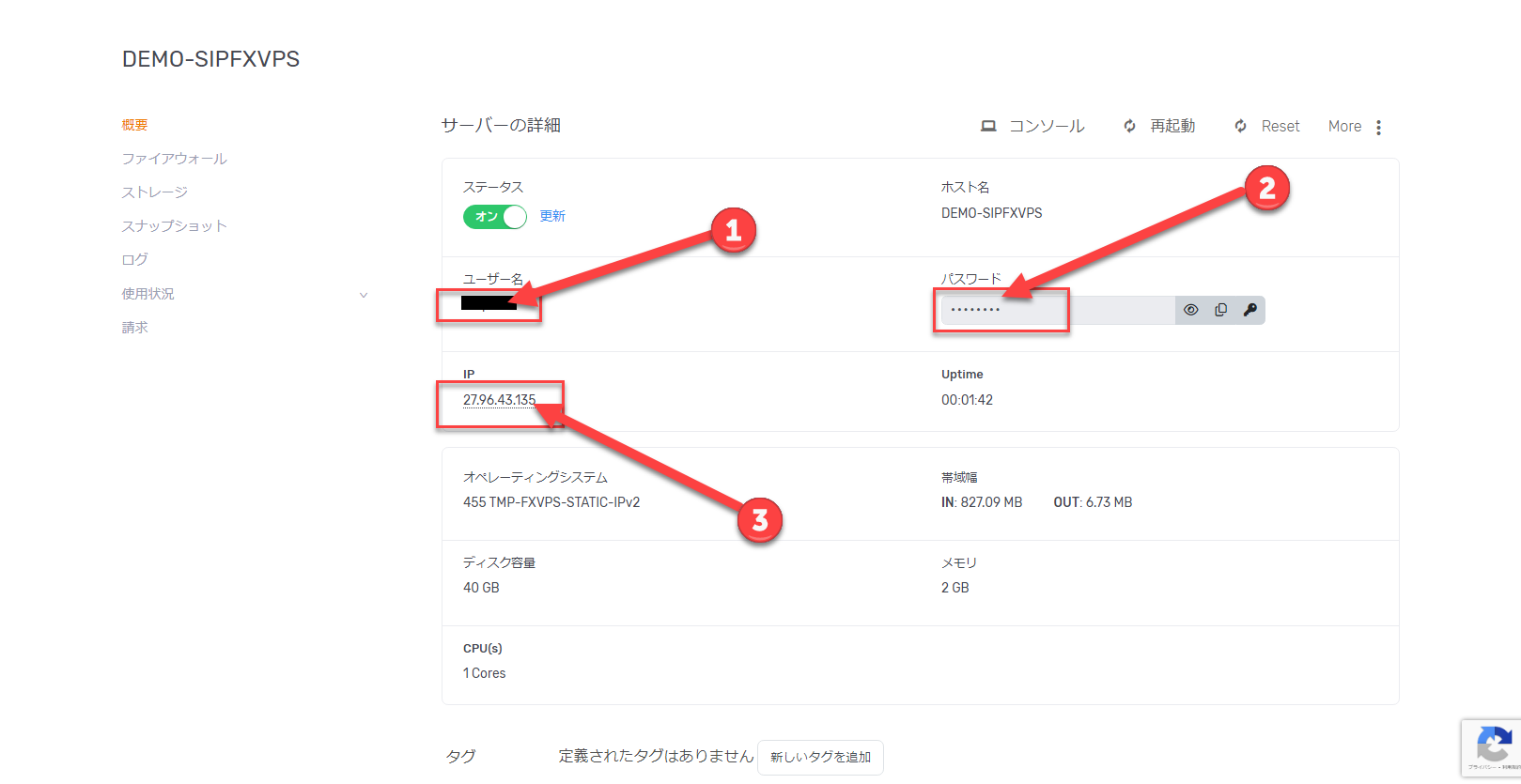
Please verify the following information.
1. VPS login username #
Used when establishing the remote desktop connection.
2. VPS login password #
Required for authentication during connection.
3. VPS global IP address #
Set as the target PC name for connection.
7. Remote Desktop Configuration #
Step 3 Save connection settings #
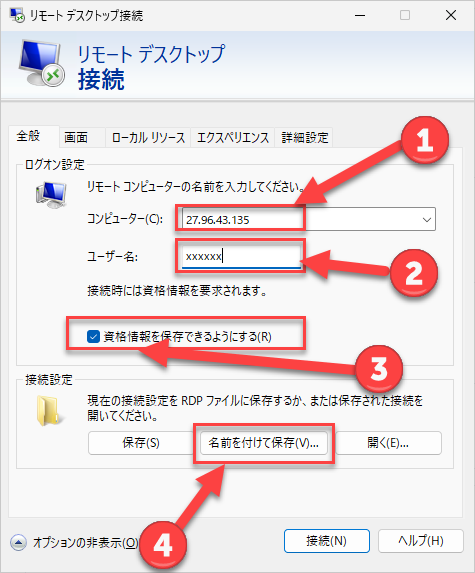
Type “Remote Desktop” in the search box on the Windows taskbar to open the Remote Desktop configuration screen.
As shown in the image below, enter the values confirmed in the previous section and click “Save As”.
- Enter the VPS global IP address.
- Enter the VPS login username.
- Enable the save-related checkboxes for convenience on future connections.
- Save the settings with a name of your choice to a location you prefer for future use.
If you do not enable the save options, you may be prompted to enter your password multiple times during login.
8. Remote Desktop Connection #
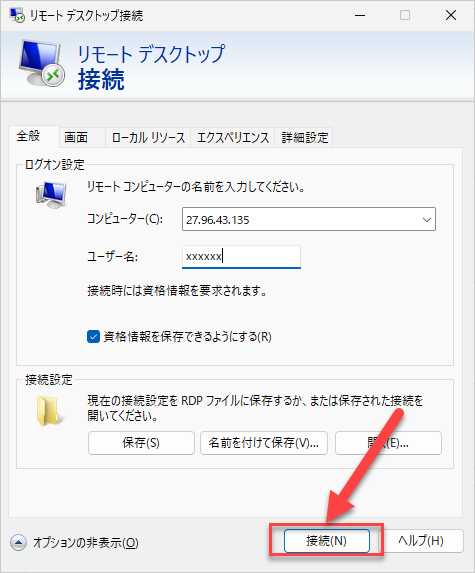
Step 4 Connect using the saved settings #
After completing “Save As”, click “Connect”.
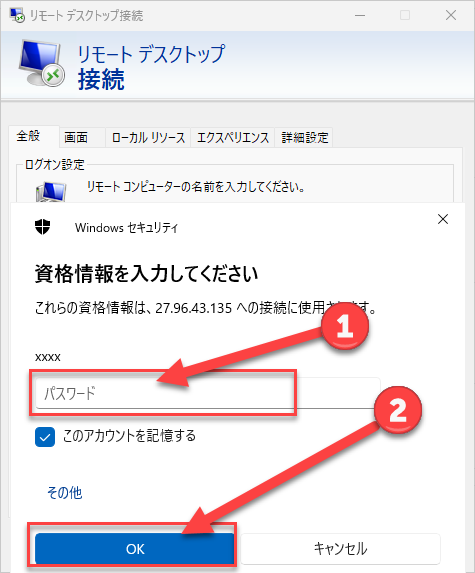
Step 5 Enter your password #
When the password entry screen appears, enter the VPS login password confirmed in the previous section and click “OK”.
Step 6 Connection complete #
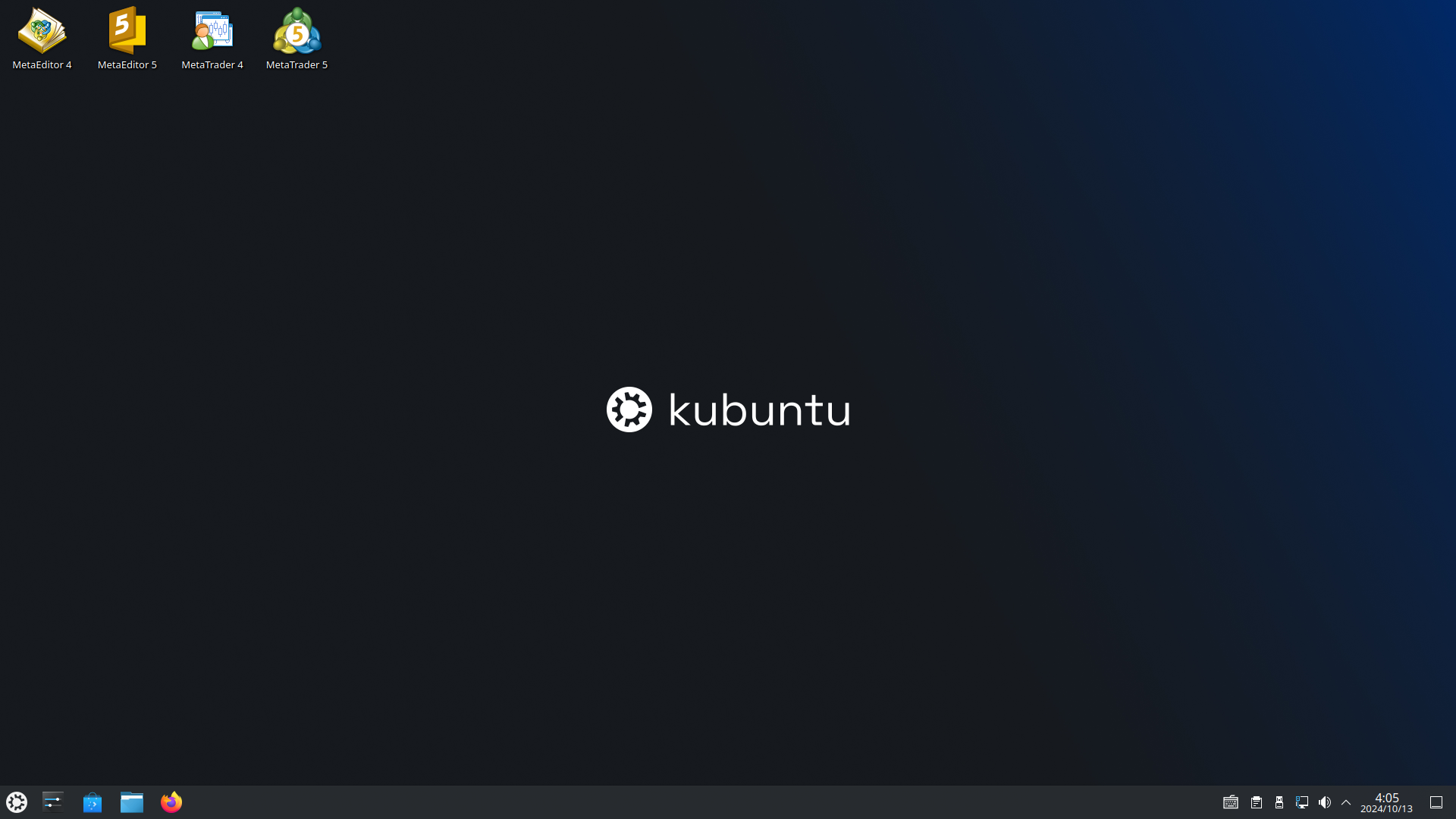
Remote desktop connection will begin as shown in the image below.