Client Portal / Backup Restore
This page provides instructions on how to rollback (restore) your VPS from a backup.
1. Purpose and Overview of This Guide #
Rollback from a backup is the process of reverting your system or data to a previous backup state.
Backups are copies saved periodically. When problems occur such as system crashes, data loss, software malfunctions, or user errors, you can restore your system and data from a backup to return it to a properly functioning state.
This restoration process is called a “rollback.”
2. Rollback Procedure #
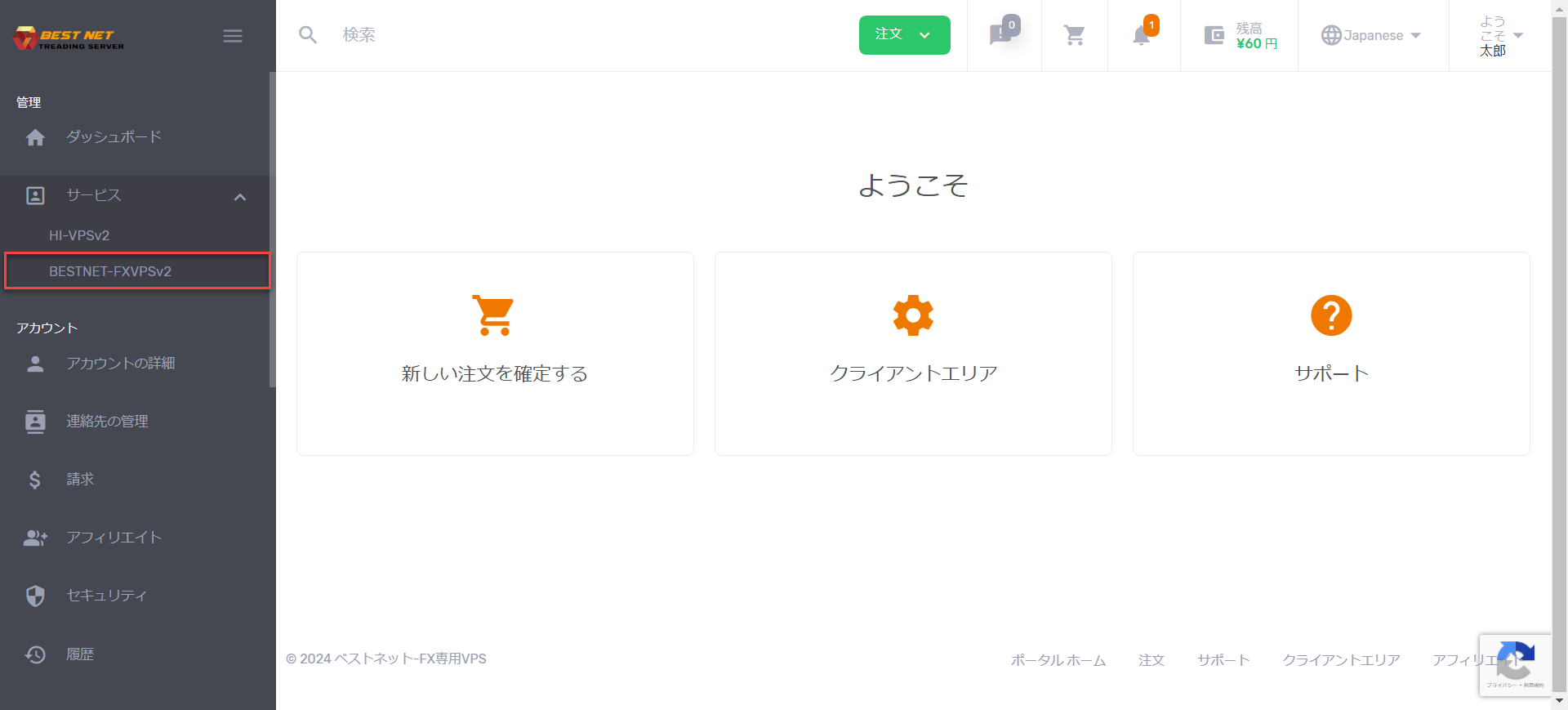
Step 1 Open the target product from the service list #
After logging into the client portal, access the product you want to rollback from “Services” in the left-side menu.
Step 2 Click the product name to open details #
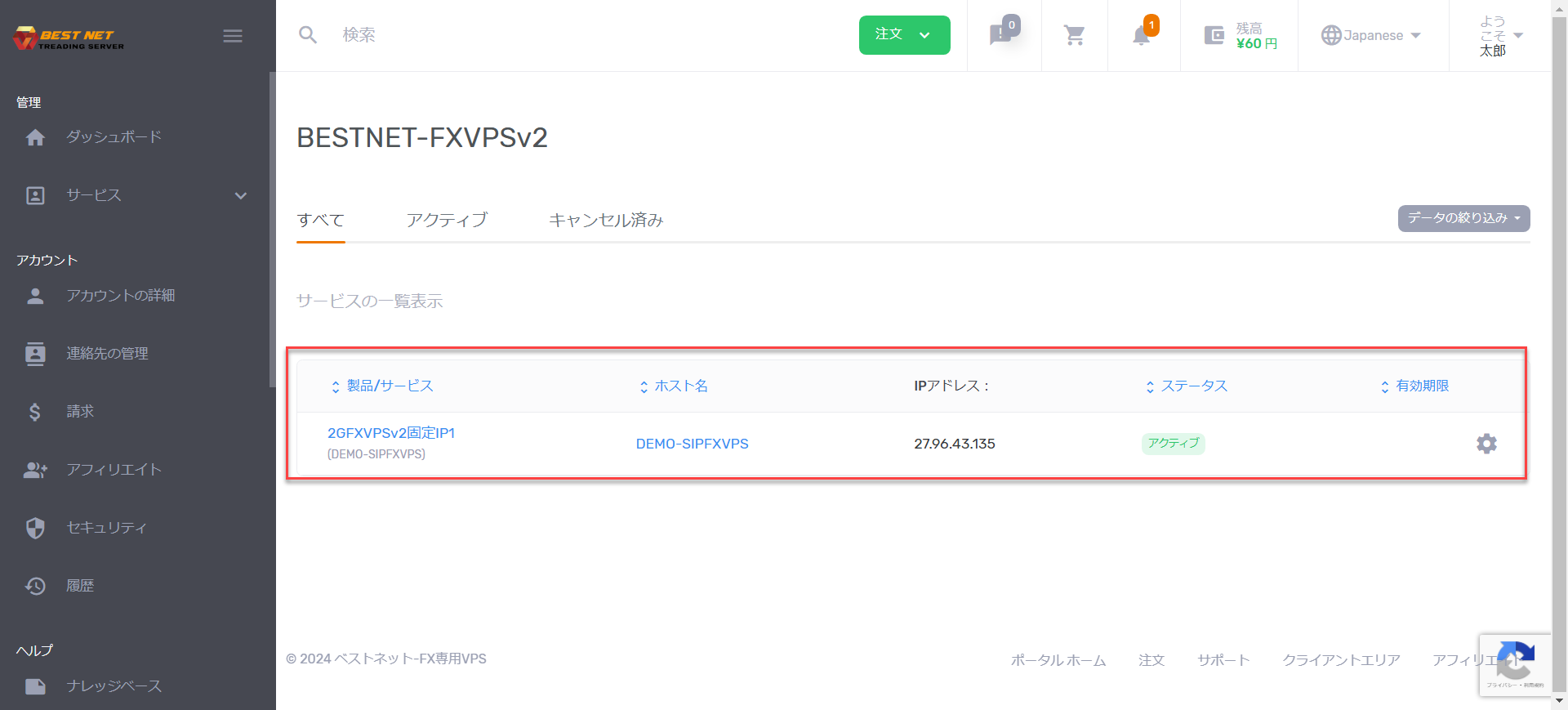
Once the product list is displayed, click on the target product name to open it.
Step 3 Select a backup from storage and execute restore #
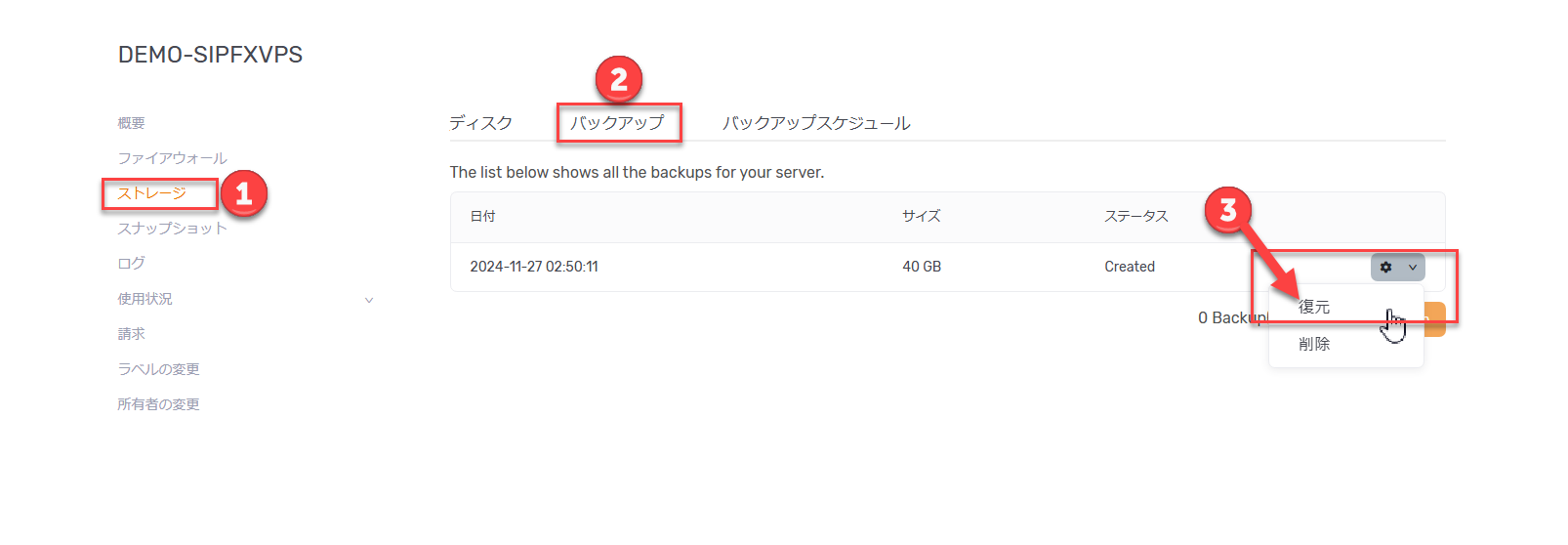
When the server details screen opens, a menu will appear on the left side. Select “Storage”, then click “Backup” that appears next.
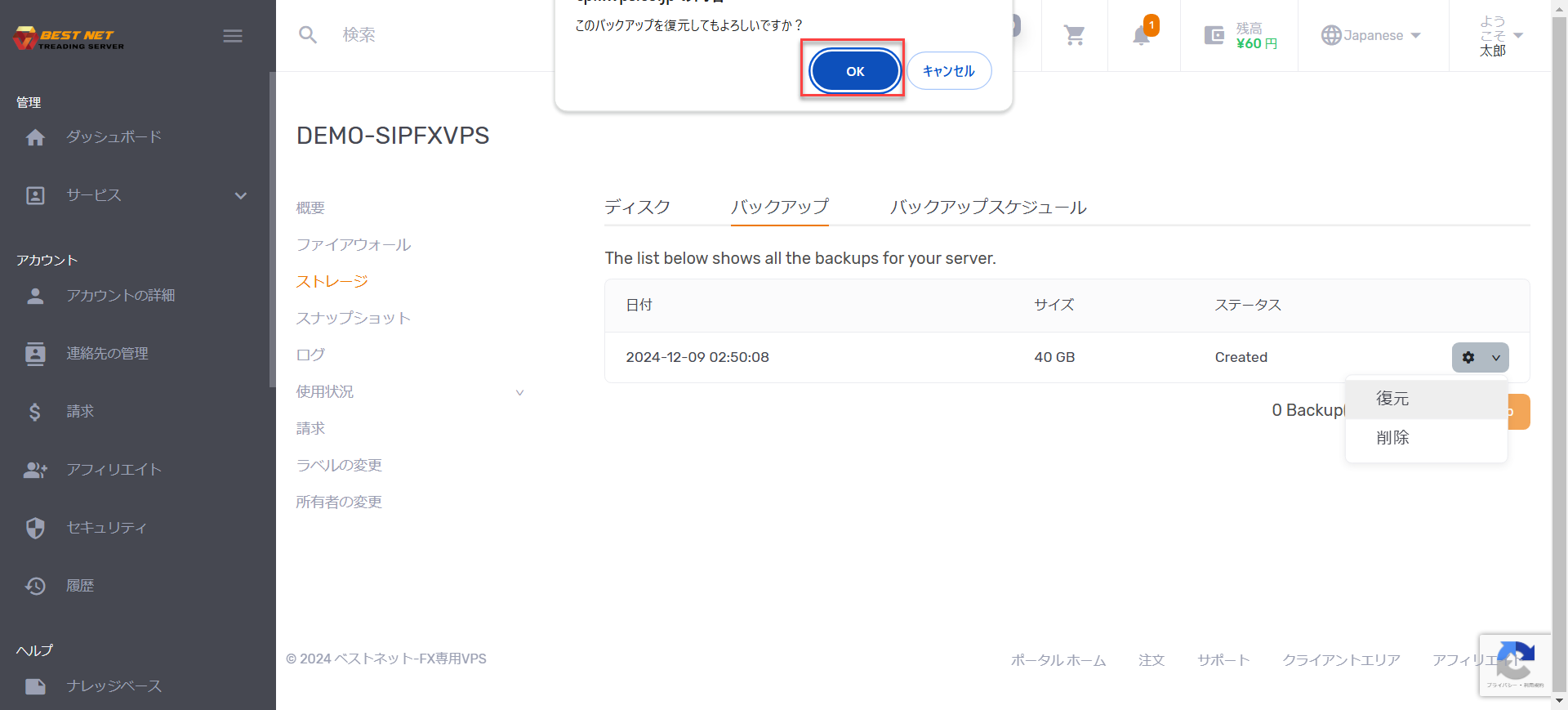
Next, click the gear icon on the right and select “Restore”.
Step 4 Click OK on the confirmation popup #
A confirmation popup will appear at the top of the screen. If the content is correct, click “OK”.
Please verify carefully before execution that the restore target and timing are correct.
Step 5 Confirm rollback completion #
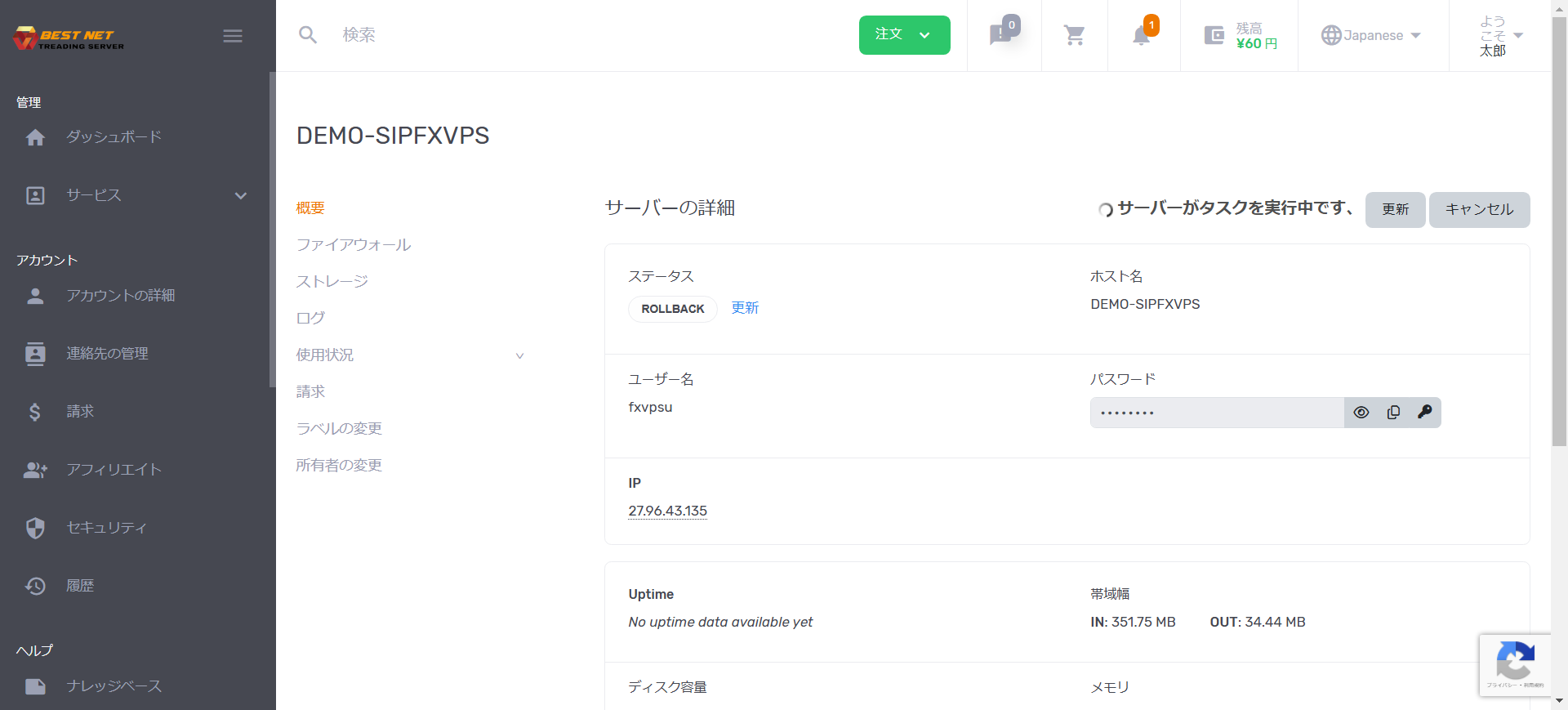
When the rollback starts, the screen will display as follows.
The process may take some time to complete. Once the rollback display disappears and ON/OFF operations become available again, the process is complete.
There will be a period during which operations are unavailable while restoration is in progress. Please wait for completion while monitoring changes in the display status.