FX Dedicated VPS User Guide
FX Dedicated VPS / Application Guide #
This page provides guidance on how to apply for FX Dedicated VPS, payment methods, and the process until VPS account issuance.
1
Access the Application Page #
Click the “Order” button on the top page or individual product pages to proceed to the application confirmation screen.

2
VPS Order Buttons are Displayed #
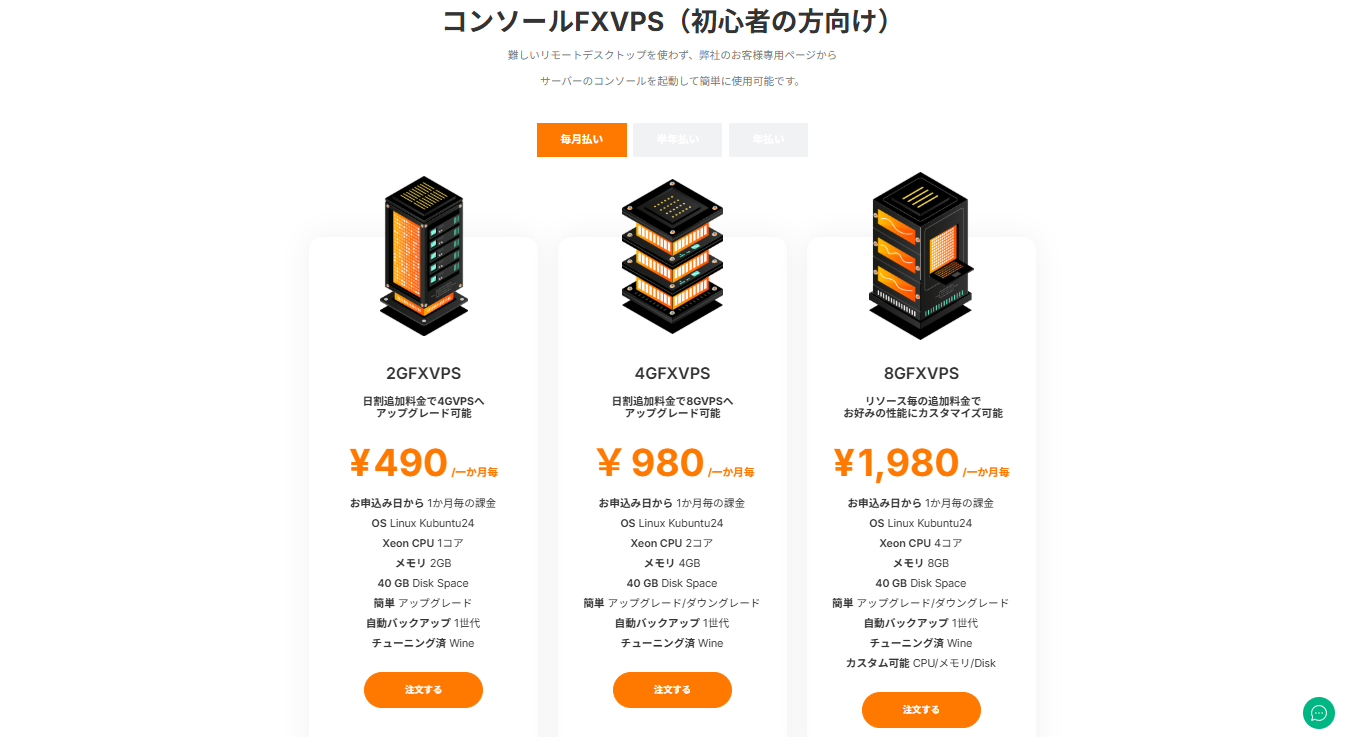
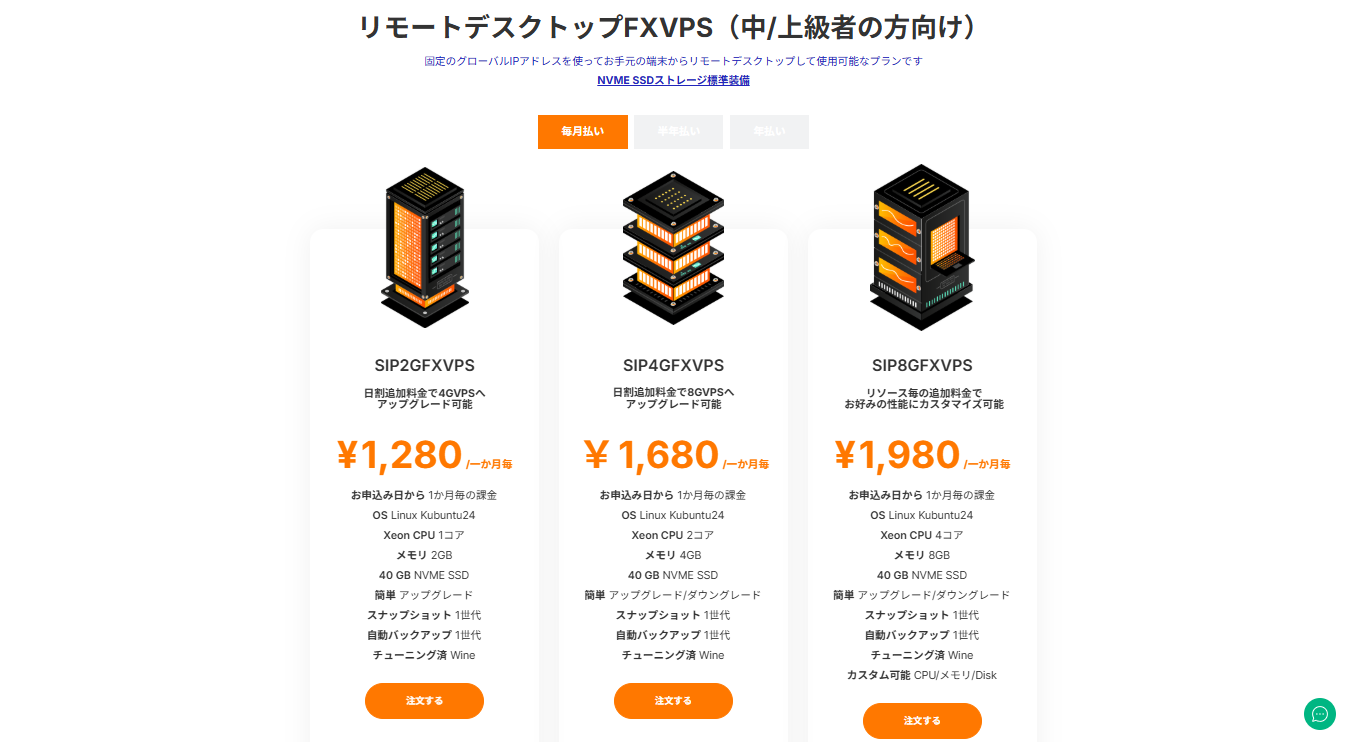
The “Order” button for the plan you wish to apply for is displayed below the plan overview.
You can select from three payment period options: monthly, semi-annual, or yearly.
Plans with longer payment periods are offered at discounted rates.
3
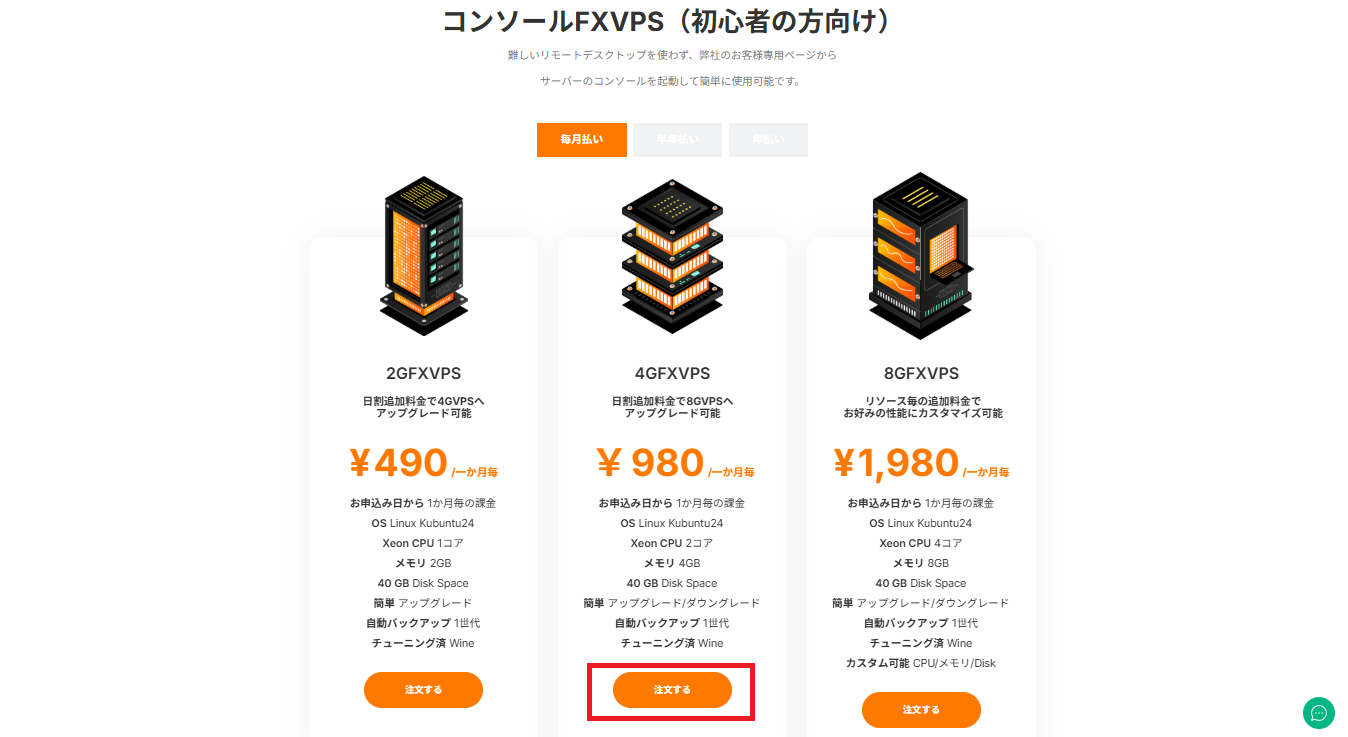
Select Your Desired VPS #
Click “Order” at the bottom of the VPS you wish to purchase.
4
Proceed to Cart Screen #
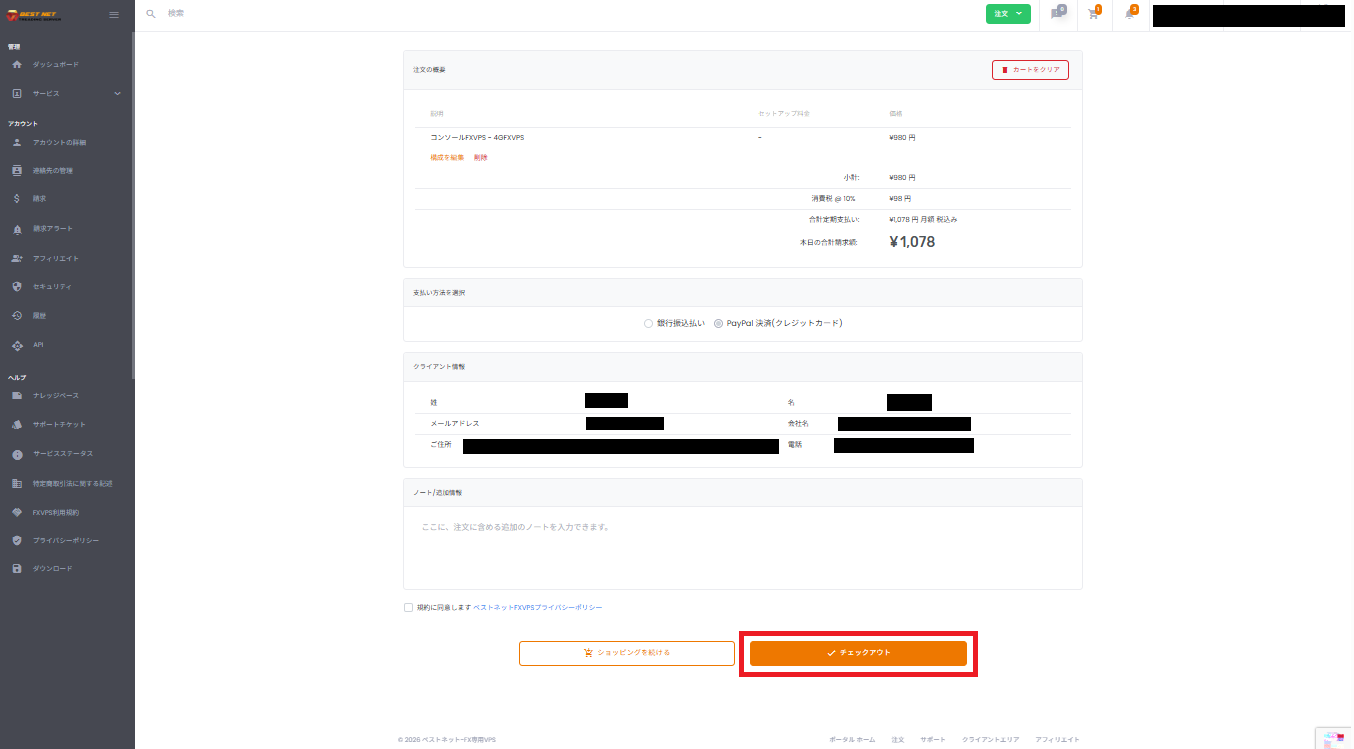
After clicking “Order,” you will be redirected to the following page.
5
Enter Client Information #
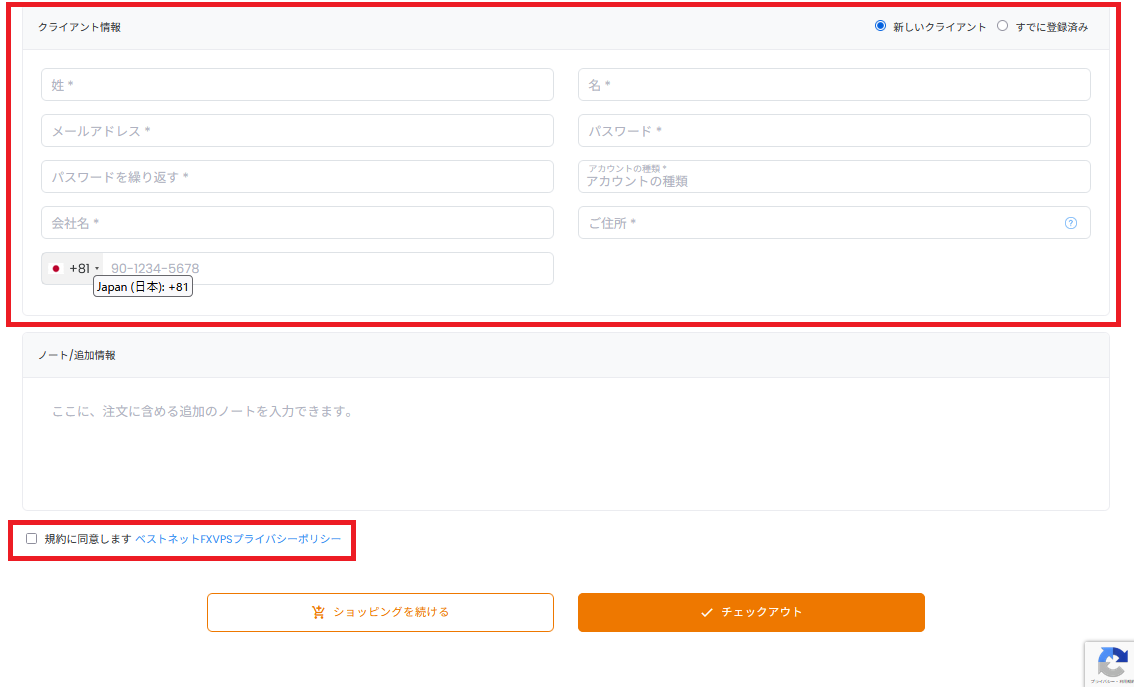
Enter your account information and check the “I agree to the terms and conditions” box.
※The number of terms and conditions to be confirmed may vary depending on the plan you use
Points for Input
The “Account Type” has two options: Individual or Business. Please select the applicable type.

6
Execute Checkout #
After completing your input, click the “Checkout” button at the bottom of the page.

About Input Errors
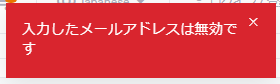
If your input is incorrect, an error message will be displayed as shown below. Please review and correct the content.
7
Confirm Order Confirmation Screen #
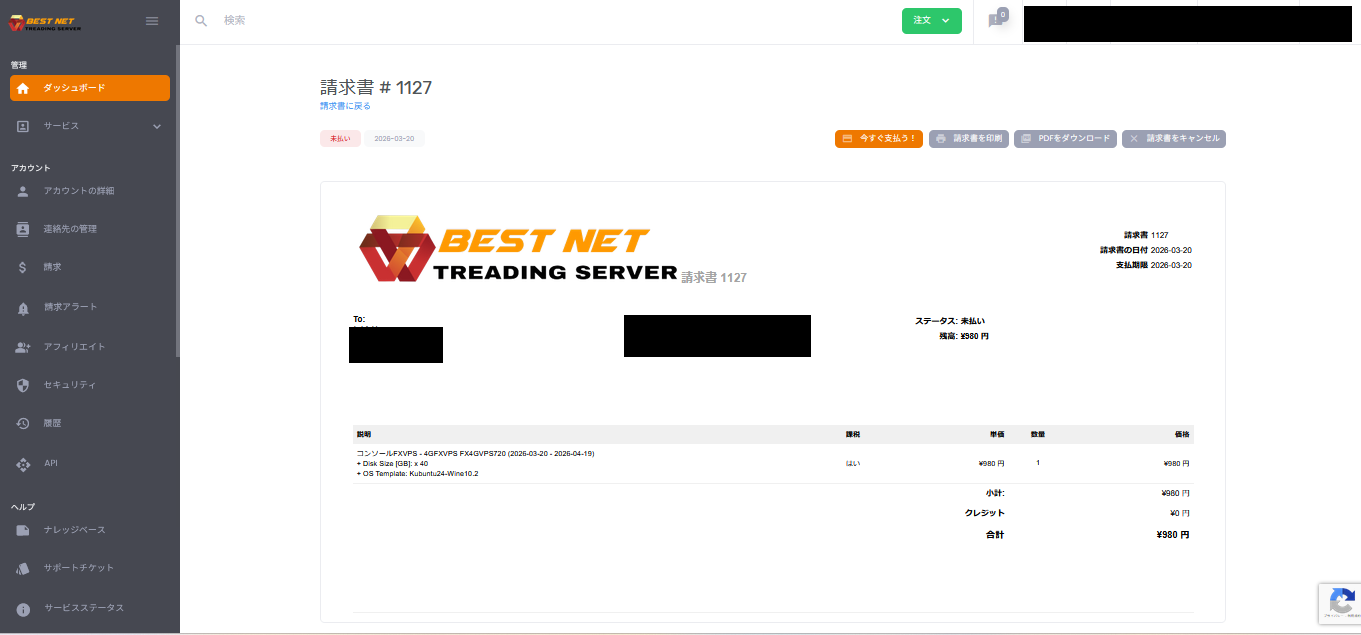
After clicking “Checkout,” the order confirmation screen will be displayed.
From this screen, you can execute payment and check invoices.
8
Payment Methods #
Click the orange “Pay Now” button in the top right of the order confirmation screen.
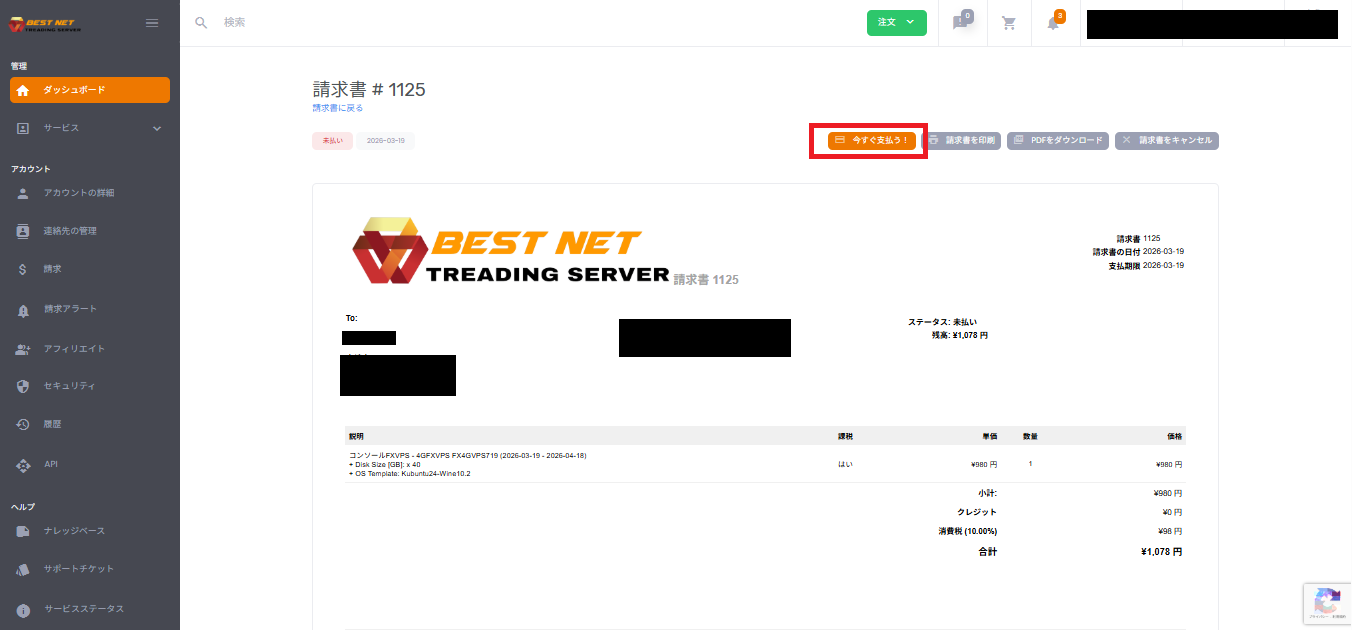
When you click the payment button, a popup window will appear to select a payment method.
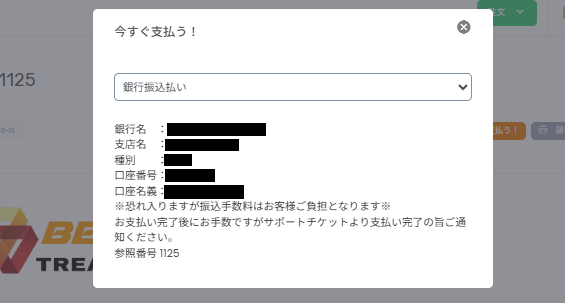
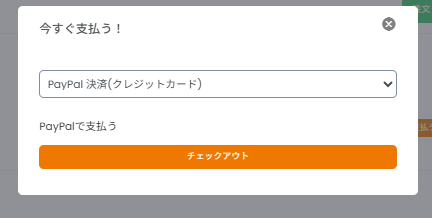
9
VPS Account Issuance #
After payment is completed, a VPS account will be issued automatically. An email with detailed information will be automatically sent to the registered email address.
10
If You Wish to Cancel Your Application #
From the menu displayed in the top right of the order confirmation screen, click
“Cancel Invoice” at the bottom.
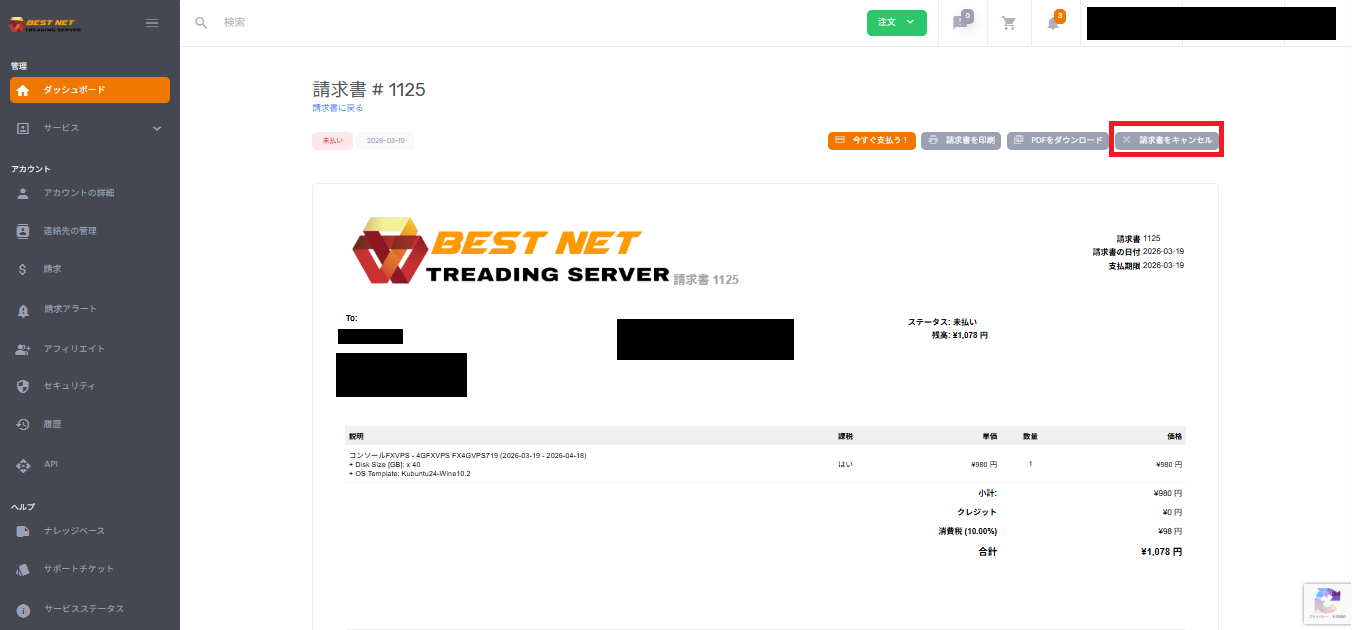
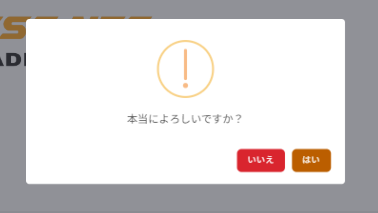
A confirmation popup will appear, and clicking “Yes” will cancel your application.